What Is Windows Explorer? File Explorer Explained
By Robert MocaUpdated 7 min read
The short answer
Windows Explorer is one process, explorer.exe, that draws your desktop, taskbar and Start menu *and* browses your files. Since Windows 10 the file part is called File Explorer, which is why restarting it fixes a frozen taskbar.

Four things worth knowing
- explorer.exe is two things at once: the file manager you open with Win + E, and the shell that draws the desktop, taskbar and Start menu.
- Restarting it in Task Manager is the standard fix for a frozen taskbar or a missing Start menu, and takes about two seconds.
- Windows Explorer, File Explorer and Internet Explorer are three different things, and only the last was a web browser.
- If the desktop and taskbar are missing entirely, explorer.exe has crashed and can be restarted from Task Manager's Run new task box.
This question tends to arrive from one of two directions. Either you read an instruction telling you to "restart Windows Explorer" and quite reasonably want to know what you are about to restart, or you are trying to work out whether it is the same thing as Internet Explorer. Both answers fall out of a single fact: one process is doing two completely different jobs.
One process, two jobs
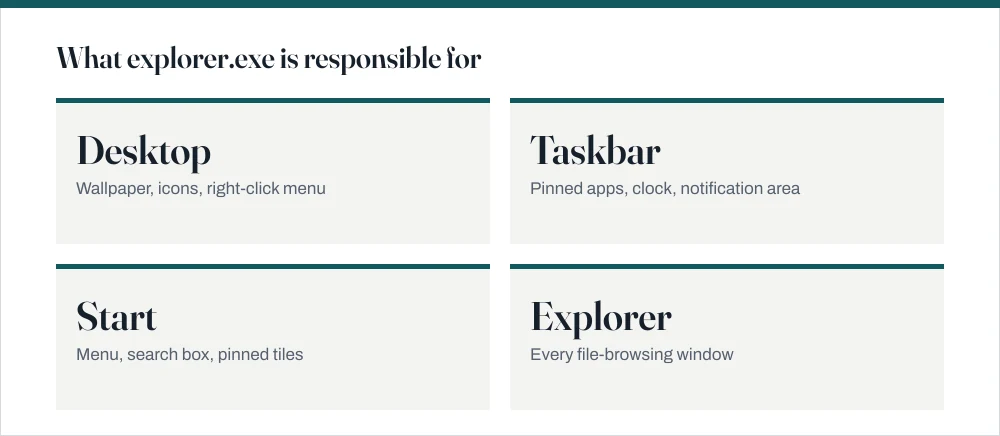
explorer.exe is the Windows shell, the graphical layer sitting between you and the operating system. When Windows finishes signing you in it launches explorer.exe, and explorer.exe then draws everything you see: the desktop, the taskbar, the Start menu, the notification area.
- The desktop — the wallpaper, the icons on it, and the right-click menu.
- The taskbar — pinned apps, running windows, the clock, and the notification area.
- The Start menu — on Windows 11 this is partly a separate process, but it is still launched and hosted by the shell.
- File Explorer windows — the folder-browsing windows you open with Win + E.
- Common dialogs — Open and Save As boxes in other programs are drawn by shell components.
That last set is why a problem in explorer.exe shows up in so many unrelated places. If the shell is unwell, saving a file from a completely different application can hang, because the Save dialog is shell code running inside that application.
Windows Explorer, File Explorer and Internet Explorer
Three very similar names, three completely different things. I want to be clear that this is a genuine Microsoft naming problem and not you being confused.
| Name | What it is | Status |
|---|---|---|
| Windows Explorer | The shell process, explorer.exe | Still the process name today |
| File Explorer | The file-browsing UI, renamed in Windows 8 | Current name for the folder windows |
| Internet Explorer | The old web browser, iexplore.exe | Retired; replaced by Microsoft Edge |
| Microsoft Edge | The current browser | Default browser since Windows 10 |
The overlap was never accidental. In Windows 95 through XP, Windows Explorer really could browse the web — typing a URL into a folder window loaded a page, because Internet Explorer's rendering engine was embedded in the shell. That integration was unwound over subsequent releases, but the shared vocabulary stuck.
Restarting Windows Explorer
This is the single most useful Windows troubleshooting step that most people have never heard of. A frozen taskbar, a Start menu that will not open, a desktop that refuses to refresh, missing icons in the notification area: all four are usually fixed in about two seconds by restarting the shell, and not one of them needs a reboot. Once you know this you will use it for years.
Restart the shell from Task Manager
Press Ctrl + Shift + Esc to open Task Manager.
On Windows 10, click More details if you see only a short list.
Find Windows Explorer in the Processes list.
Select it. The End task button changes to Restart. Click it.
The taskbar and desktop disappear for a second and come back. Open File Explorer windows close; nothing else is affected.
If the desktop and taskbar are already gone
Press Ctrl + Shift + Esc. Task Manager works even with no shell running.
If that does nothing, use Ctrl + Alt + Del and pick Task Manager from the security screen.
Open the File menu and choose Run new task.
Type
explorer.exeand press Enter.Leave the run-as-administrator box unticked. The shell is meant to run as your normal user, and running it elevated causes drag-and-drop to stop working.
Quick Access, and why the address bar matters
When File Explorer opens on Quick Access, you are not looking at a folder at all. You are looking at a list of pinned and recently used locations assembled from several places at once, and the files shown there actually live in their real folders elsewhere. This catches people out constantly, usually when they cannot work out why a file is not where they thought it was.
This causes a specific and common confusion: a file appears in Quick Access, you cannot find it "in the folder", and it looks like Windows has hidden something. Click the address bar to see the real path. If files genuinely are missing rather than misplaced, the guide on showing hidden files covers the two separate attributes Windows uses to hide things.
You can change the landing page: View → Options → General → Open File Explorer to, and choose This PC. On Windows 11 the same setting is under the three-dot menu → Options. Many people find This PC less confusing precisely because it always shows real locations. Clearing the history that feeds Quick Access is covered in the guide on removing recent files.
When Explorer crashes repeatedly
A shell that restarts itself every few minutes has an identifiable cause, and it is nearly always a third-party shell extension: a component something else added to the right-click menu or the preview pane. Cloud storage clients, archive tools, antivirus products and graphics utilities all install them, and they run inside explorer.exe, so when one misbehaves it takes the whole shell down with it.
- Check Event Viewer. Run
eventvwr, look under Windows Logs → Application for Application Error entries naming explorer.exe. The faulting module field usually names the DLL responsible, and the DLL name usually identifies the software. - Test in Safe Mode. Third-party shell extensions do not load there. If the crashes stop, an extension is confirmed as the cause.
- Turn off thumbnail previews. Options → View → Always show icons, never thumbnails. A corrupt video or image file that crashes a codec during preview generation is a classic cause.
- Clear the thumbnail cache through Disk Cleanup, which fixes the case where the cache itself is corrupt rather than the file; see the guide on deleting temporary files.
- Run `sfc /scannow` from an elevated prompt if you suspect damaged system files rather than an add-on.
Two shortcuts worth having
Win + E opens a File Explorer window from anywhere, and it is worth building the habit. Win + X opens the power-user menu with direct entries for Device Manager, Disk Management and Terminal, which is the fastest route to most administrative tools and is covered further in the guide on opening a terminal in Windows.
Common questions
Is Windows Explorer the same as Internet Explorer?
No. Windows Explorer is the shell — the taskbar, desktop, Start menu and file-browsing windows. Internet Explorer was the web browser, now retired in favour of Microsoft Edge. The names overlap because in Windows 95 through XP the two were genuinely integrated and a folder window could load a web page; that integration is long gone.
Is it safe to end the Windows Explorer process?
Yes, though use Restart rather than End task. Ending it leaves you with a blank desktop and no taskbar until you start it again from Task Manager's Run new task box. Restart does both steps for you. Your open applications keep running throughout either way.
Why does my taskbar freeze but the rest of Windows keeps working?
Because the taskbar is drawn by explorer.exe, and that one process can hang while every other program continues normally. It is commonly caused by a shell extension from third-party software. Restarting Windows Explorer in Task Manager clears it in a couple of seconds without a reboot.
What is the difference between File Explorer and Windows Explorer?
They are the same program under two names. The file-browsing interface was renamed File Explorer in Windows 8, but the underlying process is still called Windows Explorer and still appears under that name in Task Manager. Instructions using either name mean the same thing.
Sources
Each source is listed with the specific claim it supports.
Shell namespace — Microsoft Learn
Supports: That the Windows shell provides the desktop, taskbar and file-browsing interface as one namespace, which is why a single process serves all of them.
Naming a file — Microsoft Learn
Supports: That paths shown in Quick Access resolve to real filesystem locations, which is what the address bar reveals.
sfc — Windows commands reference — Microsoft Learn
Supports: The use of sfc /scannow to verify and repair protected system files when the shell crashes repeatedly.