How to Force Quit an App on Windows
By Robert MocaUpdated 8 min read
The short answer
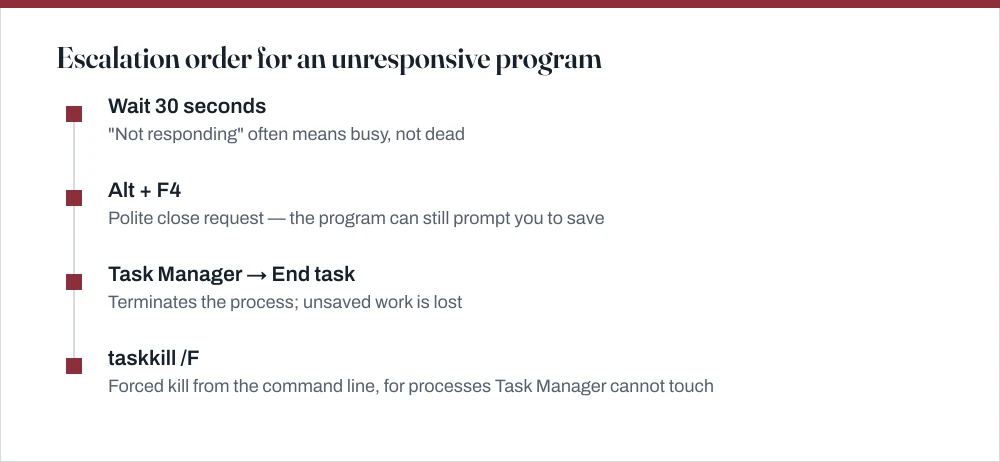
Try Alt + F4 first — it asks the program to close and gives it a chance to save. If nothing happens, press Ctrl + Shift + Esc, select it and click End task. If that fails too, run taskkill /F /IM name.exe as admin.

Four things worth knowing
- Alt + F4 is a request and End task is an order: the first can save your work, the second cannot.
- Ctrl + Shift + Esc opens Task Manager directly, avoiding the Ctrl + Alt + Del security screen entirely.
- A program marked "Not responding" is often just busy; Windows applies that label after roughly five seconds without processing messages.
- A process that survives taskkill /F is usually blocked in a kernel driver call, and no user-space tool can end it — only a reboot will.
There is a proper escalation order here and it is worth following rather than leaping straight to the end. Each step is more forceful than the last, and each one costs you a bit more. Starting at the top occasionally saves the document you had open, which is not nothing.
First, check whether it is actually frozen
Windows slaps "Not responding" on a window when it has not collected messages from its queue for a few seconds. That is not at all the same thing as crashed, and the distinction matters. A spreadsheet recalculating, a photo editor grinding through a filter on a huge image, or a program waiting on a slow network share will all earn the label while working away perfectly happily. Give it a minute before you kill it.
Give it thirty seconds. If the disk light is active, or Task Manager shows the process using CPU, it is doing something. Killing it at that point discards the work it was in the middle of, and in the case of a save operation can leave a half-written file.
Alt + F4, the polite request
Click the window to focus it, then press Alt + F4. This sends a polite close message. A program that is merely busy rather than broken will act on it the moment it catches up, and usually offer to save your work first, which is exactly the outcome you want.
Task Manager: End task
Force a program to close with Task Manager
Press Ctrl + Shift + Esc.
This opens Task Manager directly. Ctrl + Alt + Del goes to the security screen first, which is a needless extra step, though it still works when the desktop itself is unresponsive.
On Windows 10, click More details if you only see a short list.
Windows 11 shows the full view by default.
Find the program on the Processes tab. Frozen ones are usually at the top, marked *Not responding*.
Select it and click End task.
Ending the top-level app entry closes its child processes too. Expanding the entry and ending children individually rarely helps and often leaves an orphan.
taskkill, when Task Manager is not enough
Occasionally End task just fails silently: you click it, nothing happens, the process is still sitting there. The usual explanation is permissions. The process is running at a higher integrity level than your Task Manager, so your request is quietly denied rather than refused out loud. Running the kill from an elevated command line clears most of these, and the guide on opening a terminal in Windows covers getting one.
| Command | What it does |
|---|---|
tasklist | Lists every running process with its PID |
tasklist | findstr chrome | Filters that list to matching names |
taskkill /IM notepad.exe | Politely closes every Notepad window |
taskkill /F /IM notepad.exe | Forces every Notepad process to end |
taskkill /F /PID 4812 | Forces one specific process to end |
taskkill /F /IM chrome.exe /T | Ends the process and its whole child tree |
Kill a process from the command line
Press Win + X, then A for Terminal (Admin) or Command Prompt (Admin).
Run
tasklist | findstr /i "partofname"to find the process and its PID.The
/imakes the match case-insensitive, which saves guessing at capitalisation.Run
taskkill /F /PID 4812, using the number from the previous step.Targeting a PID is safer than an image name when several copies of the same program are running and you only want one of them gone.
Expect
SUCCESS: The process with PID 4812 has been terminated.Access is deniedmeans you are not elevated.The process ... not foundmeans it already ended.
PowerShell has an equivalent: Stop-Process -Name notepad -Force, or Stop-Process -Id 4812 -Force. Either is fine. PowerShell's version gives more usable errors, which matters when something is not working.
When a process will not die at all
Sometimes taskkill /F cheerfully reports success and the process is still right there in the list. This is not a bug in taskkill. The termination has genuinely been requested and accepted, but the process cannot finish exiting because one of its threads is stuck inside a kernel-mode call, usually a driver waiting on hardware that has stopped answering. At that point nothing in user space can help you.
- A failing or disconnected drive. A program that opened a file on a network share or a dying disk will sit in an uninterruptible wait until the I/O times out, which can take minutes.
- A USB device that has stopped responding. Unplugging it often releases the process immediately.
- Antivirus or backup software holding a file handle open. Real-time scanners are a frequent cause.
- A buggy driver. Nothing in user space can help here. A restart is the only route.
If it is the taskbar or desktop that has frozen
A frozen taskbar, a missing Start menu or a dead desktop is a completely different problem, and reaching for End task on the wrong thing will not help. Those three are not an application at all: they are explorer.exe, which is both the file manager and the Windows shell. Restarting it fixes all three in about two seconds, and it is one of the most useful things to know about Windows.
Restart Windows Explorer
Open Task Manager with Ctrl + Shift + Esc.
Find Windows Explorer in the Processes list.
Select it and click Restart — the End task button changes to Restart when this process is selected.
The taskbar and desktop vanish for a moment and come back. Open File Explorer windows close; other applications are unaffected.
Why one process does all three jobs is covered in the guide on what Windows Explorer actually is. It is the single most useful piece of background knowledge for diagnosing a Windows machine that has gone strange.
If the same program freezes repeatedly
Force-quitting is a workaround, not a fix, and if you are doing it to the same program every day something else is wrong. A few things are worth checking before you accept it as just how that application behaves.
- Look at Event Viewer. Press Win + R, run
eventvwr, and check Windows Logs → Application around the time of the hang. Application Error and Application Hang entries name the faulting module, which is often a specific DLL or a graphics driver. - Update or roll back the graphics driver. A large share of application hangs come from the GPU driver, particularly in browsers and anything that renders with hardware acceleration.
- Turn off hardware acceleration in that program as a test. If the hangs stop, you have confirmed the cause.
- Check the disk. Run
chkdsk C: /scanfrom an elevated prompt. A drive with pending sector reallocations produces exactly this symptom. - Check available memory. A machine paging heavily looks frozen at the application level. Task Manager's Performance tab shows whether memory is the constraint.
Common questions
What is the shortcut to open Task Manager?
Ctrl + Shift + Esc opens it directly. Ctrl + Alt + Del opens the security screen with Task Manager as one option, which is one step slower but works when the desktop itself is unresponsive. You can also right-click the taskbar and choose Task Manager.
Does End task lose my unsaved work?
Yes. End task terminates the process without running its shutdown code, so it cannot prompt you to save and autosave does not fire. Try Alt + F4 first — that asks the program to close and gives it the opportunity to save. Some applications recover a draft on next launch, but do not count on it.
Why does taskkill say the process was terminated when it is still running?
Because termination was accepted but cannot complete. One of the process's threads is blocked inside a kernel-mode call, usually a driver waiting on hardware: a failing disk, an unresponsive USB device, a network share that has gone away. No user-space tool can force the issue. Disconnecting the device sometimes releases it; otherwise a restart is the only route.
How do I close a program that has no window and no taskbar icon?
Open Task Manager and look on the Details tab rather than Processes, which only lists things with a visible presence. Details shows every process by executable name. Select it and choose End task, or use taskkill /F /PID with the number from the PID column.
Sources
Each source is listed with the specific claim it supports.
taskkill — Windows commands reference — Microsoft Learn
Supports: The /F, /IM, /PID and /T switches and the exact success and failure messages the command returns.
tasklist — Windows commands reference — Microsoft Learn
Supports: Using tasklist to find a process and its PID before killing it.
About processes and threads — Microsoft Learn
Supports: That a process cannot finish terminating while a thread is blocked in a kernel-mode wait, which is why some processes survive a forced kill.