How to Show Hidden Files in Windows 10 and 11
By Robert MocaUpdated 8 min read
The short answer
In Windows 11, open File Explorer and choose View → Show → Hidden items; in Windows 10 it is the View tab. That reveals ordinary hidden files, but not protected system files, which are hidden by a second attribute.
Four things worth knowing
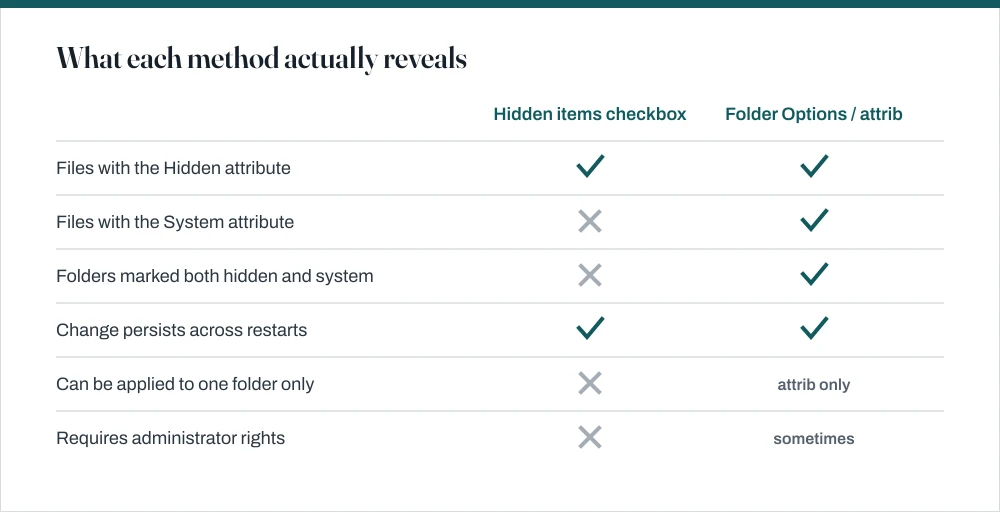
- Windows hides files two different ways, using the Hidden and System attributes, and the File Explorer checkbox only deals with the first of them.
- The quick route is View → Show → Hidden items. The thorough route is Folder Options, which is the only place you can also unhide protected system files.
attrib -h -s "C:\path\to\file"clears both attributes at once and is the only practical fix when a whole folder has been marked as a system folder.- Hiding is a display convention, not a permission. Anyone who types the path still opens the file, so it protects nothing at all.
If you have landed here, I can probably guess how it went. You ticked the box that every guide tells you to tick, the folder you were looking for still was not there, and now you are wondering whether you imagined it. That happened to me too, and the explanation is genuinely satisfying once you hear it: Windows hides things in two different ways, and that checkbox only handles one of them. Knowing which one you are up against is the difference between a five-second fix and half an hour of poking around.
Windows hides files in two different ways
Every file on an NTFS drive carries a handful of small flags stored next to its name, and two of them decide whether you see it. Hidden (H) is the everyday one. It is what sits on desktop.ini and on the cache folders applications leave lying about. System (S) is reserved for files Windows considers part of itself, like pagefile.sys and hiberfil.sys.
Here is the part nobody mentions. File Explorer treats those two flags as two separate questions with two separate settings, and the checkbox you can reach in a couple of clicks only answers the first one. Set the System flag as well and the file stays invisible no matter how many times you tick and untick. That is the whole reason the standard advice seems broken. It is not wrong, it is just answering a different question from the one you are asking. It is also, incidentally, exactly how those hide-your-private-folder tutorials work: they set both flags, so the folder disappears from anyone who only knows about the checkbox.
The quick route: File Explorer's View menu
This is the one most people are after, and it is worth doing first because it takes about three seconds and it stays on until you turn it off. If your file shows up here, you are done and you can ignore the rest of this page.
Show hidden items in Windows 11
Open File Explorer with Win + E.
On the toolbar, click View.
In Windows 11 this is a plain menu button, not the ribbon tab it was in Windows 10.
Hover Show, then click Hidden items so it shows a tick.
Hidden files appear immediately, drawn with a faded icon.
The faded appearance is how you tell a hidden file from a normal one once they are all visible.
Show hidden items in Windows 10
Open File Explorer with Win + E.
Click the View tab on the ribbon.
In the Show/hide group, tick Hidden items.
If the ribbon is collapsed, press Ctrl + F1 to pin it open first.
Showing protected operating system files
Still nothing? Then you are looking at the System attribute, and you need a different dialog. The good news is that it is the same dialog in every version of Windows from 7 onwards, so this is one of the rare bits of Windows that has not moved in fifteen years.
Reveal system files through Folder Options
Press Win + R, type
control foldersand press Enter.This opens File Explorer Options directly, skipping the menus. It works identically on Windows 7, 10 and 11.
Switch to the View tab.
Under Advanced settings, select Show hidden files, folders, and drives.
Clear the checkbox for Hide protected operating system files (Recommended).
Windows shows a confirmation warning. Read it — it is a fair warning, not boilerplate.
Click Apply, then OK.
Using attrib when a folder has been marked as a system folder
Sometimes the problem is not your view setting at all, it is the folder. This is the classic USB stick scenario: you plug a drive into a shared machine, get it back, and everything on it is apparently gone even though the free space says otherwise. What has usually happened is that both flags got set on every folder. The really annoying part is that when you open Properties to fix it, the Hidden checkbox is greyed out, so Windows will not even let you undo it through the interface. That greyed-out box is the giveaway. When you see it, stop clicking and open a command prompt.
attrib clears both flags at once, which is exactly what you need here. Open a Command Prompt (the guide on opening a terminal in Windows covers it if you are not sure), then run one of these:
attrib -h -s "D:\My Folder"to clear the attributes on one folder.attrib -h -s -r /s /d "D:\*"to clear them recursively across an entire drive, which is the usual fix after a USB stick comes back from a shared machine with everything apparently missing.
| Switch | What it does | When you need it |
|---|---|---|
-h | Clears the Hidden attribute | Almost always |
-s | Clears the System attribute | When the checkbox alone did not work |
-r | Clears read-only | When files open but will not save |
/s | Applies through subfolders | Recovering a whole drive |
/d | Applies to folders as well as files | Always pair with /s |
If the file is still not there
If you have got this far, my honest guess is that the file is not hidden at all and something else is going on. These are worth checking in this order, because the first one catches more people than the rest combined.
- Check you are in the right folder. Quick Access shows pinned and recent locations rather than a real path. Click the address bar to see where you actually are; the guide to what Windows Explorer really is covers why this catches people out.
- Check the Recycle Bin. An accidental Delete with a folder selected is far more common than a mysterious hiding.
- Check permissions. If you can see a folder but not open it, that is NTFS permissions, not visibility. The Security tab under Properties will say so.
- Search by content. Type part of the filename into File Explorer's search box while at the root of the drive. Search reaches hidden files even when the view does not.
- Check whether the drive is fully mounted. A drive shown with no letter in Disk Management will not appear in Explorer at all.
Hiding is not security, and it is worth being blunt about that
I want to be direct about this, because a lot of pages are not. The Hidden attribute is a hint to Windows about what to draw on screen. It is not a permission, and nothing enforces it. Type the full path into the address bar and the file opens. Point any search tool that ignores the flag at the folder and it lists it. Copy the parent folder to a USB stick and the hidden contents go along for the ride.
That is fine if you are decluttering. It is not fine if the aim is to keep something private on a shared machine. If that is the goal, hiding a folder is the wrong tool and encrypting it is the right one, and on Windows Home the honest answer is that the built-in options are thinner than most guides admit.
Hidden files and folders are just files and folders that have the Hidden attribute turned on.
Common questions
Why can I still not see a folder after ticking Hidden items?
Because the folder almost certainly carries the System attribute as well, which the checkbox does not affect. Clear the Hide protected operating system files option in Folder Options, or run attrib -h -s against the folder path. This is the single most common reason the standard advice appears to fail.
Is it safe to show hidden files permanently?
Showing ordinary hidden files is safe and many people leave it on. Showing protected operating system files is a different matter — it puts pagefile.sys, bootmgr and System Volume Information in plain view where they can be deleted by accident. Leave the first on if you like; turn the second back off.
How do I hide a file again after unhiding it?
Right-click it, choose Properties, and tick Hidden on the General tab. From a command line, attrib +h "path" does the same thing. Remember that it hides the file from the default view only, and offers no protection against anyone who looks properly.
Do these steps work the same way on Windows 7?
The Folder Options route is identical — control folders, View tab, same two settings. What differs is the quick route: Windows 7 has no View ribbon, so the dialog is the only way. Windows 7 stopped receiving security updates in January 2020, so treat any machine still running it as one to migrate rather than maintain.
Sources
Each source is listed with the specific claim it supports.
View hidden files and folders in Windows — Microsoft Support
Supports: The File Explorer steps for Windows 10 and 11, and the definition of a hidden file as one carrying the Hidden attribute.
attrib — Windows commands reference — Microsoft Learn
Supports: The behaviour of the -h, -s, -r, /s and /d switches used in the recursive unhide command.
File attribute constants — Microsoft Learn
Supports: That FILE_ATTRIBUTE_HIDDEN and FILE_ATTRIBUTE_SYSTEM are two independent flags, which is why one checkbox cannot reveal both.