How to Clear Recent Files in Windows 10 and 11
By Robert MocaUpdated 6 min read
The short answer
Open File Explorer, go to View → Options, and click Clear under Privacy. To stop the list rebuilding, untick both *Show recently used files* and *Show frequently used folders* in the same dialog.

Four things worth knowing
- Clearing the list and stopping it recording are two different settings, and most people only ever do the first.
- Quick Access history and taskbar jump lists are separate systems with separate controls.
- Applications keep their own recent-document lists that Windows settings do not touch.
- The underlying files live in %APPDATA%\Microsoft\Windows\Recent, and deleting their contents clears everything at once.
Here is the bit that explains all the frustration: Windows keeps three separate records of what you have opened, in three different places, controlled by three different settings. That is why clearing recent files never seems to stick. You clear one, feel pleased with yourself, and the other two carry on exactly as before.
| What it is | Where it appears | Controlled from |
|---|---|---|
| Quick Access recent files | Top of File Explorer's left pane | View → Options → Privacy |
| Jump lists | Right-click a taskbar or Start icon | Settings → Personalization → Start |
| Application recent lists | Inside Word, VLC, Photoshop, etc. | Each application's own settings |
Clearing Quick Access
Clear the recent files list
Open File Explorer with Win + E.
On Windows 10: View tab → Options. On Windows 11: the ⋯ menu → Options.
Either way you land in the Folder Options dialog on its General tab.
Under Privacy at the bottom, click Clear.
This empties both the recent-files and frequent-folders lists immediately. There is no confirmation and no undo.
Click OK.
Stop Windows recording recent files at all
In the same Folder Options → General → Privacy section, untick Show recently used files in Quick access.
Untick Show frequently used folders in Quick access.
Click Clear once more to remove what is already there, then OK.
Turning the options off does not retroactively clear the existing list, which catches people out.
Optionally set File Explorer to open on This PC rather than Quick Access, using the dropdown at the top of the same dialog.
With the history off, Quick Access is a fairly empty landing page. This PC is more useful.
Clearing jump lists
Jump lists are those menus you get when you right-click an icon on the taskbar or Start menu: recent documents under Word, recent folders under File Explorer, recent videos under VLC. They are stored completely separately from Quick Access, and they sail straight through any attempt to clear it.
- Turn them off entirely: Settings → Personalization → Start → turn off Show recently opened items in Start, Jump Lists, and File Explorer. Toggling this off and back on again also clears the existing entries.
- Remove one item: right-click the taskbar icon, right-click the specific entry in the list, and choose Remove from this list.
- Pin instead of remove: clicking the pin icon on an entry keeps it there permanently, which is useful for a project folder you open daily.
The underlying folder
Both systems are just shortcut files sitting on disk, which means you can wipe the lot in one go by emptying the folder they live in. This is the approach to take if you want it gone rather than tidied.
Clear the Recent folder directly
Press Win + R, type
shell:recentand press Enter.This opens
%APPDATA%\Microsoft\Windows\Recent. Typing that path works too.Press Ctrl + A to select everything, then Delete.
These are shortcut files, not your documents. Deleting them removes the history entries and nothing else. Selection shortcuts are covered in the guide on selecting multiple files.
Also clear
shell:recent\AutomaticDestinationsfor jump lists.Run
shell:recentfirst, then open the AutomaticDestinations folder inside it. CustomDestinations holds application-defined entries.
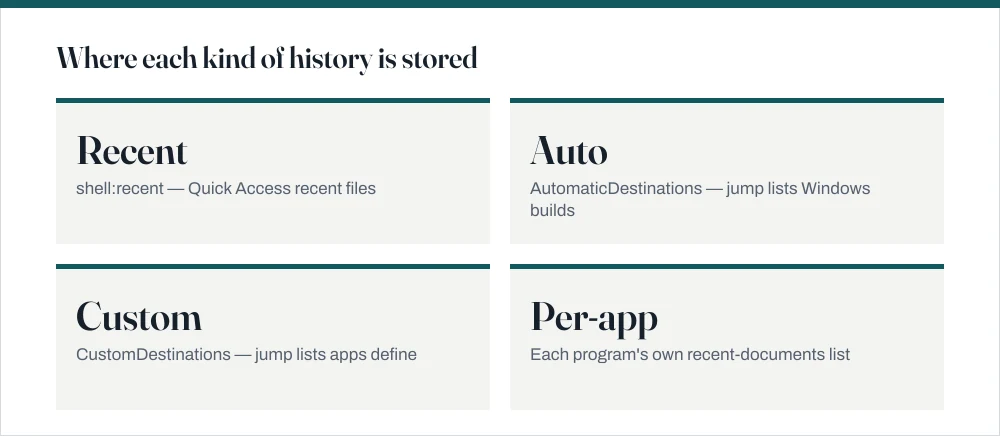
Application recent lists Windows cannot touch
Worth knowing before you assume you are finished: Office, media players, image editors and browsers all keep their own separate histories in their own settings, and nothing you do at the Windows level touches any of them. Each one has to be dealt with on its own terms.
- Microsoft Office — File → Options → Advanced → Display, set Show this number of Recent Documents to 0. The Open screen also lets you right-click an entry and remove it.
- Browsers — Ctrl + Shift + Delete opens the clear-history dialog in Chrome, Edge and Firefox. Note that this covers browsing history, which is a different thing from downloaded-file history.
- Media players, usually under Preferences or Tools; VLC has Tools → Preferences → Interface → Reset media library.
- Windows search history — Settings → Privacy & security → Search permissions → Clear device search history.
Why you might want this off permanently
On a shared machine, the recent list is the single fastest way for someone to see what you have been working on, and it does not care in the slightest where the file was stored. Open a document from an encrypted archive or a hidden folder and it lands in the list like anything else, which rather undoes the point of hiding it in the first place.
There is a performance argument too, though a smaller one. Quick Access checks the availability of the locations it lists, and if any of them are network shares or disconnected external drives, File Explorer can hang for several seconds on opening while it waits for them to time out. Turning off frequent folders usually fixes that specific stall.
Enforcing it on Windows Pro
On Pro, Enterprise and Education you can nail the setting down so it cannot be switched back on. Press Win + R, run gpedit.msc, and go to User Configuration → Administrative Templates → Start Menu and Taskbar. Two policies matter: Do not keep history of recently opened documents and Clear history of recently opened documents on exit. Enable either, then run gpupdate /force.
Common questions
How do I clear recent files in Windows 10?
Open File Explorer, go to View → Options, and click Clear under the Privacy section on the General tab. To stop the list rebuilding, untick Show recently used files in Quick access and Show frequently used folders in Quick access in the same place before clicking Clear.
Why do recent files come back after I clear them?
Because clearing empties the list without turning the feature off. Windows starts recording again with the very next file you open. The two checkboxes immediately above the Clear button are what actually stop it, and you need to clear once more after unticking them.
Does deleting recent files delete the actual documents?
No. The entries in shell:recent are shortcut files pointing at your documents, not the documents themselves. Deleting them removes the history and leaves every original file untouched wherever it is stored.
How do I clear the recent files list for one program only?
Right-click that program's icon on the taskbar to open its jump list, right-click the individual entry, and choose Remove from this list. For the program's own internal recent-documents list — as in Word or VLC — you need the setting inside that application, because Windows does not control it.
Sources
Each source is listed with the specific claim it supports.
Shell namespace — Microsoft Learn
Supports: That Quick Access and the Recent folder are shell namespace constructs backed by shortcut files rather than by the documents themselves.
Naming a file — Microsoft Learn
Supports: That shell: paths such as shell:recent resolve to real filesystem locations under %APPDATA%.