How to Factory Reset a Windows 7 or 8 Laptop
By Robert MocaUpdated 6 min read
The short answer
On Windows 8, go to Settings → Change PC settings → Update and recovery → Recovery and pick Refresh to keep your files or Remove everything for a full reset. Windows 7 has no built-in reset; use the maker's recovery partition.

Four things worth knowing
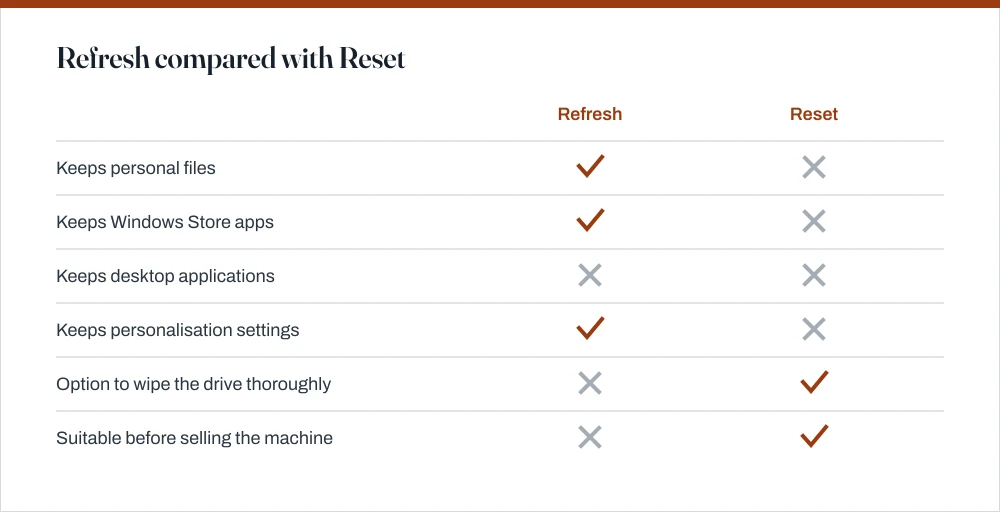
- Windows 8's Refresh keeps documents and settings and removes desktop applications; Reset removes everything.
- Windows 7 relies entirely on the OEM recovery partition, and the F-key to reach it differs by manufacturer.
- A reset is not a secure wipe. Use the 'clean the drive' option before selling, and even then treat it as making recovery impractical rather than impossible.
- A reset reinstates the Windows version the machine shipped with, so expect a long run of updates afterwards.
A factory reset belongs at the end of the repair sequence, not the start, and it is worth saying so plainly because it gets reached for far too early. Work through the repair guide first: Startup Repair, sfc and System Restore between them fix a great many machines without costing you every application you have installed.
Windows 8 and 8.1: Refresh or Reset
Windows 8 introduced two quite different operations, and people mix them up constantly. Picking the wrong one is expensive in a way you only discover afterwards, so it is worth thirty seconds getting this right.
Refresh or reset Windows 8
Open the charms bar with Win + C, or swipe in from the right edge on a touchscreen.
On Windows 8.1, Win + I goes straight to Settings, which is quicker.
Choose Settings → Change PC settings → Update and recovery → Recovery.
Pick Refresh your PC without affecting your files, or Remove everything and reinstall Windows.
Refresh removes desktop applications and leaves a list of them on your desktop afterwards, which is genuinely useful.
If you chose Reset, decide between Just remove my files and Fully clean the drive.
The clean option overwrites the drive and takes hours. Choose it if the machine is leaving your hands.
Confirm and leave the machine plugged in.
It restarts several times. Interrupting it partway can leave the installation unbootable.
If the machine will not start, the same options are in the recovery environment: hold Shift while clicking Restart, or power off during boot twice to trigger it, then Troubleshoot.
Windows 7: the OEM recovery partition
Windows 7 has nothing equivalent built in. What it has instead is a hidden partition the manufacturer put on the drive at the factory, holding an image of the machine exactly as it shipped. Getting to it means pressing a particular key while the machine boots, and every manufacturer chose a different one, which is why so much advice about this contradicts itself.
| Manufacturer | Key during boot | Recovery tool |
|---|---|---|
| HP | F11 | HP Recovery Manager |
| Dell | F8, then Repair Your Computer | Dell DataSafe / Factory Image Restore |
| Lenovo | Novo button or F11 | OneKey Recovery |
| Acer | Alt + F10 | Acer eRecovery |
| ASUS | F9 | ASUS Recovery |
| Toshiba | 0 held during power-on | Toshiba Recovery Wizard |
| Samsung | F4 | Samsung Recovery Solution |
Press the key repeatedly from the moment you power on, before the Windows logo appears. If nothing happens, the partition may have been removed by a previous reinstall, in which case an installation disc or a manufacturer recovery USB is the only route.
A reset is not a secure wipe
This section matters if the machine is going to somebody else. The quick option only marks the old data as deleted without overwriting it, so ordinary file-recovery software will pull a great deal of it straight back. That is precisely why the slow option exists, and why it takes hours.
- Choose the option that cleans the drive. On Windows 8 it is *Fully clean the drive*; on Windows 10 and 11 it is *Clean data* under the Reset options. It overwrites rather than merely unlinking, and takes hours.
- Note what it does not cover. Firmware, a compromised recovery partition, and any data on a second drive are all untouched.
- On an SSD, overwriting behaves differently. Wear levelling means a logical overwrite does not necessarily reach every physical cell. The manufacturer's secure-erase tool is the correct instrument.
- If the drive was encrypted, you are in better shape. Destroying the key makes the data unreadable regardless, which is one of the practical arguments for encrypting a drive in the first place.
- For genuinely sensitive data, remove the drive. Physical removal is the only method with no caveats attached.
Before you press the button
- Back up and verify. Documents, photos, browser bookmarks and passwords, email if it is stored locally, and save games.
- Note your licences. Software you will need to reinstall, and any product keys. For Windows itself the answer is usually that there is nothing to note; see finding your Windows product key.
- Sign out of licensed applications that limit installs per machine, such as Adobe or Office, so you do not burn an activation.
- Write down your Wi-Fi password. Obvious, and routinely forgotten until the machine has no network to look it up from.
- Check you can get the drivers. Note the exact model number so you can download drivers on another device if the reset leaves you without network hardware.
One last point worth making plainly: a reset does not reliably remove malware. It will clear conventional infections in the Windows partition, but it does not touch firmware-level compromises, it does not clean a second drive, and it does nothing at all if you restore the infected files afterwards from a backup. Scanning a backup before restoring it is a sensible habit, and the guide on Windows Defender covers the offline scan that is the right tool for a machine you genuinely suspect.
Common questions
What is the difference between Refresh and Reset in Windows 8?
Refresh keeps your personal files, settings and Store apps while removing desktop applications, and leaves a list of what it removed on your desktop. Reset removes everything, including personal files, and reinstalls Windows from scratch. Refresh is usually what people want; Reset is for selling the machine or starting genuinely clean.
How do I factory reset a Windows 7 laptop?
Windows 7 has no built-in reset. Use the manufacturer's recovery partition, reached by pressing a key repeatedly during boot before the Windows logo appears: F11 on HP, Alt + F10 on Acer, F9 on ASUS, F8 then Repair Your Computer on Dell. If nothing happens, the partition has been removed and you need installation media.
Does a factory reset remove viruses?
Usually, but not always. A reset with the remove-everything and clean-drive options will clear conventional malware in the Windows partition. It does not touch firmware-level infections, a compromised recovery partition, or a second drive, and it does not help if you restore infected files from a backup afterwards.
Is a factory reset enough before selling my laptop?
Only with the drive-cleaning option selected, and even then treat it as making recovery impractical rather than impossible. The quick option merely marks data as deleted and leaves it recoverable. On an SSD, use the manufacturer's secure-erase tool; for genuinely sensitive data, remove the drive and keep it.
Sources
Each source is listed with the specific claim it supports.
Recovery options in Windows — Microsoft Support
Supports: The Refresh and Reset options, the choice between removing files and cleaning the drive, and reaching recovery when Windows will not start.
Windows 10 deployment scenarios — Microsoft Learn
Supports: That a reset reinstates the installed image rather than performing a certified data-sanitisation wipe.
Deployment troubleshooting and log files — Microsoft Learn
Supports: The role of the manufacturer recovery image and what a failed reset leaves behind.