Which Windows Version Is Best? 7 vs 10 vs 11
By Robert MocaUpdated 7 min read
The short answer
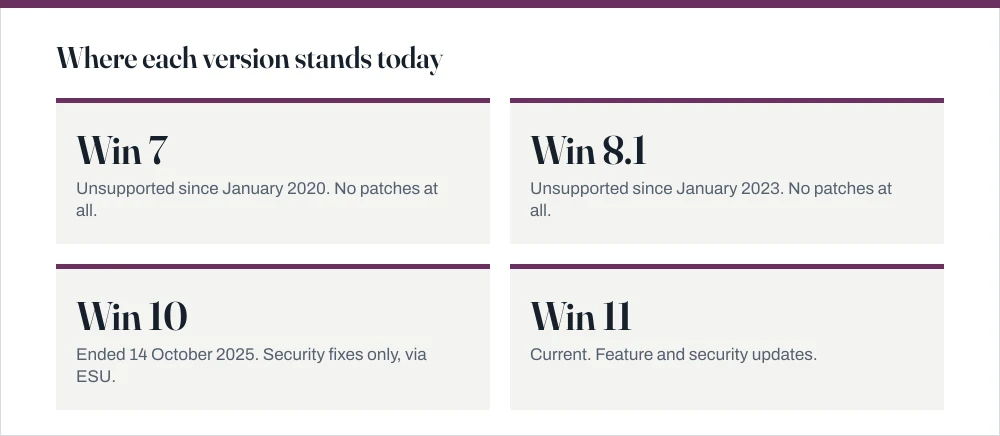
Windows 11 if your hardware qualifies, because it is the only version still getting feature updates. Windows 10 ended support on 14 October 2025 and now needs Extended Security Updates. Windows 7 has been unsupported since January 2020.

Four things worth knowing
- This is a support-lifecycle question before it is a preference question: an unpatched machine gets less safe every month it stays online.
- Windows 11 requires TPM 2.0, Secure Boot and a CPU on Microsoft's supported list, which rules out a lot of otherwise healthy hardware.
- Home and Pro differ in fewer places than comparison tables suggest; BitLocker, Group Policy and Remote Desktop hosting are the ones that matter.
- If your hardware cannot take Windows 11 and ESU is not an option, Linux on that machine is a more honest answer than staying on an unpatched Windows.
"Best" is carrying a lot of weight in that question. If you mean most familiar, plenty of people would still say Windows 7 and I would not argue with them. But if you mean best supported, there is only one answer, and it is the one that actually matters. Once a version passes its end-of-support date it stops getting security patches, while people keep finding new holes in it. The gap only widens.
The support dates, which settle most of it
| Version | Mainstream support ended | Status now |
|---|---|---|
| Windows 7 | 14 January 2020 | Unsupported. No patches. |
| Windows 8.1 | 10 January 2023 | Unsupported. No patches. |
| Windows 10 | 14 October 2025 | Security updates only via ESU |
| Windows 11 | Current | Receiving feature and security updates |
End of support does not mean the machine stops working. It means Microsoft stops issuing fixes. Every vulnerability found after that date stays open, and because patches for supported versions are public, they effectively advertise where the holes are in the unsupported ones.
Whether your PC can run Windows 11
This is usually where the decision gets taken out of your hands. Windows 11's requirements are unusually strict, and I want to be clear about what that means in practice: a machine that runs Windows 10 perfectly happily, that feels quick, that you have no complaints about, can still be ruled out on paper.
- TPM 2.0, a security chip. Many machines have one disabled in firmware rather than absent, so check before concluding you do not have it.
- Secure Boot capable, which also requires the drive to use GPT partitioning rather than MBR.
- A supported CPU. Broadly Intel 8th generation or newer, and AMD Ryzen 2000 or newer. This single rule excludes a great deal of capable hardware.
- 4 GB of RAM and 64 GB of storage as a floor. In practice 8 GB is the realistic minimum.
- DirectX 12 graphics with a WDDM 2.0 driver.
Check whether this machine qualifies
Run Microsoft's PC Health Check app, which gives a direct yes or no with the reason.
It names the specific failing requirement, which is what you need in order to act on it.
If it reports TPM, press Win + R, type
tpm.mscand press Enter.If it says a compatible TPM cannot be found, the chip may simply be switched off in firmware.
Look in your BIOS or UEFI for PTT (Intel Platform Trust Technology) or fTPM (AMD) and enable it.
This is very often the entire problem. Many manufacturers ship with it disabled.
Check the partition style: Win + X, Disk Management, right-click the disk, Properties, Volumes tab.
MBR must be converted to GPT for Secure Boot. Microsoft's
mbr2gpttool does this without reinstalling, but back up first.
Home or Pro
Comparison tables make this look like an enormous decision with twenty differences. It is not. For one person using one computer, four things actually matter, and the rest of the list is noise.
| Feature | Home | Pro | Matters if |
|---|---|---|---|
| BitLocker drive encryption | No | Yes | You carry a laptop with real data on it |
| Group Policy Editor | No | Yes | You want to defer updates properly |
| Remote Desktop host | No | Yes | You connect *to* this PC from elsewhere |
| Hyper-V | No | Yes | You run virtual machines |
| Windows Sandbox | No | Yes | You test untrusted software |
| Local account at setup | Restricted | Yes | You avoid a Microsoft account |
Home can still connect *to* a Remote Desktop host; it just cannot be one. Everything else on the usual list, including performance, driver support and the RAM ceiling for any realistic machine, is identical. Upgrading Home to Pro is a purchase inside Settings and does not require a reinstall.
Two of those rows have knock-on effects covered elsewhere: Group Policy is what makes deferring Windows updates properly possible, and BitLocker is one of the few real answers to protecting a folder on a Windows machine.
If the machine cannot take Windows 11
If this is you, you are in a very common position and I am not going to pretend the options are better than they are. There are five, they all have real costs, and being straight about that is more useful than cheerleading for one of them.
- Enrol in Extended Security Updates. Keeps Windows 10 patched for a limited period. The most straightforward answer if the machine has a couple of years of useful life left.
- Enable TPM in firmware and re-check. Worth five minutes before concluding anything, because it is disabled by default on a surprising number of machines.
- Replace the machine. Unavoidable if the CPU is genuinely below the supported generation and the machine matters.
- Move to Linux. For a machine used mostly for a browser and documents, a current Linux distribution is supported, patched and fast on hardware Windows 11 rejects. It is a real answer, not a consolation prize.
- Keep it offline. A machine with no network connection is not exposed to the risk that end of support creates. Genuinely fine for a device driving a scanner or a piece of equipment.
Before you upgrade anything
Upgrades usually go fine. The reason to prepare anyway is that the rare bad one is expensive, and five minutes beforehand costs you nothing.
- Back up first, to something that is not the machine being upgraded.
- Check disk space. A feature upgrade wants roughly 20 GB free, and the guide on deleting temporary files covers finding it.
- Note your product key or confirm your digital licence before you start; the guide on finding your Windows product key explains why the answer is often that there is no key to find.
- Keep Windows.old for the ten days it lasts. That is your rollback.
- Expect to reinstall a driver or two, particularly for printers and older scanners.
Common questions
Is Windows 10 still safe to use?
Mainstream support ended on 14 October 2025. Consumer machines can enrol in Extended Security Updates for a limited period, which supplies security fixes only. Outside that programme a Windows 10 machine receives no patches, and its exposure grows every month it stays online.
Can I install Windows 11 without TPM 2.0?
There are documented registry workarounds and Microsoft has published a bypass for some upgrade paths, but such installations are unsupported and may not receive updates. Before trying one, check whether your TPM is simply disabled in firmware: look for PTT on Intel or fTPM on AMD, which is very often the whole problem.
Is Windows 11 faster than Windows 10?
Not meaningfully on the same hardware. The differences are in the interface, window management, and security features that depend on the newer hardware requirements. Choose on support lifecycle and features, not on an expectation of extra speed.
Do I need Windows Pro?
Only if you want BitLocker, the Group Policy Editor, Hyper-V, Windows Sandbox, or the ability to host a Remote Desktop connection. Home connects to Remote Desktop perfectly well; it just cannot be the machine you connect to. For most people Home is sufficient, and Pro can be bought later from within Settings without reinstalling.
Sources
Each source is listed with the specific claim it supports.
Windows 10 support ends on October 14, 2025 — Microsoft Support
Supports: The Windows 10 end-of-support date and the availability of Extended Security Updates for consumer devices.
Windows 11 requirements — Microsoft Learn
Supports: The TPM 2.0, Secure Boot, supported-CPU, RAM, storage and DirectX 12 requirements listed in this guide.
Windows 10 Home and Pro lifecycle — Microsoft Learn
Supports: The published end-of-servicing dates used in the support table.