How to Password-Protect a Folder in Windows
By Robert MocaUpdated 7 min read
The short answer
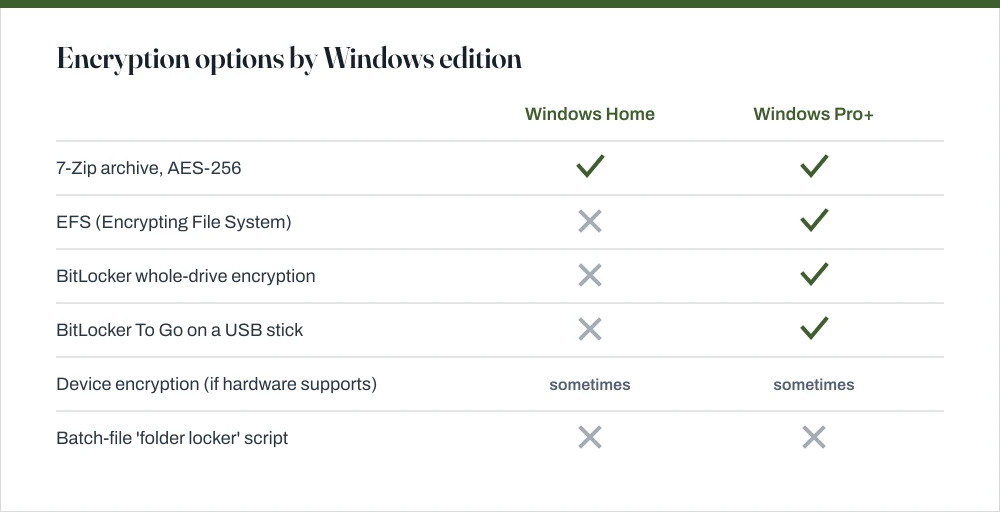
Windows cannot password-protect a single folder. On any edition the practical answer is a 7-Zip archive with AES-256, which is free and genuinely strong. Pro adds BitLocker for a whole drive and EFS for account-tied folders.

Four things worth knowing
- There is no folder password feature in any edition of Windows: the closest built-in options encrypt a drive or tie files to your account.
- 7-Zip with AES-256 works on Home, is free, and can encrypt filenames as well as contents if you tick that option.
- EFS binds files to your Windows account certificate: lose the profile without exporting the certificate and the data is gone permanently.
- BitLocker on a dedicated USB stick is the tidiest real answer if you have Pro and can spare the device.
I will give you the disappointing answer straight away, because most pages dance around it. Windows has no feature that puts a password on a folder. Right-clicking a folder will never produce a password box, on any edition, and any page implying otherwise is describing something else entirely. What follows is what actually works instead.
What you can do is encrypt: turn the contents into something unreadable without a key. There are three realistic ways, and which are available depends on your edition.
7-Zip with AES-256: the answer for most people
This works on every edition, costs nothing, and the encryption is the real thing: AES-256 with the key derived from your passphrase. Unless you have a specific reason not to, this is the one to reach for, and it is what I would use.
Create an encrypted archive
Install 7-Zip from 7-zip.org.
Download it from the official site rather than a software aggregator, which is where bundled adware comes from.
Right-click the folder → 7-Zip → Add to archive.
On Windows 11 you may need Show more options first to reach the classic context menu.
Set Archive format to
7zand Encryption method to AES-256.The ZIP format offers AES-256 too but with weaker filename handling. Use 7z unless the recipient needs plain ZIP.
Type a passphrase, and tick Encrypt file names.
Without that box ticked, anyone can list what is inside the archive without the password, often revealing enough on its own.
Click OK, then securely delete the original folder once you have verified the archive opens.
Verify first. An archive you cannot open is worse than no archive.
EFS: built in, and easy to lose your data with
The Encrypting File System is as close as Windows gets to genuine per-folder encryption. Files are encrypted transparently and decrypted the moment you open them, because the key is tied to your Windows user account. To you nothing appears to have changed at all, which is the point. To another account on the same machine the files are unreadable.
Encrypt a folder with EFS
Right-click the folder → Properties → Advanced on the General tab.
Tick Encrypt contents to secure data and click OK, then Apply.
If the option is greyed out, you are on Windows Home, which does not include EFS.
Choose Apply changes to this folder, subfolders and files.
When Windows offers to back up your encryption certificate, do it, and store the backup somewhere other than this computer.
This is the single most important step, and the prompt is easy to dismiss.
It also has a genuine risk of permanent data loss. If your user profile is corrupted, the machine is reinstalled, or the account is deleted, the files are unrecoverable without the exported certificate. This has cost people real data. Back the certificate up, or use 7-Zip instead.
BitLocker, including on a USB stick
BitLocker encrypts an entire volume rather than a folder. On Pro and above, BitLocker To Go does the same for a removable drive, and that is a genuinely tidy arrangement: a USB stick that asks for a password when you plug it in and then behaves like any ordinary drive once unlocked.
- Insert the USB drive, right-click it in File Explorer and choose Turn on BitLocker.
- Choose Use a password to unlock the drive and set a strong one.
- Save the recovery key somewhere off the drive: a printout, or your Microsoft account.
- Choose Encrypt used disk space only for a new drive, or Encrypt entire drive for one that has held data before.
- Choose Compatible mode if you need to open the drive on older Windows versions.
Many modern laptops also have Device encryption, a simplified BitLocker available on some Home installations where the hardware supports it. Check under Settings → Privacy & security → Device encryption. It protects the whole system drive against the machine being stolen, which is worth having, but it does nothing about other accounts on the same machine.
The batch-file locker script, and why it fails
There is a script that has been doing the rounds for years claiming to password-protect a folder with no extra software. It still gets recommended constantly, so it deserves a direct answer rather than a polite silence.
- It does not encrypt anything. It renames the folder to a Control Panel CLSID so double-clicking opens Control Panel instead, and sets the hidden and system attributes.
- The password is in plain text in the script. Right-click the .bat file, choose Edit, and it is there in the source.
- Renaming the folder back restores everything. One command in a prompt undoes it entirely.
- Turning on 'show protected operating system files' reveals it. As covered in the guide on showing hidden files.
- It can lose your data. If the script is deleted or damaged, recovering the folder means knowing the exact CLSID rename to reverse.
| If you want to… | Use | Edition |
|---|---|---|
| Protect a few files from anyone | 7-Zip, AES-256 | Any |
| Protect files from other accounts on this PC | EFS | Pro+ |
| Protect a laptop against theft | BitLocker / Device encryption | Pro+, some Home |
| Carry files securely on a USB stick | BitLocker To Go | Pro+ |
| Just declutter your Documents folder | Hide the folder | Any |
One related setting worth checking either way: if other people use the machine, the documents you open leave a trail in Quick Access and in each application's recent list regardless of where the files live. The guide on clearing recent files covers turning that history off rather than repeatedly clearing it.
Common questions
Can I password-protect a folder in Windows 10 without software?
Not in the sense of a password prompt on the folder — no edition of Windows has that feature. On Pro you can use EFS, which ties the folder to your Windows account rather than to a separate password. On Home there is no built-in option at all, and a 7-Zip archive with AES-256 is the practical answer.
Does the batch file folder locker actually work?
No. It renames the folder to a Control Panel CLSID and sets hidden and system attributes. Nothing is encrypted, the password is visible in plain text inside the script, and renaming the folder back recovers everything. It is obscurity, not protection, and it can lose your data if the script is damaged.
What is the difference between EFS and BitLocker?
EFS encrypts individual files and folders and ties the key to your Windows user account, so other accounts on the same machine cannot read them. BitLocker encrypts an entire volume and protects against the drive being removed or the machine stolen, but once you are signed in, everything is readable. They defend against different things and can be used together.
Is 7-Zip encryption actually secure?
Yes, when used correctly. It uses AES-256 with the key derived from your passphrase, and the strength then depends on the passphrase rather than the algorithm. Use the 7z format, tick Encrypt file names, choose a long passphrase, and delete the unencrypted original once you have confirmed the archive opens.
Sources
Each source is listed with the specific claim it supports.
BitLocker overview — Microsoft Learn
Supports: That BitLocker operates on whole volumes, the availability of BitLocker To Go for removable drives, and the edition requirements.
7-Zip — 7-Zip project
Supports: That 7-Zip supports AES-256 encryption for 7z and ZIP archives and offers filename encryption, and that it is free software.
Access tokens — Microsoft Learn
Supports: That access is granted against the signed-in account's token, which is why EFS gives no protection against someone already signed in as you.