How to Repair Windows Without Reinstalling
By Robert MocaUpdated 7 min read
The short answer
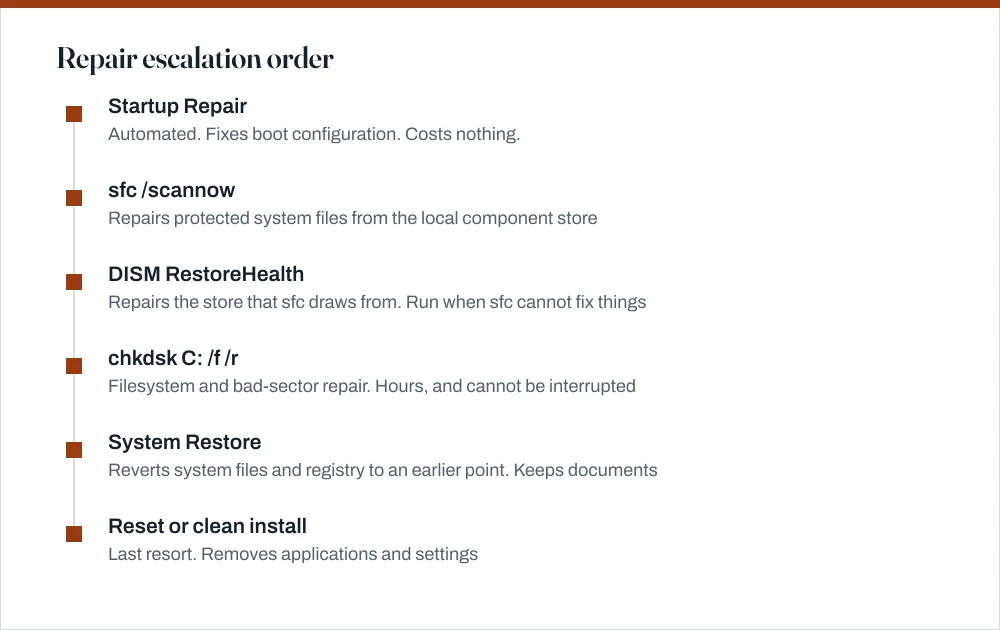
Work in escalation order: Startup Repair, then sfc /scannow, then DISM /Online /Cleanup-Image /RestoreHealth, then chkdsk C: /f /r, then System Restore. Consider a reset only after all of those, because each step costs more.

Four things worth knowing
- sfc repairs system files from a local store; if that store is itself damaged, DISM must repair it first, which is why sfc sometimes reports it cannot fix things.
- chkdsk /r takes hours on a large drive and cannot be safely interrupted, so start it when you can leave the machine alone.
- System Restore reverts system files, drivers and the registry, but does not touch your documents.
- If the drive is physically failing, every repair step makes it worse. Image the drive first and diagnose second.
There is a right order to this and it genuinely matters. Each step is more disruptive than the one before, and jumping straight to a reinstall throws away every setting and every application on a machine whose actual problem might have been a single corrupted file. Start at the top even when you are impatient.
Step one: Startup Repair
If Windows will not start at all, begin here. It repairs boot configuration problems on its own and it cannot damage your files, which makes it the safest thing on this page to try first.
Run Startup Repair
Get into the recovery environment. From Windows: Settings → System → Recovery → Advanced startup → Restart now.
If Windows will not boot, it usually appears by itself after two failed starts. You can force that by powering off with the button during boot, twice.
Choose Troubleshoot → Advanced options → Startup Repair.
Pick your account and let it run.
It can take fifteen minutes and may restart on its own. A report saying it could not repair the PC is common and does not mean the machine is unrecoverable.
On Windows 7, boot from the installation disc and choose Repair your computer.
Windows 7 machines often also have a recovery partition reachable with F8 during boot.
Step two: sfc /scannow
System File Checker compares every protected system file against a known-good copy held in a local store and replaces anything that does not match. It is safe, it cannot make matters worse, and it genuinely fixes a real class of problems, so it is worth running even when you are not sure it applies.
Run System File Checker
Open an elevated Command Prompt: Win + X, then A.
It must be elevated. Without administrator rights the command refuses to run.
Run
sfc /scannowand let it reach 100%.Read the result carefully.
*Found corrupt files and successfully repaired them* means done. *Found corrupt files but was unable to fix some of them* means go to DISM next.
Step three: DISM RestoreHealth
From that same elevated prompt, run DISM /Online /Cleanup-Image /RestoreHealth. This repairs the component store itself, pulling replacement files from Windows Update, so the machine needs a working internet connection for it to do anything useful.
Expect it to take ten to thirty minutes, and expect it to sit at 20% for a long while. That is normal and not a hang. When it finishes, run sfc /scannow again: DISM fixes the source, and sfc then uses that source to fix the system files.
Step four: chkdsk
Where sfc and DISM deal with the contents of files, chkdsk deals with the filesystem structure and the disk surface underneath it, which is a different kind of problem entirely. Run chkdsk C: /f /r from an elevated prompt. Because C: is in use it will offer to run at the next restart instead; accept, and reboot.
- `/f` fixes filesystem errors.
- `/r` locates bad sectors and recovers readable information, which is what makes it slow.
- `chkdsk C: /scan` runs online without a restart and reports problems without fixing them. A good first look.
Step five: System Restore
This rolls system files, installed drivers, the registry and installed programs back to a saved point in time, and leaves your documents, photos and email completely alone. If the machine broke right after an update or a driver installation, this is very often the fastest fix available and people skip past it far too readily.
Roll back to a restore point
Press Win + R, type
rstruiand press Enter.From the recovery environment: Troubleshoot → Advanced options → System Restore.
Choose a restore point from before the problem started.
Click Scan for affected programs before confirming.
This lists exactly what will be removed or restored, which is worth reading rather than skipping.
Confirm and let the machine restart.
If there are no restore points, System Protection was switched off. Once the machine is healthy, turn it on: Win + R, sysdm.cpl, System Protection tab, Configure. It costs a few percent of the drive and is worth it. Note that a full restore-point history also occupies space, which the guide on deleting temporary files covers.
When Windows still will not boot
If Startup Repair could not sort out the boot configuration, these commands do the same job by hand. Run them from the Command Prompt inside the recovery environment, in the order given.
| Command | What it does |
|---|---|
bootrec /fixmbr | Writes a new master boot record |
bootrec /fixboot | Writes a new boot sector |
bootrec /scanos | Scans all disks for Windows installations |
bootrec /rebuildbcd | Rebuilds the boot configuration data store |
sfc /scannow /offbootdir=C:\ /offwindir=C:\Windows | Runs sfc against an offline installation |
chkdsk C: /f /r | Runs offline, where C: is not in use |
Run them in that order. If bootrec /fixboot returns *Access is denied*, which is common on UEFI machines, the EFI partition needs assigning a letter with diskpart first, then bcdboot C:\Windows /s X: /f UEFI.
Windows 7 specifically
The tools are the same ones. sfc /scannow and chkdsk behave identically, System Restore is under Control Panel → Recovery, and Startup Repair comes from the installation disc via Repair your computer. The one real difference is that DISM's /RestoreHealth does not exist on Windows 7, which uses the System Update Readiness Tool instead.
The larger point about Windows 7 is that it has received no security updates since January 2020, so a machine you repair today is still an unpatched machine tomorrow. The guide on choosing a Windows version covers the realistic options, including what to do with hardware that cannot take Windows 11.
Common questions
What is the difference between sfc and DISM?
sfc repairs Windows system files by copying from a local component store. DISM repairs that store itself, pulling replacement files from Windows Update. If the store is damaged, sfc has nothing intact to copy from and reports that it could not repair. Run DISM first in that case, then sfc again.
Will System Restore delete my files?
No. It reverts system files, drivers, the registry and installed programs to an earlier point, and leaves documents, photos and email alone. Programs installed after the restore point will be removed; click Scan for affected programs before confirming to see exactly which.
How long does chkdsk take?
With /r it can run for several hours on a large drive, because it checks the disk surface sector by sector. Do not interrupt it partway through a repair. If you just want to know whether there is a problem, chkdsk C: /scan runs online in minutes and reports without fixing.
How do I repair Windows 7 without the installation disc?
Most Windows 7 machines have a recovery partition reachable by pressing F8 during boot and choosing Repair your computer. From there you get Startup Repair, System Restore and a Command Prompt. If the manufacturer's recovery partition has been removed, a disc or USB is the only route into the recovery environment.
Sources
Each source is listed with the specific claim it supports.
sfc — Windows commands reference — Microsoft Learn
Supports: That sfc verifies protected system files against a cached copy, the /scannow switch, and the offline switches used from recovery.
chkdsk — Windows commands reference — Microsoft Learn
Supports: The behaviour of the /f, /r and /scan switches and the requirement to schedule a restart for a volume in use.
Recovery options in Windows — Microsoft Support
Supports: Reaching the recovery environment, Startup Repair, and System Restore, including what System Restore does and does not affect.