How to Turn Windows Defender On or Off
By Robert MocaUpdated 7 min read
The short answer
Open Windows Security → Virus & threat protection → Manage settings and switch Real-time protection on. Turning it off is temporary by design: Windows switches it back on after a while unless another antivirus registers itself.

Four things worth knowing
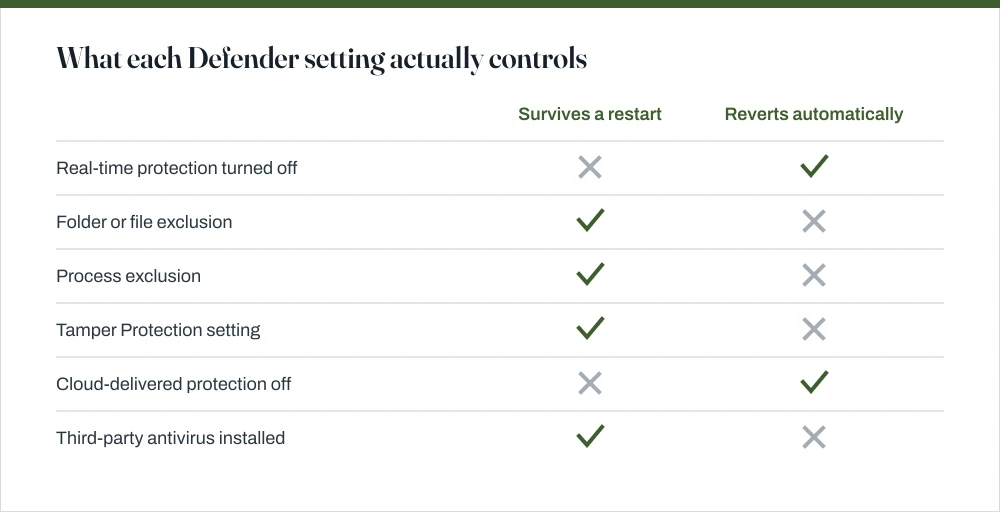
- Real-time protection re-enables itself automatically; that is deliberate, not a fault.
- Tamper Protection blocks registry and Group Policy attempts to disable Defender, which is why those methods now fail.
- Installing a third-party antivirus turns Defender off automatically — running two real-time scanners is a genuine problem, not a doubling of protection.
- An exclusion is the right tool for a false positive; disabling protection wholesale is not.
Microsoft Defender is on by default and, for most people, it is genuinely enough. The reasons to touch any of these settings are narrow: a false positive on a file you know is fine, a build tool being ground to a halt by real-time scanning, or installing a different antivirus. Every one of those has a proper answer, and turning the whole thing off is not it.
Turning Defender on
Enable real-time protection
Press the Windows key, type
Windows Securityand open it.You can also reach it from Settings → Privacy & security → Windows Security.
Click Virus & threat protection.
Under Virus & threat protection settings, click Manage settings.
Switch Real-time protection on.
Turn on Cloud-delivered protection and Automatic sample submission too — they materially improve detection of new threats.
Turning it off, and why it comes back
The same toggle switches real-time protection off. Windows will complain, and then it will quietly switch it back on again, either after a while or at the next restart. This is not a bug and you cannot out-stubborn it.
This is designed behaviour rather than a bug. The toggle exists for a short diagnostic window: install something whose installer is being wrongly blocked, confirm a suspicion, then let protection resume. Microsoft's position is that a consumer machine should not sit indefinitely with no real-time scanner, and the product enforces that.
Tamper Protection, and the methods it closed
Tamper Protection stops anything other than the Windows Security app itself from changing Defender's settings. It exists for a good reason: disabling the antivirus is one of the very first things malware tries. If a script or registry tweak you found online is not sticking, this is usually why, and that is the feature working correctly.
Its practical consequence is that a great deal of older advice no longer works. Setting DisableAntiSpyware in the registry, using Group Policy to turn Defender off, and PowerShell's Set-MpPreference -DisableRealtimeMonitoring $true are all blocked while Tamper Protection is on. Guides recommending them were written before it shipped.
You can turn Tamper Protection off, under the same Manage settings page, and it requires an administrator. Think carefully first: it is a cheap, effective protection against a specific and common attack, and turning it off to silence one false positive is a poor trade when an exclusion would do.
Exclusions: usually what you actually want
An exclusion tells Defender to skip one specific file, folder, file type or process. It survives restarts, applies only where you point it, and leaves protection intact everywhere else. This is the right tool both for a false positive and for a build folder that real-time scanning is slowing to a crawl.
Add a Defender exclusion
Open Windows Security → Virus & threat protection → Manage settings.
Scroll to Exclusions and click Add or remove exclusions.
Click Add an exclusion and choose File, Folder, File type or Process.
Select the narrowest thing that solves the problem.
A single file beats a folder; a folder beats a file type. Excluding
.exeacross the machine effectively turns Defender off while leaving the toggle reassuringly green.
For development machines, the exclusions worth considering are a specific build output folder, and the compiler or build tool as a process exclusion — that skips scanning of files the tool touches while leaving everything else covered.
Installing a different antivirus
You do not need to turn Defender off first, and I would not. When another product registers itself with the Windows Security Center, Defender stands down its own real-time protection automatically. Two real-time scanners running together is a real problem: they inspect each other's file access, which causes both slowdowns and false positives.
Whether you need a third-party product is a separate question. Independent testing has placed Defender's detection rates alongside commercial products for several years, it is included, and it does not attempt to sell you anything from a notification. The honest answer for most home users is that the built-in option is sufficient.
| Section | What it does |
|---|---|
| Virus & threat protection | Real-time and scheduled malware scanning |
| Account protection | Windows Hello and Dynamic lock status |
| Firewall & network protection | Inbound and outbound filtering; see the firewall guide |
| App & browser control | SmartScreen reputation checks on downloads |
| Device security | TPM, secure boot and core isolation status |
| Device performance & health | Storage, driver and battery reporting |
Running a scan
Under Virus & threat protection, Quick scan checks the places malware usually lives and takes a few minutes. Scan options adds a Full scan of every file, and Microsoft Defender Antivirus (offline scan), which restarts the machine and scans before Windows loads. That last one is the tool for anything you genuinely suspect, because it runs before the malware gets a chance to.
The offline scan is the one worth knowing about. Some malware is difficult to remove while Windows is running because it is running too. Scanning before the operating system starts removes that advantage, and it is the right first response to a machine you genuinely suspect is infected.
One thing this guide will not cover: turning Defender off permanently on a machine you use normally. There is no supported way to do it, the unsupported routes are closed by Tamper Protection, and the reason both of those things are true is a good one. If a specific file or folder is the problem, exclude it. If you prefer a different product, install it and let Windows stand Defender down. Related settings live in the guides on turning off the Windows firewall and changing your Windows password and PIN.
Common questions
Why does Windows Defender turn itself back on?
Because the real-time protection toggle is designed as a temporary override, not a permanent switch. Windows re-enables it after a period or at the next restart unless another antivirus product has registered itself. If you need a permanent exception for a specific file or folder, add an exclusion instead.
How do I disable Windows Defender permanently?
There is no supported way on a normal consumer installation. Tamper Protection blocks the registry, Group Policy and PowerShell methods that used to work. The supported alternatives are to add exclusions for the specific thing causing trouble, or to install a third-party antivirus, which stands Defender down automatically.
Do I need antivirus if I have Windows Defender?
For most home users, no. Defender's detection rates have matched commercial products in independent testing for several years, it is included at no cost, and it does not nag. A third-party product may still make sense for specific management or reporting requirements, but adding one for detection alone is rarely necessary.
Is it safe to add a folder exclusion?
It is safe if the exclusion is narrow and you know what is in the folder. Excluding a specific build output directory is reasonable. Excluding C:\, your whole user profile, or the Downloads folder is not — those are where malicious files actually arrive, and a broad exclusion effectively disables protection while the toggle still shows green.
Sources
Each source is listed with the specific claim it supports.
Windows Security app — Microsoft Learn
Supports: The structure of the Windows Security app and the sections listed in the coverage table.
Protect security settings with tamper protection — Microsoft Learn
Supports: That Tamper Protection blocks changes to Defender settings made through the registry, Group Policy and PowerShell, which is why those older methods no longer work.
Configure exclusions for Microsoft Defender Antivirus — Microsoft Learn
Supports: The exclusion types available — file, folder, file type and process, and guidance on keeping exclusions narrow.