How to Delete a User Account in Windows 10
By Robert MocaUpdated 6 min read
The short answer
Go to Settings → Accounts → Family & other users, click the account, choose Remove, then Delete account and data. Back up C:\Users\theirname first, because that folder goes with the account.

Four things worth knowing
- Removing an account through Settings deletes its profile folder and everything in it, with no Recycle Bin stage.
- Copy anything you want to keep out of C:\Users\theirname before you start — this is the step people regret skipping.
- You cannot delete the account you are signed into, and you cannot leave the machine with no administrator.
- Deleting a Microsoft account from a PC removes local access only; the account itself continues to exist.
Deleting an account takes about thirty seconds, and it is one of the very few things in Windows that destroys a large amount of data behind a single confirmation with no undo afterwards. The mechanics are trivial. The preparation is the entire job, so please do not skip the next section.
Before you delete: rescue the data
Back up the account's files
Sign in as an administrator other than the account you are removing.
Open
C:\Users\theirnamein File Explorer.You will get an access prompt — click Continue. As an administrator you can grant yourself access.
Copy Desktop, Documents, Downloads, Pictures, Videos and Music somewhere safe.
Selection shortcuts are in the guide on selecting multiple files.
Turn on hidden items and check
AppDataif the person used desktop email, saved game data or a local database.AppData is hidden by default; see showing hidden files. Thunderbird profiles, save games and application data all live there and are easy to forget.
Open something from the copy to confirm it is intact.
A copy that failed halfway looks identical in File Explorer until you try to use it.
Deleting the account
Remove a user from Settings
Open Settings → Accounts → Family & other users (Windows 11: Other users).
Click the account you want to remove, then click Remove.
Read the warning and click Delete account and data.
This is the point of no return. There is no confirmation after it and no recovery.
Wait — a large profile can take a few minutes to remove.
The account disappears from the list immediately; the folder deletion continues in the background.
Control Panel offers a slightly different route with one useful extra: User Accounts → Manage another account → Delete the account asks whether to Keep Files or Delete Files. Keep Files copies the account's desktop and documents to a folder on your desktop before removing the account, which is a helpful safety net if you did not do the backup step.
When Windows refuses
| Situation | Why | What to do |
|---|---|---|
| It is the account you are signed into | Windows cannot delete an account in use | Sign in as another administrator |
| It is the only administrator | The machine would have no admin | Promote another account first |
| Remove button is greyed out | You are a standard user | Sign in as an administrator |
| It is the built-in Administrator | Protected system account | Disable it instead: net user administrator /active:no |
| It is a work or school account | Managed by an organisation | Accounts → Access work or school → Disconnect |
| It is a family member's account | Managed at family.microsoft.com | Remove from the family group online first |
The last-administrator rule is the one people run into most. Windows requires at least one enabled administrator account, so promote another account first — Settings → Accounts → Family & other users → the account → Change account type → Administrator. Then sign into that account and delete the original from there.
Microsoft accounts: removing versus deleting
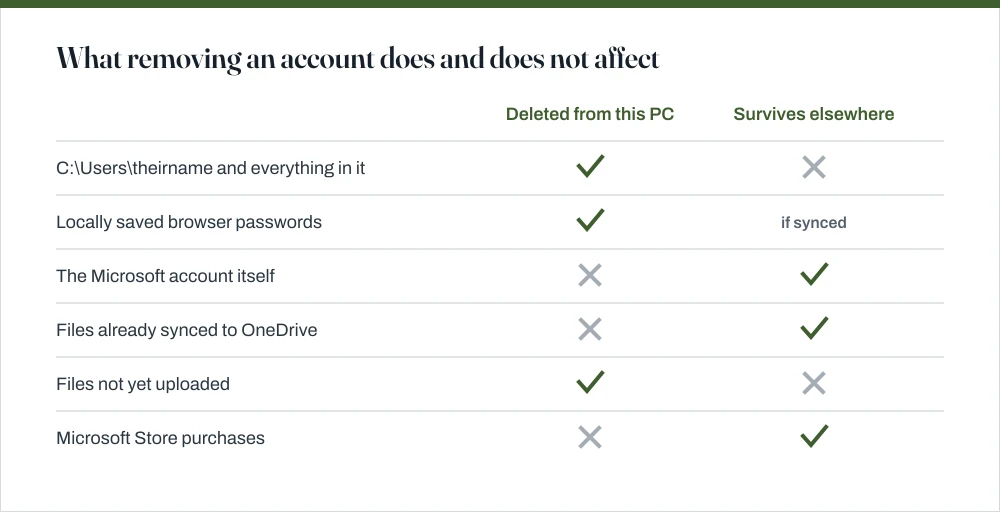
Worth being clear about, because people worry: removing a Microsoft account from a PC removes it from this machine and nothing else. The account itself, its email, its Store purchases and its OneDrive files all carry on existing, and it can sign in on any other device tomorrow.
Two things to check before removing one. OneDrive: if files were syncing, confirm they have finished uploading before deleting the local profile, or unsynced changes are lost. BitLocker: if the drive is encrypted and the recovery key was saved to that Microsoft account, retrieve it from account.microsoft.com/devices first. Losing access to both the account and the key means losing the drive.
Cleaning up what gets left behind
Account removal sometimes leaves the profile folder behind. One file held open by a running process at the wrong moment is enough to do it. What you are left with is several gigabytes sitting in C:\Users belonging to an account that no longer exists, which is easy to miss when you next wonder where your disk space went.
Remove an orphaned profile properly
Press Win + R, type
sysdm.cpland press Enter.This is System Properties, the same dialog used for environment variables.
Go to Advanced → User Profiles → Settings.
Look for an entry marked Account Unknown and click Delete.
This removes both the folder and its registry entry, which is what deleting the folder by hand does not do.
If the folder still remains, delete it in File Explorer as an administrator.
Restart first if it refuses — a background process is holding a file open.
Deleting the folder directly without going through User Profiles leaves a registry entry behind in the ProfileList key. On its own that is harmless, but if an account with the same name is later created, Windows sees the stale entry and creates a profile at a different path — name.PC-NAME, which is the usual explanation for that odd folder name appearing.
Alternatives to deleting
- Disable it instead. From an elevated prompt,
net user theirname /active:nohides the account from the sign-in screen and keeps every file. Reverse it with/active:yes. This is the right choice when someone might come back. - Demote it. If the concern is administrator rights rather than the account existing, change the account type to Standard; see the guide on creating a user account for what that actually restricts.
- Change the password. If the concern is access rather than the data, the guide on changing a Windows password covers doing that as an administrator.
Common questions
Does deleting a user account delete their files?
Yes. Delete account and data removes C:\Users\theirname entirely — documents, desktop, downloads, browser profile and saved passwords, and it does not go to the Recycle Bin. Copy anything you want to keep before you start. Control Panel's route offers a Keep Files option that saves the desktop and documents to a folder first.
Why can't I delete an administrator account?
Either you are signed into it — Windows cannot delete an account currently in use, or it is the only administrator on the machine. Promote another account to administrator, sign into that one, and then delete the original. The built-in Administrator account is protected and can only be disabled, not removed.
Does removing a Microsoft account from my PC delete the account?
No. It removes access on that machine only. The Microsoft account, its email, its Store purchases and its OneDrive files all continue to exist and can sign in elsewhere. Check that OneDrive has finished syncing first, though, because anything not yet uploaded goes with the local profile.
How do I remove a leftover user folder in C:\Users?
Use System Properties rather than File Explorer: Win + R, sysdm.cpl, Advanced → User Profiles → Settings, find the *Account Unknown* entry and click Delete. That removes the registry entry as well as the folder, which prevents the odd name.PC-NAME folder appearing if the account is ever recreated.
Sources
Each source is listed with the specific claim it supports.
Create a local user or administrator account in Windows — Microsoft Support
Supports: Account management through Settings, including changing account type and the requirement to retain an administrator.
net user — Windows commands reference — Microsoft Learn
Supports: The `/active:no` switch used to disable an account instead of deleting it, and the built-in Administrator account.