How to Change the Administrator Name in Windows 10
By Robert MocaUpdated 7 min read
The short answer
For a local account, run netplwiz, select the account, click Properties and change the User name. For a Microsoft account the name comes from your profile at account.microsoft.com. Neither renames the C:\Users\name folder.

Four things worth knowing
- Three separate names exist per account: the display name on the sign-in screen, the underlying account name, and the profile folder path.
- netplwiz changes the account name for a local account; the Microsoft account name comes from your online profile.
- The profile folder cannot be safely renamed — hundreds of settings store the absolute path.
- The clean way to get a matching folder name is to create a new account with the name you want and migrate to it.
This question attracts a lot of bad advice, and the reason is simple: most guides never say which of three separate things they are renaming. They really are separate, they live in different places, and changing one does nothing to the other two. Sort out which one you mean and the rest is easy.
| Name | Where you see it | How to change it |
|---|---|---|
| Display name | Sign-in screen, Start menu | netplwiz, or your Microsoft account profile |
| Account name | net user output, security dialogs | netplwiz, or lusrmgr.msc on Pro |
| Profile folder | C:\Users\name | Not safely changeable — create a new account |
Renaming a local account
Change the name with netplwiz
Press Win + R, type
netplwizand press Enter.This opens the older User Accounts dialog, which still offers controls the Settings app does not.
Select the account in the list and click Properties.
Change User name, and optionally the Full name.
User name is the account name used internally. Full name is what appears on the sign-in screen if it is set.
Click OK, then OK again.
Sign out and back in for the change to appear everywhere.
Some places, including the Start menu, cache the old name until the next sign-in.
There are two other routes to the same change. Control Panel → User Accounts → Change your account name works for the account you are signed into. On Pro, Enterprise and Education, lusrmgr.msc opens Local Users and Groups, where you can rename any account and see group memberships at the same time. From an elevated prompt, wmic useraccount where name='oldname' rename 'newname' does it in one command, though wmic is deprecated on current builds.
Renaming a Microsoft account
If you sign in with an email address, the name on the sign-in screen comes from your online Microsoft profile, and netplwiz will not touch it. You can edit it locally all you like; Windows just syncs the old name back down. This is the single most common reason people think the rename failed.
Change the name on a Microsoft account
Go to account.microsoft.com and sign in.
Select Your info, then Edit name.
Change the first and last name and save.
Back on the PC, sign out and sign back in.
It can take a few minutes and occasionally a restart before the sign-in screen updates.
The user profile folder, and why you should leave it alone
Now the frustrating one. C:\Users\name is created the first time the account signs in, using whatever the name was at that exact moment, and it never follows a later rename. That is why so many people end up with a folder like C:\Users\joh_2, built from the first part of an email address, staring at them for the life of the machine.
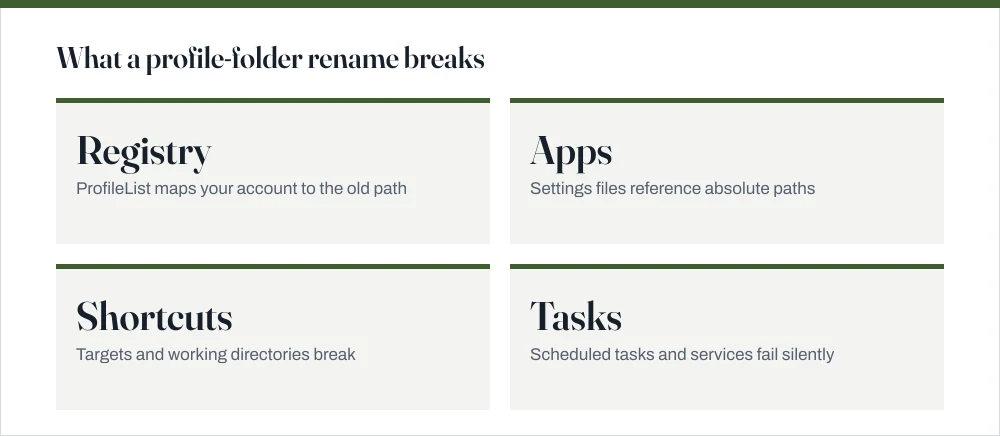
Renaming the folder is possible and is a bad idea. The path is stored as an absolute string in hundreds of places: the registry's ProfileList key, application settings, shortcut targets, service configurations, scheduled tasks, and the internals of installed software. Renaming the folder breaks all of them, and the failures arrive gradually rather than immediately, which makes them hard to connect back to the cause.
Guides do exist that walk through renaming the folder and then editing the ProfileList registry key to match. It works often enough for people to keep recommending it, and it fails often enough — with a temporary profile at next sign-in, or an application that no longer starts — that it is not worth it on a machine you rely on.
The clean way to get the folder name you want
Make a new account with the name you actually want and move into it. More work up front, but nothing broken afterwards, and you get a clean profile out of it. This is the route I would take.
Migrate to a correctly named account
Create a new administrator account with the name you want.
The guide on creating a user account covers the local-account route, which gives you direct control over the name used.
Sign into it once so the profile folder is created, then check
C:\Usersshows the name you expected.Confirm before you move anything. If the folder name is still wrong, fix it now rather than after migrating.
Copy your files across from the old profile — Desktop, Documents, Pictures, Downloads, and anything you need from AppData.
AppData is hidden by default; see showing hidden files.
Work from the new account for a week before deleting the old one.
A week surfaces the applications that need reconfiguring while the old profile is still there to copy from.
Delete the old account when you are confident.
Follow the guide on deleting a user account, which covers rescuing data and cleaning up the leftover profile.
The related question: renaming the PC itself
Different thing entirely, much simpler, and honestly it is often what people meant in the first place. The computer name is what shows up on your network and in remote-desktop connections, so if the wrong name is bothering you when you look at your own network, this is the one to change.
- Settings → System → About → Rename this PC, type the new name, and restart.
- Or press Win + R, run
sysdm.cpl, click Change on the Computer Name tab. - Or from an elevated PowerShell prompt:
Rename-Computer -NewName "newname" -Restart. - Use letters, numbers and hyphens only, and keep it to 15 characters — longer names cause problems with older network protocols.
Renaming a domain-joined machine is a different operation with real consequences for the computer's domain account. On a work laptop, ask whoever administers it rather than doing it yourself.
Common questions
How do I change the administrator name in Windows 10?
For a local account, press Win + R, run netplwiz, select the account, click Properties, and change the User name. For a Microsoft account, change it at account.microsoft.com under Your info → Edit name, then sign out and back in on the PC.
Why does C:\Users still show my old name?
Because the profile folder is created from whatever name existed when the account first signed in, and it does not follow later renames. That path is stored as absolute text in the registry, in application settings and in shortcuts, so Windows deliberately never changes it. The only clean fix is a new account with the right name.
Can I rename the C:\Users folder safely?
Not really. Guides exist that rename the folder and then edit the registry's ProfileList key to match, and they work often enough to keep circulating. They also fail often enough — a temporary profile at next sign-in, applications that stop starting — that it is not worth doing on a machine you depend on.
How do I change my computer's name rather than my account name?
Settings → System → About → Rename this PC, then restart. Or run sysdm.cpl and use the Change button on the Computer Name tab. Keep it to 15 characters using letters, numbers and hyphens. If the machine is joined to a work domain, ask whoever administers it first.
Sources
Each source is listed with the specific claim it supports.
Create a local user or administrator account in Windows — Microsoft Support
Supports: Local account management, including changing account names and types through the Windows account tools.
net user — Windows commands reference — Microsoft Learn
Supports: The distinction between the account name and full name fields, and command-line account management.
Naming a file — Microsoft Learn
Supports: That Windows paths are absolute strings, which is why a stored profile path does not follow a folder rename.