How to Change Your Windows Password or PIN
By Robert MocaUpdated 7 min read
The short answer
Press Ctrl + Alt + Del and choose Change a password, or use Settings → Accounts → Sign-in options. A Microsoft account password changes everywhere, including Outlook and Xbox. A PIN is separate and only applies to this device.

Four things worth knowing
- A Windows Hello PIN is bound to one device and backed by the TPM, which makes it safer in practice than a password that works anywhere.
- Changing a Microsoft account password signs you out of every Microsoft service, not just this PC.
- Removing the password entirely disables remote desktop and network access to the machine, which is often a surprise.
- This guide covers changing a password you know, not recovering one you have forgotten.
A modern Windows machine has two credentials and they are not the same kind of thing at all. The password belongs to your account. The PIN belongs to this device. Once that clicks, the rest of this page is straightforward, and it also explains why the security advice here runs completely opposite to most people's instincts.
Changing your password
The quickest route
Press Ctrl + Alt + Del.
This works from anywhere in Windows and is the one route that behaves identically on 7, 10 and 11.
Choose Change a password.
Enter your current password, then the new one twice.
For a Microsoft account this contacts Microsoft's servers, so you need an internet connection.
Press Enter.
Through Settings
Open Settings → Accounts → Sign-in options.
Expand Password and click Change.
On a Microsoft account this opens a browser window to Microsoft's site rather than a local dialog.
Follow the prompts and confirm.
The PIN, and why it is not weaker
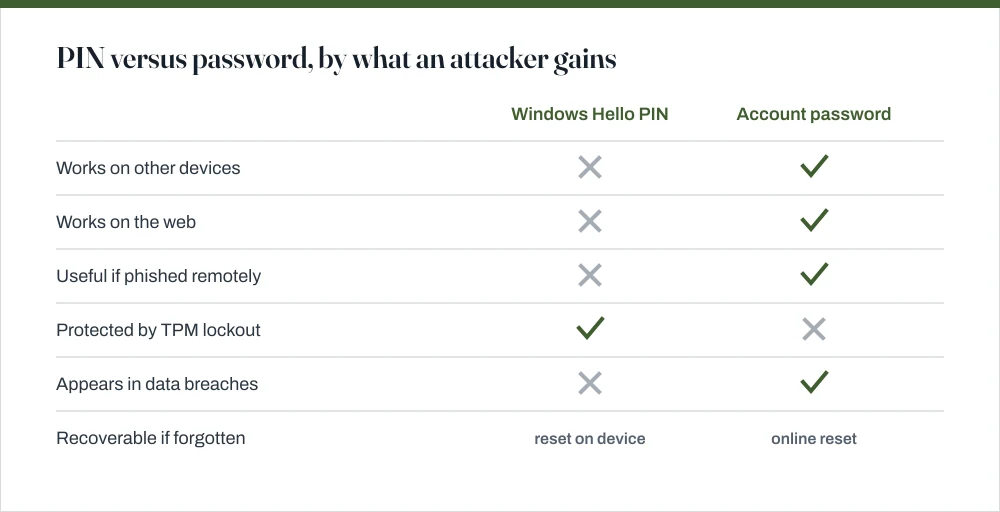
The obvious objection writes itself: four to six digits is trivially guessable next to a proper password, so how on earth is that safer? It is a fair question, and the answer is that it misses how the two are actually used.
A Windows Hello PIN is local to one device. It is not transmitted anywhere, it does not work on any other machine, and on hardware with a TPM the key it protects is held in the security chip, which enforces its own lockout after repeated failures, making a brute-force attempt impractical regardless of length. A stolen PIN is worth nothing without the physical device.
A Microsoft account password works on any machine in the world and on the web. Exposed in a phishing attack or a data breach, it gives an attacker your email, your files and your other devices. The PIN cannot be phished remotely, because there is nothing remote to phish.
Change or remove your PIN
Open Settings → Accounts → Sign-in options.
Expand PIN (Windows Hello).
Click Change PIN, or Remove to delete it entirely.
Removing the PIN falls back to your account password at the sign-in screen.
If you have forgotten the PIN, click I forgot my PIN at the sign-in screen.
You reset it by authenticating with your account password. The PIN is not recovered: a new one is set.
Removing the sign-in password
You can do this on a local account, and it is worth understanding what you are giving up first. You cannot remove it on a Microsoft account, because that is your email password you would be deleting, so step one is switching to a local account.
Remove a local account's password
If you use a Microsoft account: Settings → Accounts → Your info → Sign in with a local account instead.
This ends settings sync and online password reset for this machine.
Press Ctrl + Alt + Del → Change a password.
Enter your current password, and leave both new password boxes empty.
This is the actual technique. Leaving them blank sets no password.
Press Enter.
A better option in most cases is automatic sign-in: keep the password, and have Windows enter it for you at boot. Press Win + R, run netplwiz, untick Users must enter a user name and password to use this computer, and supply the password once. The machine boots straight to the desktop while retaining a real password for network access and for locking with Win + L.
If the checkbox is missing, Windows Hello is blocking it: Settings → Accounts → Sign-in options, and turn off For improved security, only allow Windows Hello sign-in for Microsoft accounts on this device. The checkbox reappears afterwards.
The other sign-in options
| Option | What it needs | Notes |
|---|---|---|
| Password | Nothing extra | Works everywhere; the weakest link if reused |
| PIN | TPM recommended | Device-bound; the sensible default |
| Windows Hello Face | Infrared camera | Ordinary webcams are not sufficient |
| Windows Hello Fingerprint | Fingerprint reader | Fast and convenient |
| Security key | FIDO2 key | Strongest option; needs the physical key |
| Picture password | Touchscreen recommended | Legacy; little reason to use it |
| Dynamic lock | Paired phone | Locks the PC when the phone goes out of range |
Face and fingerprint recognition are covered by the same Windows Hello framework as the PIN, and both fall back to the PIN when they fail. That is why Windows requires a PIN before it will let you set up either.
What this guide does not cover
Recovering a password you have genuinely forgotten, or getting into an account that is not yours. For a Microsoft account the supported route is the reset at account.live.com/password/reset, which uses the recovery email or phone number on the account. For a local account, the security questions you set when the account was created can reset it straight from the sign-in screen.
If neither is available, a local account password cannot be recovered through any supported means, and the realistic option is a clean reinstall — the guide on factory resetting Windows covers what that involves and what it preserves. This site does not publish offline password-cracking methods, for reasons set out in the editorial standards.
Common questions
How do I change my Windows 10 password?
Press Ctrl + Alt + Del and choose Change a password, then enter your current password followed by the new one twice. You can also go to Settings → Accounts → Sign-in options → Password → Change. On a Microsoft account this requires an internet connection and changes the password across all Microsoft services.
Is a PIN less secure than a password?
In practice it is usually more secure. A Windows Hello PIN works only on that one device and, on hardware with a TPM, is protected by the chip's own lockout after repeated failures. A Microsoft account password works on any machine and on the web, so exposing it in a breach or a phishing attack is far more damaging.
How do I remove my Windows login password entirely?
Switch to a local account if you are using a Microsoft one, then press Ctrl + Alt + Del → Change a password, enter your current password, and leave both new-password boxes empty. Be aware this disables Remote Desktop, file sharing and scheduled tasks running as that user. Automatic sign-in through netplwiz is usually the better option.
What happens if I forget my PIN?
Click I forgot my PIN at the sign-in screen. You authenticate with your account password and set a new PIN: the old one is not recovered, and cannot be. Because the PIN only works on that device, having to reset it is an inconvenience rather than a security problem.
Sources
Each source is listed with the specific claim it supports.
Windows Hello for Business overview — Microsoft Learn
Supports: That a Windows Hello PIN is bound to a single device and backed by the TPM, which is the basis for the PIN-versus-password comparison.
Create a local user or administrator account in Windows — Microsoft Support
Supports: Local account password behaviour and the security questions used to reset a forgotten local password.
net user — Windows commands reference — Microsoft Learn
Supports: Command-line account and password management, and the distinction between local and network sign-in.