How to Create a New User Account in Windows 10
By Robert MocaUpdated 7 min read
The short answer
Go to Settings → Accounts → Family & other users → Add someone else to this PC, then I don't have this person's sign-in information followed by Add a user without a Microsoft account. New accounts are standard users by default.

Four things worth knowing
- Windows pushes hard towards a Microsoft account; the local-account option is two deliberately awkward clicks away.
- Standard is the correct account type for daily use — administrator rights are available on demand through the elevation prompt.
- A new account's profile folder is not created until that account signs in for the first time.
- Security questions on a local account are mandatory on recent builds and are stored on the machine, so treat them as a second password.
Adding a user is easy once you accept that the interface is quietly steering you towards a Microsoft account. If that is what you want, it is four clicks. If you want a plain local account, with no email address, no cloud sync and nothing to sign up for, the option is still there, but you have to get past two screens that go out of their way not to offer it.
Local account or Microsoft account?
| Local account | Microsoft account | |
|---|---|---|
| Needs an email address | No | Yes |
| Password reset if forgotten | Security questions only | Online reset |
| Settings sync across devices | No | Yes |
| Microsoft Store purchases | Sign in per app | Automatic |
| BitLocker key escrow | Manual | Saved to the account |
| Works with no internet | Yes | After first sign-in |
Neither is more secure in the abstract. A Microsoft account can be recovered if the password is lost and supports two-factor authentication, which are real advantages. A local account keeps everything on the machine, which some people prefer and which is the sensible choice for a shared family PC, a machine that is not connected to the internet, or an account you are creating for someone else to use once.
Creating a local account
Add a local user in Windows 10 and 11
Open Settings with Win + I.
Go to Accounts → Family & other users.
On Windows 11 it is Accounts → Other users.
Click Add someone else to this PC.
On the sign-in screen, click I don't have this person's sign-in information.
This is the small link below the email box. It is the first of the two easily missed steps.
On the next screen, click Add a user without a Microsoft account.
Another small link at the bottom, below a form encouraging you to create one. This is the second.
Enter a username, a password, and answer the three security questions.
The security questions are mandatory on recent builds. Leaving the password blank skips them, but a passwordless account is a poor idea on any shared machine.
Click Next. The account appears in the list immediately.
Creating a Microsoft account user
This one is simpler: Settings → Accounts → Family & other users → Add someone else to this PC, type their email address, click Next. The account appears straight away, but nothing is downloaded and no profile exists until they actually sign in on this machine for the first time, and that first sign-in needs an internet connection so Windows can check the account.
Add a family member is a separate option that enables parental controls: screen time limits, content filters and activity reporting. It requires a Microsoft account for both the parent and the child, and the child's account is managed from family.microsoft.com rather than from the PC.
Standard or administrator?
New accounts come out as Standard users, and I would resist the urge to change that. It is the right setting for almost everyone, including people you think of as capable.
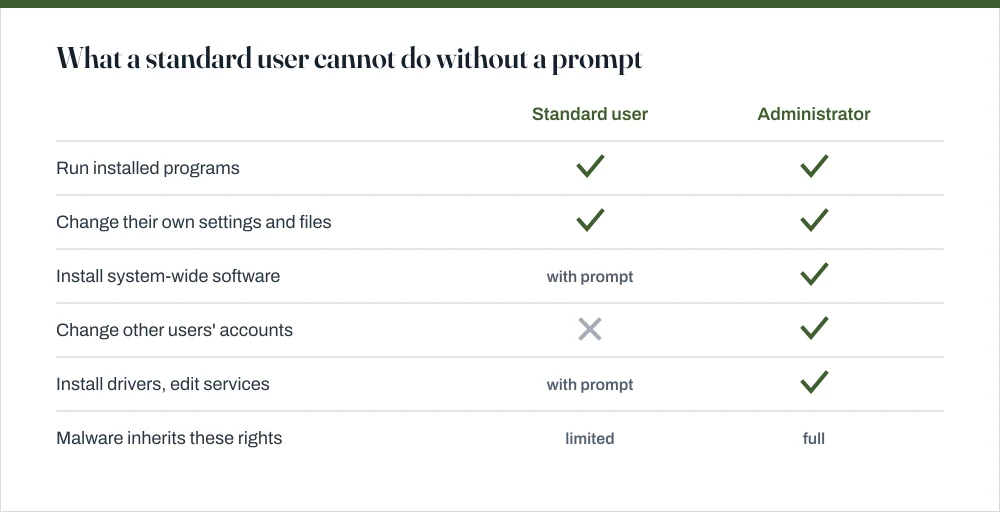
The security argument is straightforward: anything you run inherits your rights. A standard account means that something malicious you launch by accident cannot silently install a system-wide service or modify Windows itself: it has to ask, and the prompt is your chance to notice. On an administrator account, the same thing happens with a single consent click that people have been trained to accept.
Change an account's type
Settings → Accounts → Family & other users.
Click the account, then Change account type.
Choose Administrator or Standard User and click OK.
Confirm at least one administrator account remains.
Windows blocks the change if it would leave the machine with none, but only in the obvious cases — check yourself.
Creating a local account during Windows setup
During a fresh install, recent versions of Windows 11 Home insist on an internet connection and a Microsoft account, with no local-account option anywhere on screen. Two approaches still work, and I want to be straight with you: Microsoft has closed several others, so anything you read from a couple of years ago may well be dead.
- Do not connect to a network. On builds that permit it, skipping network setup produces a *Limited setup* option that creates a local account. On a laptop, this means not entering the Wi-Fi password; on a desktop, unplugging the Ethernet cable before you begin.
- Create it after setup. Complete installation with a Microsoft account, then add a local administrator account using the steps above, sign into it, and remove the first account. More steps, but it works reliably on every build.
After the account exists
The new account has no profile folder at all until its first sign-in. That first one takes a minute or two while Windows builds C:\Users\name out of the default profile, so if it seems to hang on a brand-new account, it is not stuck. Let it finish.
- Each account has its own everything — desktop, documents, browser profile, installed per-user apps, and settings. They are genuinely separate.
- Shared files go in `C:\Users\Public`, which every account can read and write.
- Another user's files are not private by default from an administrator, who can take ownership. If that matters, the guide on password-protecting a folder covers what actually works.
- Renaming later is awkward. The profile folder path is fixed at creation and does not follow a name change — the guide on changing an administrator name explains why, and what each rename actually affects.
From the command line
From an elevated prompt, net user username password /add makes a local account in one go, and net localgroup administrators username /add promotes it. This is far and away the quickest route if you are setting up several machines, and it skips the security-questions screen entirely.
There is also lusrmgr.msc, the Local Users and Groups console, which offers finer control including group membership and the *User must change password at next logon* option. It is not present on Windows Home.
Common questions
How do I create a local account without a Microsoft account?
In Settings → Accounts → Family & other users → Add someone else to this PC, click I don't have this person's sign-in information, then Add a user without a Microsoft account. Both are small links that the layout does not draw attention to, which is why this question comes up so often.
Should a new account be standard or administrator?
Standard, for almost everyone. Anything you run inherits your account's rights, so a standard account means malware cannot silently make system-wide changes: it has to prompt for administrator credentials, giving you a chance to notice. You can still install software and change your own settings; Windows simply asks first.
Why can't I create a local account when setting up Windows 11?
Recent Windows 11 Home builds require an internet connection and a Microsoft account during setup. On builds that still allow it, skipping network setup produces a limited-setup path with a local-account option. Otherwise, complete setup with a Microsoft account, create a local administrator afterwards, and remove the first account.
Where are the new user's files stored?
In C:\Users\username, created the first time that account signs in, not when you add the account. Each account has entirely separate documents, desktop, settings and browser profile. Files meant to be shared belong in C:\Users\Public.
Sources
Each source is listed with the specific claim it supports.
Create a local user or administrator account in Windows — Microsoft Support
Supports: The Settings steps for adding a local account, the security-questions requirement, and changing an account's type.
net user — Windows commands reference — Microsoft Learn
Supports: The `net user /add` and `net localgroup administrators /add` commands, and the built-in Administrator account.
Access tokens — Microsoft Learn
Supports: That a launched process inherits the rights of the account that started it, which is the basis of the standard-versus-administrator argument.