How to Stop Automatic Updates in Windows 10
By Robert MocaUpdated 8 min read
The short answer
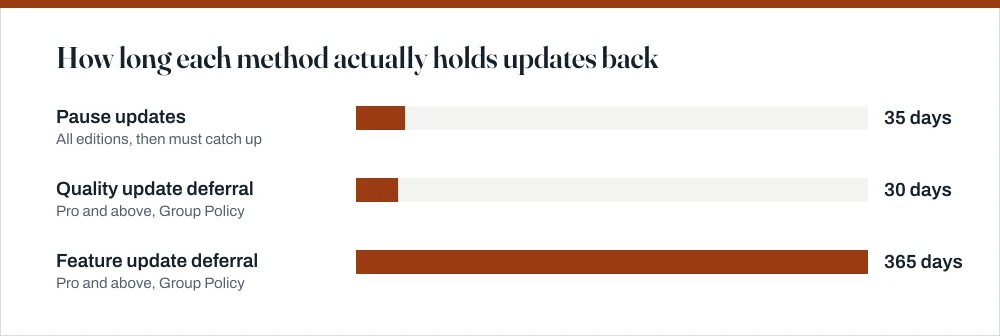
Open Settings → Update & Security → Windows Update → Advanced options and use Pause updates for up to 35 days. For longer, set Wi-Fi as metered, or use Group Policy on Pro. On Home there is no supported permanent stop.

Four things worth knowing
- Pause updates is the only supported off switch, it maxes out at 35 days, and Windows must install everything pending before you can pause again.
- Setting a connection as metered blocks most automatic downloads but not definitions or updates Microsoft flags as critical.
- Group Policy deferral is the real answer for Windows 10 Pro, Enterprise and Education: it does not exist on Home.
- Disabling the Windows Update service no longer sticks: Update Orchestrator and Update Medic re-enable it, usually within hours.
Nobody actually objects to security patches. What people object to is a machine that decides on its own that now is a good moment to restart, or a feature update that lands the week of a deadline and quietly moves everything you use. That is a fair complaint, and it has real answers. It also has a lot of fake ones, which is most of what makes this topic exhausting.
So let me split it cleanly. First the things that genuinely work, in the order I would try them. Then, plainly, the things that do not, so you do not spend an evening on a registry key that Windows quietly puts back overnight.
Pause updates: the supported off switch
Start here. It is built in, it works on every edition including Home, it needs no registry editing, and it buys you five clear weeks. For most people who are simply mid-project and want to be left alone, this is the entire answer.
Pause updates for up to 35 days
Open Settings with Win + I.
Go to Update & Security → Windows Update.
Click Pause updates for 7 days to take the quick option, or Advanced options to choose a specific resume date.
Under Advanced options, the Pause until dropdown offers dates up to 35 days ahead.
When the pause expires, Windows installs everything outstanding before it will let you pause again.
This is deliberate and cannot be worked around. You cannot chain pauses indefinitely.
Metered connection: the longest-running trick that still works
Marking a network as metered tells Windows you are paying per gigabyte. It responds by holding back non-essential downloads, including most Windows updates and Microsoft Store app updates, indefinitely: no 35-day limit.
Set a connection as metered
Open Settings → Network & Internet.
Select Wi-Fi (or Ethernet), then click the name of the network you are connected to.
Turn Set as metered connection on.
Repeat for every network you use.
The setting is per network, not global. A laptop that moves between home and office needs it set on both.
Group Policy deferral on Windows 10 Pro
If you are on Pro, Enterprise or Education, this is the proper tool. It lets you separate the two kinds of update: quality updates, which are the monthly security fixes, and feature updates, which are the twice-yearly releases that move things around. Deferring the second while accepting the first is exactly the right posture for most people.
Defer updates with the Local Group Policy Editor
Press Win + R, type
gpedit.mscand press Enter.If Windows says it cannot find gpedit.msc, you are on Home. Skip to the next section.
Navigate to Computer Configuration → Administrative Templates → Windows Components → Windows Update → Windows Update for Business.
Open Select when Preview Builds and Feature Updates are received, set it to Enabled, and enter a deferral of up to 365 days.
Open Select when Quality Updates are received and set a deferral of up to 30 days if you want a short soak period on security patches.
Thirty days is a reasonable ceiling; longer leaves known vulnerabilities open for no real benefit.
Run
gpupdate /forcefrom an elevated Command Prompt to apply immediately.
| Method | Home | Pro / Enterprise | Maximum hold |
|---|---|---|---|
| Pause updates | Yes | Yes | 35 days |
| Metered connection | Yes | Yes | Indefinite, partial |
| Active hours | Yes | Yes | Restart timing only |
| Quality update deferral | No | Yes | 30 days |
| Feature update deferral | No | Yes | 365 days |
| Disable the service | Reverted | Reverted | Hours |
If the real problem is the restart, fix the restart
It is worth stopping to ask what you are actually annoyed about, because a lot of people reach for update-blocking when they do not need it. For most of us it is not the patching at all, it is losing an unsaved session to a reboot nobody asked for. That has its own setting, and it is a far better trade than switching off security fixes.
- Active hours — under Windows Update, set the window during which Windows will never restart automatically. It covers up to 18 hours a day, and on recent builds Windows can set it from your usage pattern.
- Restart options — schedule a specific time for a pending restart, once per pending update.
- Notify before restarting — under Advanced options, turn on Show a notification when your PC requires a restart.
The methods that no longer work
These are still near the top of the search results, and they are worth naming precisely so you can recognise one and close the tab. Every one of them worked at some point, which is exactly why they refuse to die.
- Disabling the Windows Update service (`wuauserv`). Set it to Disabled in
services.mscand it will be running again within hours. Update Orchestrator Service and Windows Update Medic Service exist specifically to repair this, and Medic is protected against being disabled itself. - Renaming or deleting the SoftwareDistribution folder. Windows simply rebuilds it and re-downloads. It is a legitimate troubleshooting step for a stuck update, but it is not a block.
- Third-party "update blocker" utilities. Most work by doing one of the two things above, and inherit the same fate. Some also disable Defender updates as a side effect.
- The `wushowhide` troubleshooter. Microsoft's own tool for hiding a specific update still functions, but it is per-update rather than a general switch, and it does not survive a feature update.
If an update has already installed and broken something
Worth saying plainly, because it catches people out: blocking future updates does nothing about the one that already landed and broke something. Removing an installed update is a separate job. Go to Settings → Update & Security → Windows Update → View update history → Uninstall updates, then pause updates afterwards, or Windows will cheerfully reinstall the same one within a day or two.
If Windows will not start at all after an update, that is a recovery problem rather than an update problem — work through the escalation order in the guide to repairing Windows without reinstalling, and treat a factory reset as the last step rather than the first.
A related annoyance: the space updates leave behind
Feature updates keep your previous installation in C:\Windows.old so the upgrade can be rolled back, and that folder is routinely twenty gigabytes or more. Windows deletes it automatically after ten days. If you need the space sooner and are confident you will not roll back, the guide on deleting temporary and update files covers doing it safely through Disk Cleanup rather than by dragging the folder to the Recycle Bin, which will not work.
What we would actually do
Set active hours honestly, so the machine never restarts while you are using it. On Pro, defer feature updates by 90 to 180 days and leave quality updates alone — you avoid the disruption of a brand-new release without leaving security holes open. On Home, use pause when you have a deadline and let it lapse afterwards. Turning updates off entirely on an internet-connected machine trades a small recurring annoyance for a genuine and growing risk.
Common questions
Can I stop Windows 10 updates permanently?
Not on Home, and not in any supported way on Pro either. Pause caps out at 35 days, and Group Policy deferral caps at 365 days for feature updates. Methods based on disabling the Windows Update service are undone by Update Orchestrator and Update Medic, usually within hours. A machine that must never change needs the Enterprise LTSC edition or no network connection.
Does setting a metered connection stop all updates?
No. It holds back most feature and quality update downloads indefinitely, which is why it is popular, but Microsoft still delivers Defender definitions and anything classified as critical. Treat it as a throttle, and do not assume a metered machine has stopped patching.
Is it safe to skip Windows updates for a few months?
Skipping feature updates for a few months is low risk and arguably sensible — early releases have the most problems. Skipping quality updates is different, because those are the monthly security fixes for vulnerabilities that are publicly known by the time the patch ships. Thirty days is a defensible soak period; six months is not.
Why does Windows keep restarting even during active hours?
Active hours cover a maximum 18-hour window, so there is always a period outside it. A restart can also be forced when an update has been pending long past its deadline, and the setting does not apply to a restart you triggered yourself by clicking Update and restart. Setting a specific restart time under Restart options is more reliable for a particular night.
Sources
Each source is listed with the specific claim it supports.
Windows Update: FAQ — Microsoft Support
Supports: The 35-day pause limit, active hours, and the fact that pausing requires catching up before pausing again.
Configure Windows Update for Business — Microsoft Learn
Supports: The Group Policy deferral limits — up to 30 days for quality updates and 365 days for feature updates, and that these apply to Pro and above.
Manage device restarts after updates — Microsoft Learn
Supports: Active hours behaviour and the restart deadline that can override it.