How to Take a Screenshot in Windows 7, 10 and 11
By Robert MocaUpdated 7 min read
The short answer
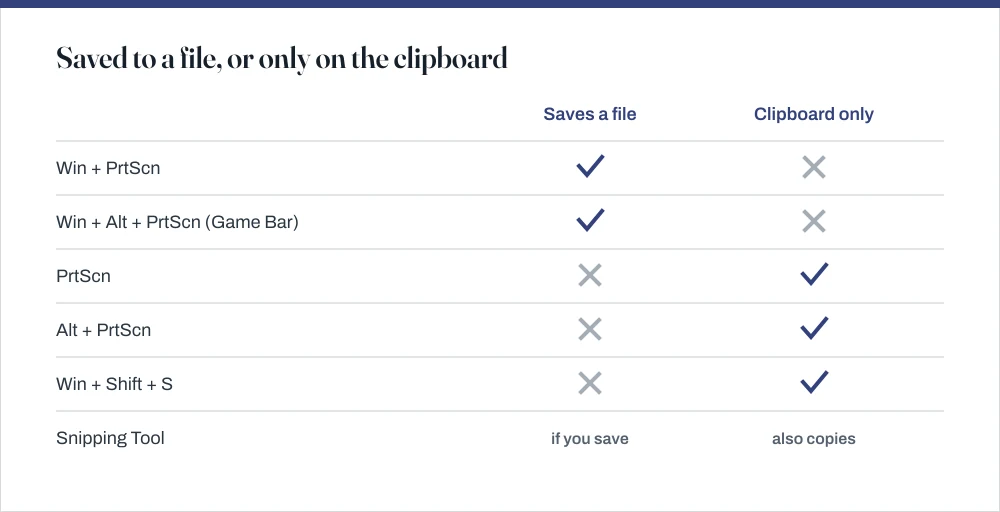
Press Win + Shift + S to select an area and copy it — this is the one to learn. Win + PrtScn saves the whole screen to Pictures\Screenshots. Plain PrtScn copies without saving, and Alt + PrtScn takes just the window.

Four things worth knowing
- Only Win + PrtScn saves a file automatically; the other shortcuts copy to the clipboard and are lost if you copy something else.
- Win + Shift + S gives you a selection tool and works identically on Windows 10 and 11.
- Alt + PrtScn captures the active window only, which is the neatest way to screenshot one dialog.
- On a laptop without a PrtScn key, Fn + Win + Space Bar is the documented substitute.
Windows has quietly accumulated six ways to take a screenshot and explains the differences nowhere obvious. The distinction that actually matters is not what each one captures. It is whether the result gets saved to a file or only lands on the clipboard, because a clipboard capture vanishes the instant you copy anything else. That is how screenshots get lost.
| Shortcut | What it captures | Where it goes |
|---|---|---|
| Win + Shift + S | An area you drag, or a window | Clipboard, plus a notification to edit and save |
| Win + PrtScn | The entire screen | Pictures\Screenshots as a PNG |
| PrtScn | The entire screen | Clipboard only |
| Alt + PrtScn | The active window only | Clipboard only |
| Win + Alt + PrtScn | The active window | Videos\Captures — via Game Bar |
| Snipping Tool | Anything, with a delay timer | Its own window; you choose |
Win + Shift + S: the one to use
This is the modern default and it behaves identically on Windows 10 and 11. The screen dims, a small toolbar slides in at the top, and you pick how you want to capture. If you learn one thing from this page, learn this shortcut.
Capture part of the screen
Press Win + Shift + S.
The screen dims and a toolbar appears at the top centre.
Choose a mode: rectangular, freeform, window, or full screen.
Window mode is the useful one people miss — hover over any window and click to capture exactly that window, including its shadow.
Drag to select, or click the window you want.
The capture goes to the clipboard. Paste it with Ctrl + V anywhere.
A notification also appears — click it to open the capture in Snipping Tool for cropping, annotation and saving.
If nothing happens when you press it, Snipping Tool may be disabled or the shortcut remapped. Settings → Accessibility → Keyboard has a Use the Print screen key to open screen capture option that changes PrtScn's behaviour to launch this tool, which is worth turning on if you find the shortcut awkward.
The Print Screen keys
The key is usually labelled PrtScn, PrtSc or Print Screen, over in the top-right area of the keyboard. On compact and laptop keyboards it often shares a key with something else and needs Fn held down, which is why it sometimes appears to do nothing at all.
- PrtScn — the whole screen to the clipboard. Nothing is saved. Paste it into something before you copy anything else.
- Alt + PrtScn — the active window only, to the clipboard. The tidiest way to capture a single dialog without cropping.
- Win + PrtScn — the whole screen, saved as a PNG in
Pictures\Screenshots. The screen dims briefly to confirm. - Fn + Win + Space Bar — the documented substitute on devices with no PrtScn key at all.
Snipping Tool, and the delay timer
Open it from the Start menu. The thing it does that nothing else does is the delay: set 3, 5 or 10 seconds, click New, and it waits before capturing. That is the only practical way to photograph an open menu or a hover state, which otherwise disappears the moment you reach for a shortcut.
That solves a specific and otherwise intractable problem — capturing a menu, a tooltip or a right-click context menu. Those disappear the moment you press a shortcut, because pressing anything dismisses them. With a delay, you start the capture, open the menu, and let the timer fire.
Recent versions also record video: click the camcorder icon, select an area, and it produces an MP4. That covers most of what people install a separate screen recorder for.
Windows 7
Windows 7 gives you PrtScn and Alt + PrtScn to the clipboard, plus the original Snipping Tool under Accessories. There is no Win + Shift + S and no Win + PrtScn; those arrived in Windows 8 and 10 respectively, so if you are following newer instructions on a Windows 7 machine, that is why nothing happens.
The Windows 7 workflow
Press PrtScn, or Alt + PrtScn for just the active window.
Open Paint — Start → All Programs → Accessories → Paint.
Or press Win + R, type
mspaintand press Enter.Press Ctrl + V to paste, crop if needed, then Ctrl + S to save.
Choose PNG rather than JPEG.
JPEG compression makes text and interface edges blurry. PNG is lossless and the correct format for a screenshot.
Game Bar, for anything that will not capture
Press Win + G. Despite being called the Game Bar it works with any application, and it captures things the other methods sometimes cannot: full-screen games, and hardware-accelerated video where an ordinary screenshot comes out as a black rectangle. If you have ever tried to screenshot a video and got nothing but black, this is the fix.
Win + Alt + PrtScn takes a screenshot through Game Bar without opening the overlay, saving to Videos\Captures. Win + Alt + R starts and stops a recording. If a video player produces a black rectangle in an ordinary screenshot, this is the route that works, because it captures at a different point in the display pipeline.
When a screenshot does not work
| Symptom | Cause | Fix |
|---|---|---|
| PrtScn does nothing | Fn lock, or a remapped key | Try Fn + PrtScn |
| No PrtScn key at all | Compact keyboard | Fn + Win + Space Bar |
| Win + PrtScn saves nothing | Screenshots folder moved or missing | Recreate Pictures\Screenshots |
| Capture is black | Hardware-accelerated video or DRM | Use Win + G Game Bar |
| Only one monitor captured | Alt + PrtScn was used | Use PrtScn or Win + PrtScn |
| Menu vanishes before capture | Key press dismisses it | Snipping Tool with a delay |
The black-capture case is worth understanding: some video paths render in a way that never reaches the desktop composition layer an ordinary screenshot reads from, and some streaming services deliberately block capture for licensing reasons. Game Bar works around the first and, correctly, not the second.
One last practical point: screenshots often contain more than you intend — a taskbar with an email preview, a browser tab title, a filename in a window's title bar. Before sharing one, look at the edges. Cropping with Win + Shift + S on the screenshot itself is quicker than opening an editor, and the guide on clearing recent files covers the other place that quietly reveals what you have been working on.
Common questions
Where do Windows screenshots get saved?
Only Win + PrtScn saves automatically, to C:\Users\you\Pictures\Screenshots. Win + Alt + PrtScn saves to Videos\Captures. Everything else — PrtScn, Alt + PrtScn and Win + Shift + S — copies to the clipboard and saves nothing until you paste it somewhere.
How do I screenshot on a laptop with no Print Screen key?
Press Fn + Win + Space Bar, which Microsoft documents as the substitute on devices without a dedicated key. Win + Shift + S also needs no PrtScn key at all and is generally the better option, since it gives you a selection tool as well.
How do I screenshot just one window?
Click the window to focus it, then press Alt + PrtScn — that copies only that window to the clipboard. Alternatively press Win + Shift + S and choose window mode from the toolbar, which also captures the window's drop shadow and lets you save straight from the notification.
Why is my screenshot black?
Because the content is being drawn through a path an ordinary screenshot cannot read, typically hardware-accelerated video, or a streaming service that blocks capture for licensing reasons. Press Win + G and use Game Bar's capture, which works at a different point in the display pipeline. It will not defeat deliberate DRM blocking.
Sources
Each source is listed with the specific claim it supports.
Keyboard shortcut for print screen — Microsoft Support
Supports: The Win + PrtScn save location, the Fn + Win + Space Bar substitute on devices without a PrtScn key, and the Print screen key accessibility setting.
Keyboard shortcuts in Windows — Microsoft Support
Supports: The Win + Shift + S, Alt + PrtScn, Win + G and Win + Alt + R shortcuts.