Minimize, Maximize and Close Windows: Shortcuts
By Robert MocaUpdated 8 min read
The short answer
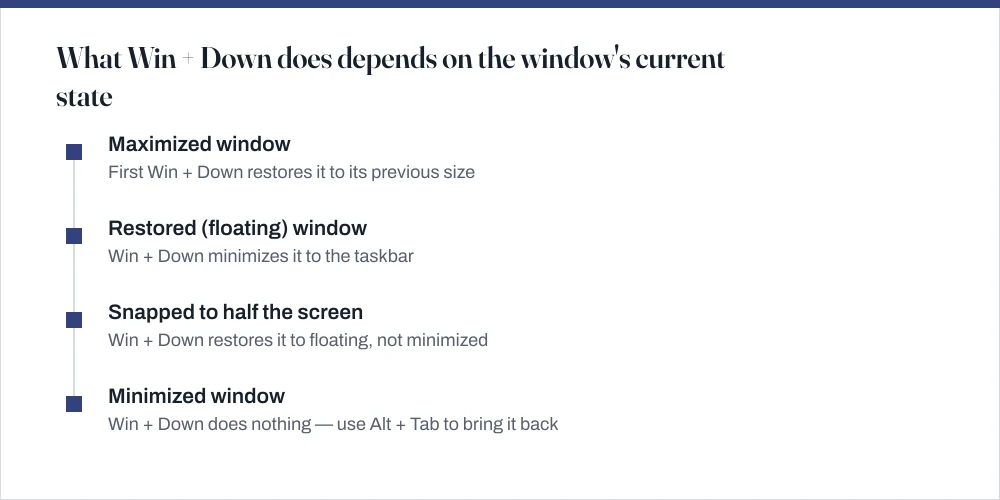
Win + Down minimizes the active window, Win + Up maximizes it, and Alt + F4 closes it. Win + D clears the screen. On a maximized window, Win + Down restores it first and only minimizes on the second press.

Four things worth knowing
- Win + Down is a two-stage key: restore first, minimize second. That surprises people who expect one press to do one thing.
- Alt + F4 closes the active window; with the desktop focused it opens the shut-down dialog instead, which is why it sometimes appears to do the wrong thing.
- Win + D and Win + M both clear the screen, but only Win + D restores everything when pressed again.
- Win + Shift + Left/Right moves a window to another monitor without touching its size: the shortcut most people never find.
Window management is something you do a few hundred times a day without ever thinking about it, which makes it the place where a handful of shortcuts pay for themselves fastest. Most people learn Alt + Tab and stop there. The rest of this set takes maybe ten minutes to pick up and removes an enormous amount of mousing.
| Shortcut | What it does | Note |
|---|---|---|
| Win + Down | Restore, then minimize | Two presses from maximized |
| Win + Up | Maximize, or restore from snapped | Also un-minimizes a snapped window |
| Win + Left / Right | Snap to half the screen | Repeat to move between monitors |
| Win + Shift + Left / Right | Move to the next monitor | Keeps the current size |
| Alt + F4 | Close the active window | Shut-down dialog if the desktop has focus |
| Ctrl + W | Close the current tab or document | App-specific, not a Windows shortcut |
| Win + D | Show the desktop, toggle | Press again to bring everything back |
| Win + M | Minimize everything | Win + Shift + M to undo |
| Win + Home | Minimize all except the active window | The 'clear the clutter' key |
| Alt + Tab | Switch windows | Hold Alt to keep the picker open |
| Win + Tab | Task View | Also shows virtual desktops |
Minimizing a window
Minimizing tucks a window away to the taskbar without closing it. The program keeps running, keeps its memory, keeps whatever you had open. That difference matters more than it sounds: a minimized document has not been saved, it has just been put out of sight, and it is entirely possible to lose work by forgetting which one you did.
- Mouse: click the underscore icon at the top right of the window, or click the program's taskbar button while the window is in front.
- Keyboard: Win + Down. On a maximized window this restores it to its previous size; press again to minimize.
- Everything at once: Win + M minimizes every open window. Win + Shift + M brings them back.
- Everything except this one: Win + Home, or grab the title bar and shake the mouse — the Aero Shake gesture, which is off by default in Windows 11 and can be re-enabled under Settings → System → Multitasking.
Maximizing and snapping
Maximizing fills the screen. Snapping fills half of it, or a quarter, and on any monitor wider than about 24 inches snapping is by far the more useful of the two.
Snap two windows side by side
Click the window you want on the left to focus it.
Press Win + Left.
The window fills the left half. Windows then offers thumbnails of your other windows for the right half — Snap Assist.
Click one of the thumbnails, or press Tab and Enter to choose with the keyboard.
If nothing appears, Snap Assist is off: Settings → System → Multitasking → Snap windows.
Drag the divider between the two windows to resize both at once.
This only works on windows snapped as a pair; two manually resized windows have no shared divider.
Windows 11 adds Snap Layouts: hover the maximize button, or press Win + Z, and pick a layout from the grid. On a wide monitor the three-column layout is the one worth learning. Windows 10 has quarter-snapping through Win + Left then Win + Up, but no layout picker.
Closing a window, and the Alt + F4 confusion
Alt + F4 closes the active window, and if that is the application's last window it usually closes the application too. The thing to appreciate is that it is a polite request: the program gets its chance to ask you about unsaved work. That is the important difference between closing something and force-quitting it.
The confusion is what happens when nothing is focused. Click the desktop, press Alt + F4, and you get the shut-down dialog. That is correct behaviour — the desktop is a window and this is its close action, but it looks like a bug the first time.
- Ctrl + W closes the current tab or document rather than the whole application. In a browser, Alt + F4 closes every tab and Ctrl + W closes one.
- Ctrl + Shift + T reopens the tab you just closed, in every major browser.
- Middle-click a taskbar button to open a second window of the same application; middle-click a tab to close it.
Switching between windows
Alt + Tab flips you to the last window you used. Hold it down and you get a picker you can move through with Tab or the arrow keys. Ctrl + Alt + Tab opens the same picker but leaves it up when you let go, which is much easier when you have a dozen windows and need a moment to find the right one.
Win + number jumps straight to the application at that position on the taskbar — Win + 1 for the first, Win + 2 for the second. Pinning your four most-used applications in a fixed order and learning those four keys removes most of your Alt + Tab traffic.
Win + Tab opens Task View, which also holds virtual desktops. Win + Ctrl + D creates one, Win + Ctrl + Left/Right moves between them, Win + Ctrl + F4 closes the current one. Virtual desktops are genuinely useful for separating work from everything else on a single-monitor machine.
Windows across two monitors
Win + Shift + Left and Win + Shift + Right throw the active window to the next monitor without resizing it. Pressing Win + Left repeatedly also walks a window across monitors, snapping to each half on the way, which is fiddlier but handy when you want it snapped the moment it arrives.
If the shortcut sends a window somewhere unexpected, your monitors are probably arranged in Windows in a different order from the way they sit on your desk. Setting up dual monitors properly fixes that once, and the cursor stops catching on invisible edges too.
The four worth learning first
- Win + D — clear the screen, and put it all back with a second press.
- Win + Left / Right — two windows side by side without touching the mouse.
- Alt + F4 — close what is in front of you.
- Win + Shift + Left / Right — throw a window onto the other monitor.
Everything else in the table above is worth having somewhere findable, but those four cover the large majority of day-to-day window handling. If you are keyboard-minded generally, the guide to opening a terminal in Windows covers the launch shortcuts that pair with these.
Common questions
What is the shortcut to minimize a window?
Win + Down. On a maximized window the first press restores it to its previous size and the second minimizes it, so it can take two presses. To minimize every window at once use Win + M, or Win + D to show the desktop with a toggle that restores everything.
Why does Alt + F4 shut down my computer?
Because nothing was focused when you pressed it. With no application window active, Alt + F4 targets the desktop, and the desktop's close action is the shut-down dialog. Click into a window first, or press Escape at the dialog — nothing happens until you confirm.
How do I close all open windows at once?
There is no single built-in shortcut that closes everything, and that is deliberate — mass-closing would discard unsaved work without prompting. Win + M minimizes everything, which is what most people actually want. To genuinely close a set of programs, close them individually or end them from Task Manager.
How do I get back a window that has disappeared off the screen?
Select it with Alt + Tab so it has focus, then press Win + Shift + Left to pull it onto the other monitor. If that fails, press Alt + Space, then M, then move the mouse — the window attaches to the cursor and you can drag it back into view, then press Enter.
Sources
Each source is listed with the specific claim it supports.
Keyboard shortcuts in Windows — Microsoft Support
Supports: The full shortcut list, including Win + Down, Win + Up, Win + D, Win + M, Win + Home and the Win + Shift + arrow monitor moves.
ShowWindow function — Microsoft Learn
Supports: That minimize, maximize and restore are distinct window states at the API level, which is why Win + Down behaves differently depending on the starting state.