How to Set Up Dual Monitors in Windows 10 and 11
By Robert MocaUpdated 7 min read
The short answer
Plug in the second monitor, press Win + P and choose Extend. Then open Settings → System → Display and drag the numbered rectangles so they match how the screens actually sit on your desk, and click Apply.

Four things worth knowing
- Win + P is the whole answer for switching modes, and Extend is what almost everyone wants.
- The arrangement diagram must match your physical layout, or the cursor catches on invisible edges.
- Scaling and refresh rate are per-monitor settings — select the monitor first, then change them.
- A monitor that is not detected is usually a cable or port problem, not a Windows one; the built-in Detect button is the second thing to try, not the first.
A second monitor is probably the cheapest genuine productivity improvement most people can make, and Windows handles it well. Setting it up is quick. The two things that go wrong are the arrangement, which gives you a cursor that mysteriously sticks at a screen edge, and detection, which has its own checklist.
Connecting the second monitor
Get a picture on both screens
Connect the monitor to the PC and to power, and switch it on.
On a laptop, use whichever video output it has — HDMI, DisplayPort, or USB-C with DisplayPort Alternate Mode.
Set the monitor's own input to match the cable you used.
This is the step most often missed. A monitor showing "No signal" while set to the wrong input looks exactly like a monitor Windows has not detected.
Press Win + P and choose Extend.
Windows usually does this automatically, but Win + P is faster than looking.
| Mode | What it does | Use for |
|---|---|---|
| PC screen only | Second monitor stays blank | Disconnecting temporarily |
| Duplicate | Same image on both | Presenting to a room |
| Extend | One desktop across both | Actual dual-monitor work |
| Second screen only | Laptop screen off | A laptop docked with the lid open |
Arranging the displays
This is the step that decides whether your two monitors feel like one continuous desktop or spend all day fighting you. It takes about twenty seconds and almost everybody skips it.
Match the arrangement to your desk
Right-click the desktop and choose Display settings.
Click Identify. A large number appears on each screen.
Windows numbers monitors by how they are connected, which frequently does not match left-to-right on your desk.
Drag the numbered rectangles until they match the physical layout, then click Apply.
If monitor 2 is physically on the left, drag it to the left. Otherwise moving the mouse left moves the cursor onto the right-hand screen, which is as disorienting as it sounds.
Align them vertically to match reality.
If one monitor sits higher on a stand, drag its rectangle up so the edges line up. Misaligned edges create dead zones where the cursor will not cross.
Set the Make this my main display checkbox on whichever monitor should hold the taskbar and open new windows.
Select the monitor first, then scroll down to the checkbox.
Scaling, resolution and refresh rate, per monitor
Every one of these is a per-monitor setting, which trips people up constantly. Select the monitor at the top of Display settings first, then change the setting underneath. Otherwise you adjust the wrong screen, see no change on the one you were looking at, and conclude the setting is broken.
- Resolution — always use the one marked (Recommended), which is the panel's native resolution. Anything else is interpolated and looks soft.
- Scale — how large everything is drawn. A 27-inch 4K monitor typically wants 150%; a 24-inch 1080p one wants 100%. Mixing scales across monitors is supported and works, though some older applications handle the transition badly.
- Refresh rate — under Advanced display. Windows does not always select the highest available, and a 144 Hz monitor running at 60 Hz is a common and easily missed disappointment.
- Orientation — for a monitor rotated into portrait, set Portrait here as well as physically turning it.
If text looks blurry after a scaling change, sign out and back in. Applications read the scaling value when they launch, so those already running get stretched rather than redrawn. The guide on changing desktop icon size covers the interaction between scaling, resolution and icon size in more detail.
When the second monitor is not detected
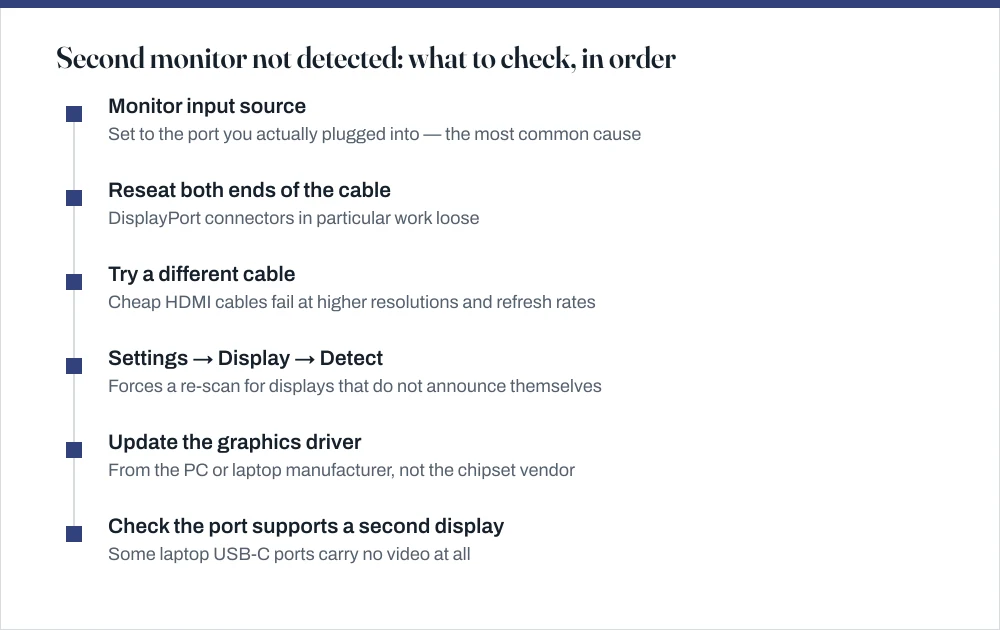
Work through the sequence above in order rather than jumping about. A few of the cases deserve more explanation than a checklist gives them.
- USB-C that carries no video. Not every USB-C port supports DisplayPort Alternate Mode. Many laptops have several USB-C ports where only one does, and it is usually marked with a small display or Thunderbolt icon. Check the specification rather than assuming.
- Docking stations and hubs. These frequently need their own driver, and a dock connected to a non-video USB-C port will pass data but no picture. Try connecting the monitor directly to the laptop to isolate the dock.
- Two monitors on one graphics output. Splitters generally duplicate rather than extend. Genuine multi-monitor requires either separate outputs, or DisplayPort MST daisy-chaining if both monitors support it.
- Integrated versus discrete graphics. On a desktop with a graphics card, monitors plugged into the motherboard's ports may not work at all if the integrated graphics are disabled in the BIOS. Use the card's ports.
- Laptop lid closed. With the lid shut, the laptop's own panel is not counted, so an external monitor is the only display and Extend has nothing to extend to. Set the lid-close action to Do nothing in Power Options if you dock with the lid down.
Working across two screens
The shortcuts are what actually make a two-monitor setup pay for itself. The full list is in the guide on window management shortcuts, but three of them matter here.
- Win + Shift + Left / Right moves the active window to the other monitor without changing its size. This is the one to learn first.
- Win + Left / Right snaps a window to half of the current screen, and pressing it repeatedly walks the window across monitors, snapping as it goes.
- Win + P switches modes instantly — useful when you unplug and want the laptop screen back without a trip through Settings.
Two settings worth adjusting: under Settings → Personalization → Taskbar, choose whether the taskbar appears on all displays and whether buttons appear on the monitor where the window is. Under Personalization → Background, right-click an image and choose Set for monitor 1 or 2 to give each screen its own wallpaper; see the guide on changing your desktop wallpaper.
Common questions
How do I extend my display to a second monitor?
Press Win + P and choose Extend. If the second monitor shows nothing, check its input source is set to the port you plugged the cable into: that single step resolves a large share of cases that look like a detection failure.
Why does my mouse get stuck between monitors?
Because the arrangement in Windows does not match the physical layout. Open Settings → System → Display, click Identify, and drag the numbered rectangles so they match how the monitors sit on your desk — including their vertical position. The cursor can only cross where the rectangles overlap.
Can I use two monitors with different resolutions?
Yes. Windows handles mixed resolutions and refresh rates, and lets you set scaling per monitor. Select each monitor at the top of Display settings before changing its resolution or scale. Some older applications render awkwardly when dragged between screens with different scaling, but the setup itself works fine.
Why is my second monitor not detected?
In order of likelihood: the monitor's input source is set to a different port; the cable is loose or faulty; the USB-C port you used does not carry video; or the graphics driver needs updating. Try the Detect button in Display settings after checking the physical causes, not before: it rarely helps with a cable problem.
Sources
Each source is listed with the specific claim it supports.
How to use multiple monitors in Windows — Microsoft Support
Supports: The Win + P modes, the Identify and Detect buttons, arranging displays and setting a main display.
Multiple display monitors — Microsoft Learn
Supports: That Windows composes multiple monitors into a single virtual desktop whose geometry determines where the cursor can cross between screens.