How to Hide Folders in Windows 10 and 11
By Robert MocaUpdated 6 min read
The short answer
Right-click the folder, choose Properties, tick Hidden and click OK. It vanishes while *Hidden items* is unticked in File Explorer's View menu. For something harder to stumble on, attrib +h +s "C:\path" also sets System.

Four things worth knowing
- The Hidden attribute is a display convention. It hides a folder from the default view and from nothing else.
- Adding the System attribute with attrib +h +s makes a folder much harder to find, because the View menu checkbox does not reveal system files.
- Anyone who types the path, searches by content, or opens the drive on another machine will still find it.
- If the goal is privacy rather than tidiness, hiding is the wrong tool and encryption is the right one.
There are two quite different reasons to hide a folder, and they want opposite answers. If you just want a working directory out of the way so Documents is not a mess, the Hidden attribute is exactly right and takes four clicks. If you want something to stay genuinely private on a shared computer, hiding does almost nothing, and I would rather tell you that now than let you find out the hard way.
The quick way: the Hidden checkbox
Hide a folder through Properties
Right-click the folder and choose Properties.
On the General tab, tick Hidden near the bottom.
Click Apply.
If the folder has contents, choose Apply changes to this folder, subfolders and files.
The other option hides only the folder itself. Both work for hiding it from view; applying to contents matters if anyone might browse to the path directly.
Click OK. The folder vanishes if *Hidden items* is unticked in the View menu.
If it merely goes faded rather than disappearing, hidden items are currently shown — untick that box.
The better way: attrib +h +s
On its own, the Hidden attribute is undone by a single checkbox that a lot of people already have ticked permanently. Adding the System attribute is meaningfully stronger, because revealing system files means going into Folder Options and clearing a separate setting that comes with its own warning, and most people never go near it.
Hide a folder with both attributes
Open Command Prompt.
Win + R,
cmd, Enter. See opening a terminal in Windows for the other routes.Run
attrib +h +s "C:\Users\you\Documents\Private".Quote the path if it contains spaces. Nothing is printed on success — attrib is silent when it works.
The folder is now invisible even with *Hidden items* ticked.
To reach it yourself, type the full path into File Explorer's address bar and press Enter. It opens normally.
To reverse it:
attrib -h -s "C:\Users\you\Documents\Private".Note that the Properties dialog greys out the Hidden checkbox once the System attribute is set, so attrib is the only way back.
| Switch | Effect |
|---|---|
+h | Sets Hidden — folder disappears from the default view |
+s | Sets System — the View menu checkbox no longer reveals it |
-h -s | Clears both, making the folder normal again |
/s | Applies through subfolders |
/d | Applies to folders as well as files |
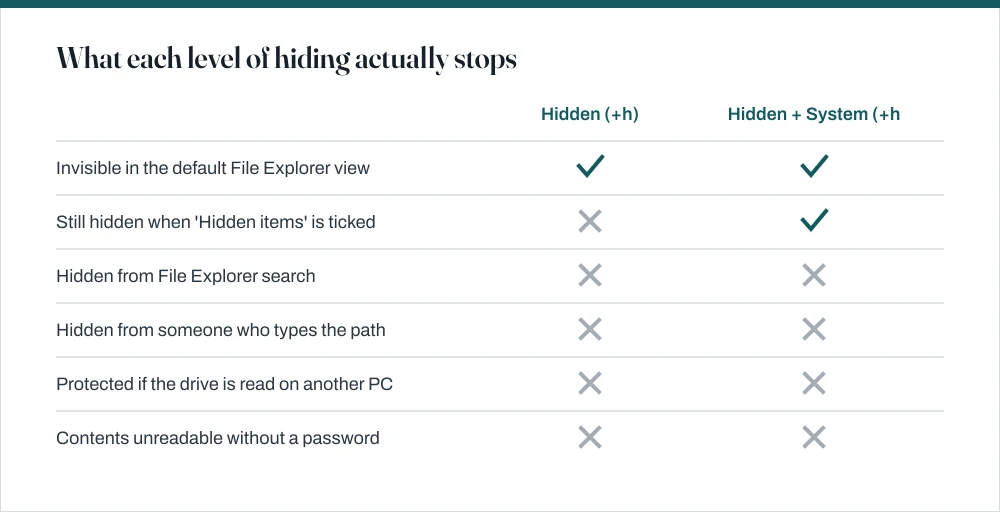
What hiding does not do
I want to be blunt here, because a lot of pages are vague about it. The Hidden attribute is a flag politely asking File Explorer not to draw something. It is not a permission, and nothing enforces it. Specifically:
- Typing the path works. Paste the full path into the address bar and the folder opens as normal, hidden or not.
- Search finds it. File Explorer's search box reaches hidden files, and so does every third-party search tool.
- Copying the parent copies it. Back up or copy the containing folder and the hidden contents come along.
- Another operating system ignores it. Boot from a USB stick, or connect the drive to another machine, and the attribute means nothing at all.
- Recent files give it away. Open a document from a hidden folder and it appears in Quick Access and in the application's recent list; see clearing recent files.
If you actually need privacy
Then hiding is the wrong tool and the folder needs to be encrypted, so the contents are unreadable without a key rather than simply not drawn on screen. What is available depends on your Windows edition, and on Home it is thinner than most guides will admit. The full comparison is in the guide on password-protecting a folder in Windows, but briefly:
- A 7-Zip archive with AES-256 encryption — works on every edition, free, genuinely strong, and encrypts filenames too if you tick that option. The awkward part is that you extract to work and re-archive afterwards.
- BitLocker on Pro and above — encrypts a whole drive, including a removable one, which is the neatest answer if you can dedicate a USB stick to it.
- EFS on Pro and above — right-click → Properties → Advanced → Encrypt contents to secure data. Ties the folder to your Windows account, and loses everything if your profile or certificate is lost.
The middle ground: NTFS permissions
On a machine with several accounts there is a middle option that gets overlooked. NTFS permissions are enforced by Windows itself, unlike the Hidden attribute, so another standard user genuinely cannot open the folder no matter what they tick.
Restrict a folder to your account
Right-click the folder → Properties → Security tab → Advanced.
Click Disable inheritance, then Convert inherited permissions into explicit permissions.
This stops the folder from picking up permissions from its parent, which is what would otherwise undo your changes.
Remove the Users group, leaving your own account and SYSTEM.
Apply, and confirm the warnings.
The important caveat: an administrator on the same machine can take ownership and grant themselves access in about thirty seconds. This stops another standard user; it does not stop an administrator, and it does not stop anyone who removes the drive.
Common questions
How do I hide a folder in Windows 10?
Right-click it, choose Properties, tick Hidden on the General tab, and click OK. Then make sure Hidden items is unticked under File Explorer's View menu, otherwise the folder stays visible in a faded state rather than disappearing.
How do I unhide a folder I can no longer see?
Turn on View → Show → Hidden items in File Explorer, then right-click the folder and untick Hidden in Properties. If it still does not appear, it also has the System attribute — run attrib -h -s "C:\path\to\folder" from a Command Prompt, since the Properties checkbox is greyed out in that case.
Is hiding a folder secure?
No. It hides the folder from the default File Explorer view and nothing more. Typing the path opens it, search finds it, copying the parent folder copies it, and reading the drive from another computer ignores the attribute entirely. For actual privacy you need encryption.
Can I password-protect a folder without extra software?
Not natively on Windows Home. Pro and above have EFS and BitLocker; Home has neither for a plain folder. The practical free option on any edition is a 7-Zip archive with AES-256 encryption. The batch-file "folder locker" scripts found online do not encrypt anything and are trivially reversed.
Sources
Each source is listed with the specific claim it supports.
attrib — Windows commands reference — Microsoft Learn
Supports: The +h, +s, /s and /d switches and their exact effect on files and folders.
File attribute constants — Microsoft Learn
Supports: That FILE_ATTRIBUTE_HIDDEN is a display attribute rather than an access control, which is the basis for saying hiding enforces nothing.
Access tokens — Microsoft Learn
Supports: That access decisions are made against an access token and the object's security descriptor, which is why NTFS permissions are enforced and the Hidden attribute is not.