How to Reduce Screen Brightness in Windows
By Robert MocaUpdated 8 min read
The short answer
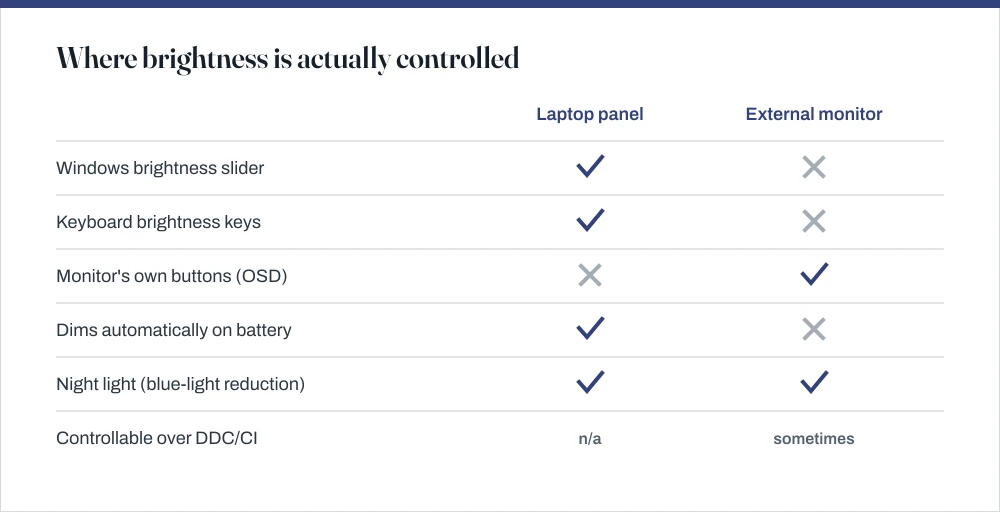
On a laptop, press Win + A and drag the brightness slider, or use the sun keys on the top row. If there is no slider at all, you are on a desktop with an external monitor, where brightness lives in the monitor's own buttons.

Four things worth knowing
- Laptop brightness is a command to the built-in panel's backlight; external monitor brightness is a firmware setting Windows has no standard way to reach.
- A slider that disappeared after an update is usually a display driver that has fallen back to Microsoft Basic Display Adapter.
- Night light reduces blue output and Windows 11's dimming feature reduces perceived brightness, but neither actually lowers the backlight.
- Turning brightness down is the single biggest battery saving available on a laptop: the panel is typically the largest consumer after the CPU.
There is one specific reason this question causes so much grief, and it is not that Windows has buried the setting somewhere clever. It is that two completely different pieces of hardware get asked the same question, and only one of them is capable of answering. Once you know which one you are sitting in front of, the whole thing stops being mysterious.
Why your PC may have no brightness slider at all
On a laptop, the screen is part of the machine. Windows tells the graphics driver to change the brightness, the driver tells the panel's backlight controller, and the light behind the pixels dims. There is a clean, unbroken path from the slider you drag to the hardware that actually does the dimming.
On a desktop with an external monitor, that path simply is not there. Your monitor is its own little computer, with its own firmware and its own clunky on-screen menu, and the cable between them carries picture data rather than instructions. Brightness lives inside the monitor. Windows cannot reach it, so Windows does not offer a slider for it, and Microsoft says exactly that in their own documentation: on a desktop PC with an external monitor the slider may not appear, and you should use the buttons on the monitor instead. So if you have been hunting for a slider that is not there, you have not missed a setting. It genuinely does not exist on your machine, and it never will.
Changing brightness on Windows 11
Windows 11: Quick Settings
Press Win + A, or click the battery, network and volume cluster at the right of the taskbar.
Clicking any of those three icons opens the whole Quick Settings panel — they are one button.
Drag the slider with the sun icon at the top of the panel.
For the full set of options, go to Settings → System → Display.
This is where you will find automatic brightness, content-adaptive dimming and Night light.
Changing brightness on Windows 10
Windows 10: Action Center
Press Win + A to open Action Center.
Drag the brightness slider at the bottom of the panel.
The slider appeared in version 1903. On earlier builds Action Center has a brightness tile that steps in 25% jumps instead.
Alternatively, go to Settings → System → Display and use Change brightness for the built-in display.
Changing brightness on Windows 7
Windows 7 puts brightness in Power Options, which is not where anyone looks. Open Control Panel → Hardware and Sound → Power Options and the slider is at the bottom of the window. It is also on the battery flyout when you click the battery icon in the notification area.
The keyboard brightness keys
Nearly every laptop puts brightness on the function row, under the little sun icons. Whether you tap them directly or have to hold Fn first comes down to how the manufacturer set FnLock, which is usually something you can flip in the BIOS or in the vendor's own utility. Worth doing if it annoys you, because it is the same setting that governs the whole top row.
If those keys do nothing at all, the culprit is almost never Windows itself. It is a missing vendor hotkey driver, the small piece of software whose entire job is turning a key press into a brightness command. Reinstalling the manufacturer's hotkey or system-interface package fixes it. A useful tell: if the brightness keys are dead, check whether the volume and Print Screen keys are dead too. When the whole function row has gone quiet it is that one driver, not several separate faults, and the same component handles the Print Screen key used for screenshots.
When the slider has disappeared from a laptop
This one is real, it is common, and it almost always turns up right after a Windows update or a driver change. If your slider vanished overnight and you did not change anything, that timing is your clue. Work through these in order.
Restoring a missing brightness control
Open Device Manager (Win + X, then M) and expand Display adapters.
If it says *Microsoft Basic Display Adapter*, that is your answer: the real graphics driver is not loaded, and the basic driver has no brightness support.
Install the graphics driver from your laptop manufacturer's support site, not from Intel, AMD or NVIDIA directly.
Laptop panels often need the OEM's build of the driver. The generic one can install successfully and still leave brightness non-functional.
Expand Monitors, right-click Generic PnP Monitor and choose Enable device if it is disabled.
A disabled monitor entry removes the brightness slider while leaving the picture working perfectly, which makes it a confusing fault.
If the driver is fine, roll back rather than reinstall: right-click the display adapter, Properties → Driver → Roll Back Driver.
The button is greyed out if there is no previous version stored.
Restart and check the slider again.
Controlling an external monitor from Windows
The monitor's own buttons always work. They are usually hiding on the bottom edge or tucked behind the lower-right corner, and on plenty of monitors they are unlabelled nubs you have to find by feel. Fiddly, but reliable, and this is the answer that actually works every time.
There is a partial way around it. A lot of monitors accept commands over DDC/CI, a small control channel that rides alongside the video signal and can set brightness and contrast from software. Windows does not use it, but third-party utilities do. Be warned that support is patchy: some monitors need DDC/CI switched on in their own menu first, and if you go through a docking station or a KVM it often does not work at all. Worth ten minutes if you change brightness several times a day. Not something I would rely on.
| Feature | What it changes | Reduces backlight? |
|---|---|---|
| Brightness slider | Panel backlight level | Yes |
| Night light | Colour temperature, cuts blue | No |
| Content-adaptive brightness | Backlight, based on what is displayed | Yes |
| Auto-brightness (ambient sensor) | Backlight, based on room light | Yes |
| Battery saver | Can cap brightness at 30–70% | Yes |
| Dark mode | Application colours | No |
Night light, and what the evidence actually says
Night light shifts the display towards warmer colours after a set time. It is under Settings → System → Display → Night light, where you can set the strength and a schedule.
The reasoning behind it is real. Controlled studies have found that evening exposure to light-emitting screens suppresses melatonin, delays circadian timing and reduces next-morning alertness relative to reading print in dim light. What is much less clear is whether a software colour shift meaningfully changes that outcome, since it lowers blue output without lowering overall light level by much, and the trials that established the effect were not testing this feature. Reducing the actual brightness, and stopping earlier, have better evidence behind them than warming the colour balance does.
If the problem is that everything looks wrong, not bright
Brightness gets blamed for problems it did not cause. Text that is too large, icons that fill the screen or a washed-out picture are usually display scaling or resolution rather than backlight level — the guide on changing desktop icon size covers how those three settings interact, and why changing the wrong one makes things worse.
Common questions
Why is there no brightness slider on my Windows 10 desktop PC?
Because an external monitor's backlight is controlled by the monitor's own firmware, not by Windows. Microsoft's documentation states the slider may not appear on desktop PCs with an external monitor and that you should use the buttons on the monitor. Those buttons are usually on the bottom edge or behind the lower-right corner.
My brightness slider disappeared after a Windows update. How do I get it back?
Open Device Manager and check Display adapters. If it reads *Microsoft Basic Display Adapter*, the real graphics driver has been replaced and the basic one has no brightness support — reinstall the driver from your laptop manufacturer's site. Also check under Monitors that Generic PnP Monitor is enabled; a disabled entry removes the slider while leaving the picture working.
Does lowering brightness actually save battery?
Yes, and it is usually the single most effective change available. The backlight is one of the biggest power consumers in a laptop, so going from full brightness to roughly 40% has a larger effect on runtime than most software tweaks. Dark mode does not have the same effect on an LCD, because the backlight stays on regardless of what is displayed.
Is Night light better than just turning the brightness down?
For sleep, probably not. The evidence that evening screen light suppresses melatonin and delays circadian timing is solid, but it concerns light exposure generally rather than colour temperature specifically, and Night light reduces blue output without reducing overall brightness much. Lowering actual brightness, and finishing earlier — rests on firmer ground.
Sources
Each source is listed with the specific claim it supports.
Change screen brightness in Windows 10 — Microsoft Support
Supports: That the Action Center slider arrived in version 1903, and that the slider may be absent on desktop PCs with an external monitor, where the monitor's own buttons must be used.
Evening use of light-emitting eReaders negatively affects sleep, circadian timing, and next-morning alertness — Proceedings of the National Academy of Sciences · DOI 10.1073/pnas.1418490112
Supports: The claim that evening exposure to light-emitting screens suppresses melatonin, delays circadian timing and reduces next-morning alertness compared with reading print.
Evening exposure to a light-emitting diodes (LED)-backlit computer screen affects circadian physiology and cognitive performance — Journal of Applied Physiology · DOI 10.1152/japplphysiol.00165.2011
Supports: That the measured effect comes from LED-backlit screen exposure generally, which is the basis for saying reducing brightness has better support than shifting colour temperature alone.