How to Change Desktop Icon Size in Windows 10
By Robert MocaUpdated 6 min read
The short answer
Click an empty part of the desktop, hold Ctrl and scroll the mouse wheel. For fixed sizes, right-click and choose View → Large, Medium or Small icons. If the text is oversized too, that is display scaling, not icon size.

Four things worth knowing
- Ctrl + scroll works on the desktop and in File Explorer, and gives finer control than the three preset sizes.
- If text is oversized too, it is display scaling — changing icon size will not help.
- Windows sets scaling automatically from screen size and resolution, and it gets it wrong on some monitors.
- Sign out and back in after a scaling change, or applications launched before it will look blurry.
Three different settings all change how big things look on screen, and reaching for the wrong one is exactly why this question keeps coming back. Icon size changes icons. Scaling changes everything. Resolution changes how much fits on the screen at all. Thirty seconds working out which one you actually want will save you a lot of fiddling.
Changing icon size
Resize desktop icons
Click an empty part of the desktop.
The desktop needs focus. If a window is focused, Ctrl + scroll zooms that window instead.
Hold Ctrl and scroll the mouse wheel.
Down makes them smaller, up makes them larger. This gives many intermediate sizes rather than three presets.
Or right-click the desktop → View → Large icons, Medium icons or Small icons.
Medium is the default. The keyboard shortcuts are Ctrl + Shift + 2, 3 and 4 respectively.
The same Ctrl + scroll gesture works inside File Explorer, cycling through Extra large, Large, Medium and Small icons, then List, Details, Tiles and Content. Each folder remembers its own view, which is why one folder shows details and another shows thumbnails.
Display scaling: the usual real cause
Scaling is how large Windows draws everything: text, buttons, icons, window chrome, the lot. Windows picks a value for you based on the monitor's physical size and resolution, and on some monitors that guess is simply wrong. If your icons look fine but every menu is enormous, scaling is your culprit, not icon size.
Change display scaling
Right-click the desktop → Display settings.
On a multi-monitor setup, select the monitor you want to change first.
Scaling is per-monitor. Changing it without selecting the right one is a common source of confusion; see setting up dual monitors.
Under Scale and layout, choose a percentage.
The value marked (Recommended) is Windows' guess. On a 24-inch 1080p monitor, 100% is normally correct; a 27-inch 4K panel usually wants 150%.
Sign out and back in.
Applications read the scaling value when they start. Without a sign-out, anything already running is stretched rather than redrawn, which is what makes text look blurry after a change.
| Monitor | Resolution | Usual scaling |
|---|---|---|
| 24 inch | 1920 × 1080 | 100% |
| 27 inch | 1920 × 1080 | 100% |
| 27 inch | 2560 × 1440 | 100–125% |
| 27 inch | 3840 × 2160 | 150% |
| 32 inch | 3840 × 2160 | 125–150% |
| 13–14 inch laptop | 1920 × 1080 | 125–150% |
| 13–14 inch laptop | 2560 × 1600 | 175–200% |
Resolution: use the native one
Resolution is how many pixels the monitor is being asked to draw. Unlike scaling, this one has a correct answer, and it is the panel's native resolution, marked (Recommended) in Display settings. Anything else and you are asking the monitor to fake it, which is why everything goes slightly soft.
Setting a lower resolution does make everything bigger, and it is a tempting shortcut. It also makes everything soft, because the monitor has to interpolate a smaller image across its fixed grid of pixels. If things are too small, change the scaling and leave the resolution alone: that keeps every pixel sharp while making elements larger.
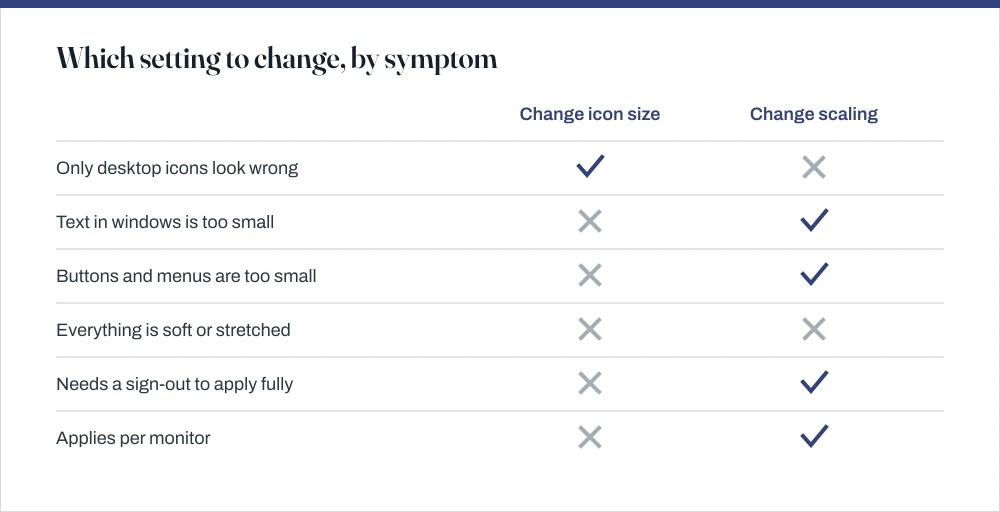
That empty fourth row is deliberate: a soft or stretched picture is neither of these. It means the resolution is not native, and the fix is to set it back to the recommended value.
Making text larger without changing everything
If what you actually want is to read the text, rather than make the whole interface bigger, there is a better setting than any of the above and hardly anyone knows it exists: Settings → Accessibility → Text size on Windows 11, or Settings → Ease of Access → Display → Make text bigger on Windows 10. It enlarges text without inflating everything else.
This scales text alone, up to 225%, leaving icons and window chrome as they are. It is a much better answer for readability than raising the global scaling, which enlarges everything and costs you screen space.
Related desktop annoyances
- Icons rearrange themselves. Right-click the desktop → View → untick Auto arrange icons. Leave Align icons to grid on, which keeps them tidy without moving them.
- Icons move after unplugging a monitor. Windows recalculates positions when the desktop area changes and cannot always restore them. There is no built-in fix; a third-party layout-saving tool is the only real answer.
- Icons have disappeared entirely. Right-click → View → Show desktop icons. It is a toggle that is easy to hit by accident.
- This PC and Recycle Bin are missing. Settings → Personalization → Themes → Desktop icon settings, and tick the ones you want.
- Icons show white or blank. The icon cache is corrupt. Delete
%LOCALAPPDATA%\IconCache.dband restart Explorer — the guide on what Windows Explorer is covers restarting the shell.
If the underlying complaint is that the screen is hard to look at rather than hard to read, brightness may be the more useful setting — the guide on reducing screen brightness covers that, including why some machines have no slider at all.
Common questions
How do I make desktop icons smaller in Windows 10?
Click an empty area of the desktop, hold Ctrl and scroll the mouse wheel down. For fixed sizes, right-click the desktop and choose View → Small icons, or press Ctrl + Shift + 4. Make sure the desktop has focus first, or the gesture zooms whichever window is active instead.
Why is everything on my screen suddenly huge?
Almost certainly display scaling rather than icon size, especially if text in windows is oversized too. Right-click the desktop → Display settings, and check the percentage under Scale and layout. This often changes by itself after a Windows update or after connecting a monitor with a different pixel density.
Should I lower my resolution to make things bigger?
No. A non-native resolution forces the monitor to interpolate, which makes everything soft. Increase the scaling percentage instead — that draws elements larger while keeping every pixel sharp. Resolution should stay on the value marked (Recommended).
Why is text blurry after changing the scaling?
Because applications read the scaling value when they launch, so anything already running gets stretched rather than redrawn. Sign out and back in. A few very old applications cannot scale at all — for those, try Properties → Compatibility → Change high DPI settings.
Sources
Each source is listed with the specific claim it supports.
Windows typography and text scaling — Microsoft Learn
Supports: That Windows scales text and interface elements by a system scaling factor rather than by resolution.
Multiple display monitors — Microsoft Learn
Supports: That scaling is applied per monitor, which is why the correct monitor must be selected before changing it.