How to Connect to Wi-Fi on a Windows Laptop
By Robert MocaUpdated 7 min read
The short answer
Click the network icon in the taskbar, pick your network, enter the password and connect. If no networks appear at all, the radio is switched off rather than absent — check the Fn key or physical switch, and turn off airplane mode.

Four things worth knowing
- "Wireless capability is turned off" refers to the radio's state, not the Windows toggle, which is why the Settings switch can look fine while it appears.
- A hardware switch or Fn key combination overrides everything in software — check it before touching drivers.
- WLAN AutoConfig is the service that finds and manages wireless networks; if it is stopped, Windows sees no networks at all.
- Forgetting and re-adding a network fixes stale credentials, which is the usual cause of a network that connects everywhere else but not here.
Connecting to Wi-Fi is four clicks and nobody needs a guide for that. What people need a guide for is the moment the network list comes up completely empty, or Windows announces that wireless capability is turned off, which sounds exactly like a dead card and almost never is. That message is the reason this page exists.
Connecting normally
Windows 10 and 11
Click the network icon at the right of the taskbar.
On Windows 11 this opens Quick Settings; click the arrow beside the Wi-Fi tile to list networks.
Choose your network from the list.
Tick Connect automatically if this is a network you use regularly, then click Connect.
Leave it unticked on public Wi-Fi so your laptop does not silently rejoin a network with the same name elsewhere.
Enter the network security key and click Next.
This is the Wi-Fi password, printed on a label on most home routers. It is not your router admin password, which is usually different.
Windows 7
Click the network icon in the notification area, at the bottom right.
Select the network and click Connect.
Type the security key and click OK.
Choose the network location — Home, Work or Public — when prompted.
Public applies stricter firewall rules and turns off network discovery. Choose it for any network you do not control.
"Wireless capability is turned off"
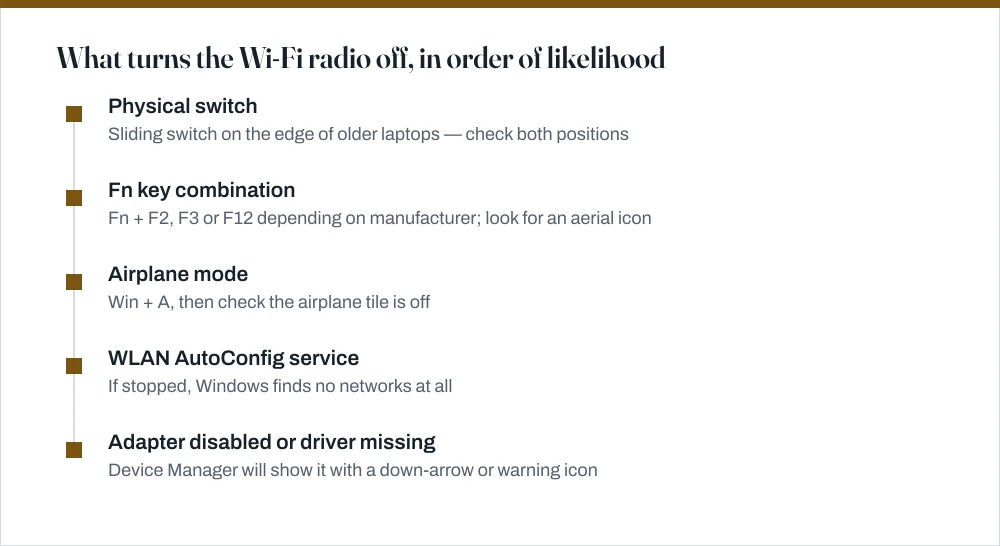
This message is about the radio itself, not about your network settings, and that distinction is the whole fix. Something has told the adapter to stop transmitting, and there are four separate things capable of doing that. Work through them in this order, because the first two take seconds and cover most cases.
The physical switch and the Fn key
Laptops made before roughly 2015 often have a sliding switch on the front or side edge. It is easy to knock in a bag and it overrides everything Windows does. Check it in both positions.
Nearly every laptop also has a function-key toggle, marked with an aerial or aircraft icon — commonly Fn + F2 on Lenovo, Fn + F12 on Dell, Fn + F3 on HP, but it varies. Press it, wait a couple of seconds, and watch the network icon in the taskbar. If the function keys do nothing at all, the manufacturer's hotkey driver is missing, which is a separate problem worth fixing since it affects brightness and volume too.
Airplane mode
Press Win + A and check the airplane tile. Airplane mode disables every radio at once, and it can be switched on accidentally by a mistyped function key. If the tile is stuck on and will not turn off, the Radio Management Service has usually got confused: press Win + R, run services.msc, find Radio Management Service, and restart it.
WLAN AutoConfig
This service does the actual work of scanning for networks and managing connections. If it is stopped, Windows reports no networks available even with a perfectly healthy adapter: a symptom that looks exactly like a broken Wi-Fi card.
Check the WLAN AutoConfig service
Press Win + R, type
services.mscand press Enter.Scroll to WLAN AutoConfig.
Confirm Status is Running and Startup Type is Automatic.
If not, double-click it, set Startup type to Automatic, click Start, then OK.
If it will not start, note the error and check Windows Event Log and RPC are also running.
WLAN AutoConfig depends on both; a stopped dependency prevents it starting with an unhelpful message.
The adapter itself
Open Device Manager with Win + X, then M, and expand Network adapters. Your Wi-Fi adapter usually has "Wireless", "WLAN", "Wi-Fi" or 802.11 in its name.
- A downward arrow on the icon means the device is disabled. Right-click → Enable device.
- A yellow warning triangle means a driver problem. Right-click → Update driver, and if that finds nothing, download it from the laptop manufacturer's support site rather than the chipset vendor's.
- The adapter is missing entirely — click View → Show hidden devices. If it is still absent, the card has failed or is disabled in the BIOS.
- Check power management. Right-click the adapter → Properties → Power Management, and untick Allow the computer to turn off this device to save power. This causes Wi-Fi that drops after sleep.
Connected, but no internet
This is a different problem with a different fix, and it is worth separating clearly. The radio is fine and you have joined the network. Something between the network and the internet is what is broken.
- Check another device. If nothing in the house has internet, the fault is the router or the line, and nothing on the laptop will fix it.
- Run the network reset commands. From an elevated Command Prompt:
ipconfig /release,ipconfig /renew,ipconfig /flushdns, thennetsh winsock resetandnetsh int ip reset. Restart afterwards — the last two require it. - Check for a captive portal. Hotel and café networks intercept the first request. Open a plain
http://address, not an https one, to make the portal appear. - Try a different DNS server. If pages fail to load but
ping 8.8.8.8works, DNS is the problem: the guide on changing DNS settings covers switching to a public resolver. - Check the date and time. A wrong system clock breaks HTTPS certificate validation, so every site fails with a security warning while the connection itself is fine.
| What you see | Most likely cause | Where to look |
|---|---|---|
| No networks listed at all | Radio off or WLAN AutoConfig stopped | Fn key, airplane mode, services.msc |
| "Wireless capability is turned off" | Hardware switch or Fn key | Laptop edge, function row |
| Networks listed, will not connect | Wrong or stale saved password | Forget the network and rejoin |
| Connects then drops repeatedly | Adapter power management | Device Manager → Power Management |
| Connected, no internet | DHCP, DNS or router | ipconfig /renew, then DNS |
| Works elsewhere, not at home | Router-side allowlist or MAC randomisation | MAC address guide |
Common questions
What does "wireless capability is turned off" mean?
It means the Wi-Fi radio has been disabled, not that the adapter is broken. The usual causes, in order: a physical switch on the laptop's edge, an Fn key combination with an aerial icon, airplane mode, or the WLAN AutoConfig service not running. Check all four before considering a driver problem.
Why can my laptop see no Wi-Fi networks at all?
Either the radio is off, or WLAN AutoConfig is stopped. That service does the scanning, so with it stopped Windows reports no networks even though the hardware is fine. Run services.msc, find WLAN AutoConfig, and make sure it is Running with Startup type Automatic.
Why does my Wi-Fi disconnect after the laptop sleeps?
Windows is powering the adapter down to save battery and not bringing it back cleanly. Open Device Manager, right-click the wireless adapter, choose Properties → Power Management, and untick Allow the computer to turn off this device to save power.
How do I connect to Wi-Fi on Windows 7?
Click the network icon in the notification area at the bottom right, pick the network, click Connect, and enter the security key. Note that Windows 7 has had no security updates since January 2020, which makes using it on any shared network a real risk rather than a theoretical one.
Sources
Each source is listed with the specific claim it supports.
Fix Wi-Fi connection issues in Windows — Microsoft Support
Supports: The connection steps, forgetting and rejoining a network, and the netsh and ipconfig reset sequence.
ipconfig — Windows commands reference — Microsoft Learn
Supports: The behaviour of the release, renew and flushdns switches used in the no-internet checklist.