How to Change DNS Settings in Windows 10 and 11
By Robert MocaUpdated 6 min read
The short answer
Go to Settings → Network & internet, open your connection, click Edit beside DNS server assignment, switch to Manual, turn on IPv4 and enter two servers. Then run ipconfig /flushdns to drop cached answers.

Four things worth knowing
- If
ping 8.8.8.8succeeds but websites will not load, the fault is DNS rather than the connection. - DNS is set per adapter, so changing it on Wi-Fi leaves Ethernet on the old server.
- Always set an alternate server; with only one configured, a single outage takes your name resolution down entirely.
- Encrypted DNS is a checkbox in Windows 11 and hides your lookups from the network, though not from the resolver you chose.
DNS is the thing that turns a name like example.com into the address your computer actually connects to. By default you use whatever server your router hands out, which is almost always your internet provider's. Changing it can be quicker, can get around provider-level blocking, and is the fix for one specific failure that gets misdiagnosed constantly.
First, confirm it really is DNS
Do this first. It takes half a minute, and it will stop you rewriting settings that were never the problem in the first place, which is where most of the wasted time in this topic goes.
Tell DNS apart from a connection failure
Open a Command Prompt and run
ping 8.8.8.8.This contacts an address directly, with no name lookup involved.
Then run
ping google.com.This requires a name lookup first.
If the first succeeds and the second fails, DNS is the problem.
The connection is fine; only name resolution is broken. That is exactly what this guide fixes.
If both fail, DNS is not the problem.
Work through the guide on Wi-Fi connection problems instead.
Choosing a DNS server
| Provider | Primary | Alternate | Notable for |
|---|---|---|---|
| Cloudflare | 1.1.1.1 | 1.0.0.1 | Speed; a published no-logging policy |
| Cloudflare (family) | 1.1.1.3 | 1.0.0.3 | Blocks malware and adult content |
8.8.8.8 | 8.8.4.4 | Reliability and global reach | |
| Quad9 | 9.9.9.9 | 149.112.112.112 | Blocks known malicious domains |
| OpenDNS | 208.67.222.222 | 208.67.220.220 | Configurable content filtering |
| Your router | usually 192.168.1.1 | — | Local name resolution on your network |
There is no single right answer. Cloudflare is generally fastest, Quad9 blocks known malicious domains as a security measure, and the family variants filter content. Your provider's default is not necessarily worse, and on some networks it is measurably faster because it is physically closer.
Changing DNS through Settings
Windows 11
Open Settings → Network & internet.
Click Wi-Fi or Ethernet, then the connection itself.
On Wi-Fi you may need to click Hardware properties.
Next to DNS server assignment, click Edit.
Change Automatic (DHCP) to Manual and turn on IPv4.
Leave IPv6 off unless you know your connection uses it, and if you do turn it on, set IPv6 servers too rather than leaving it half configured.
Enter a preferred and an alternate server, then click Save.
Always set the alternate. With one server configured, a single outage takes name resolution down completely.
Windows 10, via the classic dialog
Press Win + R, type
ncpa.cpland press Enter.This opens Network Connections directly, which is faster than navigating Settings.
Right-click your adapter and choose Properties.
Select Internet Protocol Version 4 (TCP/IPv4) and click Properties.
Choose Use the following DNS server addresses and enter both servers, then click OK.
This dialog exists on Windows 11 too and is often quicker than the Settings route.
From the command line
From an elevated prompt, netsh does exactly the same job, and it is much quicker if you are setting up several machines the same way rather than clicking through the same four screens repeatedly.
netsh interface show interfacelists your adapters and their exact names.netsh interface ip set dns name="Wi-Fi" static 1.1.1.1sets the primary server.netsh interface ip add dns name="Wi-Fi" 1.0.0.1 index=2adds the alternate.netsh interface ip set dns name="Wi-Fi" dhcpreverts to whatever the router supplies.
PowerShell is tidier: Set-DnsClientServerAddress -InterfaceAlias "Wi-Fi" -ServerAddresses ("1.1.1.1","1.0.0.1"), and -ResetServerAddresses to undo it.
Flushing the DNS cache
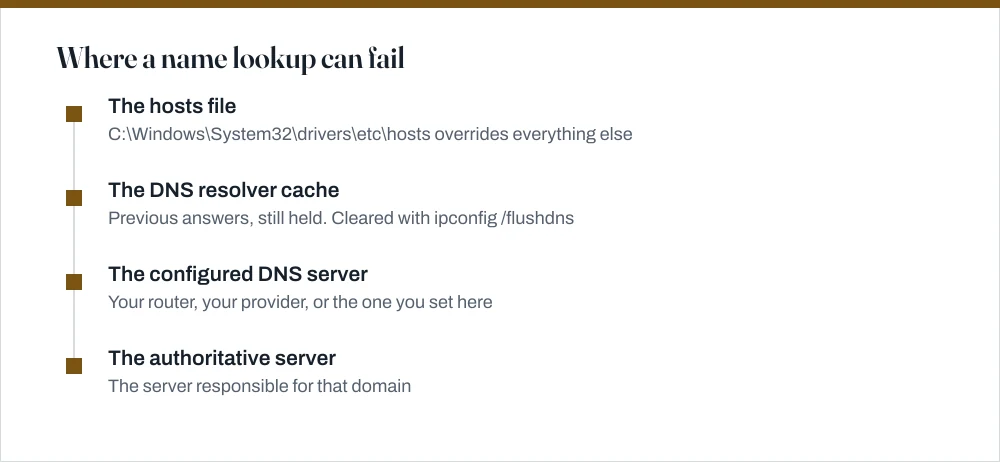
Windows remembers previous lookups, so straight after changing servers you can still be getting answers from the old one, which makes it look like nothing happened. Run ipconfig /flushdns in any Command Prompt. It needs no administrator rights and tells you *Successfully flushed the DNS Resolver Cache*. Do this every time you change DNS, or you will spend ten minutes debugging a cache.
This is also the fix for a site that has moved and is still resolving to its old address, and for a site your machine insists is unreachable when every other device on the network can see it. ipconfig /displaydns shows what is currently cached, which is occasionally illuminating.
The hosts file, which overrides everything
Before Windows asks any DNS server anything, it checks C:\Windows\System32\drivers\etc\hosts, and an entry in there wins outright no matter what you have configured. This is worth knowing because one stale line produces a genuinely baffling symptom: a single site fails on a single machine while every other device in the house loads it fine. If that is what you are seeing, check this file before you touch anything else.
Open it with Notepad running as administrator. Lines beginning # are comments. Unexpected entries pointing well-known domains at 127.0.0.1 are a common trick of both blocking utilities and malware, and are worth investigating rather than simply deleting.
Encrypted DNS
By default your DNS queries travel in the clear, so anyone sitting between you and the resolver can see which names you look up. Windows 11 can encrypt them: in the same Edit DNS settings panel, set DNS over HTTPS to On (automatic template) after entering a server that supports it, such as Cloudflare or Google.
It is worth being precise about what this achieves. It hides your lookups from the network you are on, including a café's Wi-Fi or your provider. It does not hide them from the resolver you chose, which sees every query by definition. Choosing a resolver is choosing who gets to see that list.
Common questions
How do I know if my problem is DNS?
Run ping 8.8.8.8 and then ping google.com. If the first succeeds and the second fails, name resolution is broken and this guide applies. If both fail, the connection itself is down and DNS is not the cause.
Which DNS server should I use?
Cloudflare's 1.1.1.1 and 1.0.0.1 are fast with a published no-logging policy. Quad9's 9.9.9.9 blocks known malicious domains. Google's 8.8.8.8 is highly reliable. Any of these is a reasonable choice, and your provider's default is not automatically worse, since it is often physically closer.
Do I need to flush the DNS cache after changing servers?
Yes, otherwise Windows may keep serving cached answers from the previous server. Run ipconfig /flushdns in any Command Prompt. It needs no administrator rights and takes a second.
Does changing DNS make my internet faster?
It can make browsing feel more responsive, because name lookups complete sooner, which matters most on a slow or overloaded provider resolver. It does not change your bandwidth and will not affect the speed of a download already in progress.
Sources
Each source is listed with the specific claim it supports.
ipconfig — Windows commands reference — Microsoft Learn
Supports: The /flushdns and /displaydns switches and their effect on the DNS resolver cache.
Fix Wi-Fi connection issues in Windows — Microsoft Support
Supports: The adapter properties route to DNS settings and the distinction between connection and name-resolution faults.