How to Connect Bluetooth Devices in Windows
By Robert MocaUpdated 7 min read
The short answer
Go to Settings → Bluetooth & devices → Add device → Bluetooth, put the device in pairing mode, and pick it from the list. If it never appears it is usually not actually in pairing mode, or still paired to something nearby.

Four things worth knowing
- A device already connected to something else will not advertise itself — turn the other device's Bluetooth off first.
- The Bluetooth Support Service must be running, and it is set to Manual by default, so it does not always start.
- Headphones appear twice in sound settings: a stereo output and a low-quality hands-free one. Windows switches to the second whenever an app opens the microphone.
- Removing and re-pairing fixes more Bluetooth problems than reinstalling drivers does.
Bluetooth pairing works most of the time, and when it does not, the symptom is always the same: the device simply never turns up in the list. No error, no explanation, just an empty space where your headphones should be. The good news is that the causes are a short list, and the first two take about ten seconds to rule out and account for most of it.
Pairing a device
Windows 10 and 11
Make sure Bluetooth is on: Win + A, and check the Bluetooth tile.
On Windows 11 the tile is in Quick Settings; on Windows 10 it is in Action Center.
Put the device into pairing mode.
This is almost always a button held for five seconds until a light flashes. Simply switching a device on is not pairing mode: it reconnects to what it already knows.
Open Settings → Bluetooth & devices → Add device (Windows 10: Devices → Add Bluetooth or other device).
Choose Bluetooth and select your device when it appears.
Confirm the PIN if one is shown.
Keyboards ask you to type a number and press Enter. Older devices may want
0000or1234.
Windows 7
Click the Bluetooth icon in the notification area and choose Add a Device.
If there is no Bluetooth icon, open Control Panel → Devices and Printers → Add a device.
No icon usually means no driver rather than no hardware.
Put the device into pairing mode and select it from the list.
Enter the pairing code if prompted, then wait for Windows to install the drivers.
Windows 7 fetches drivers per Bluetooth profile, so this can take a couple of minutes and may need another restart.
When the device will not appear
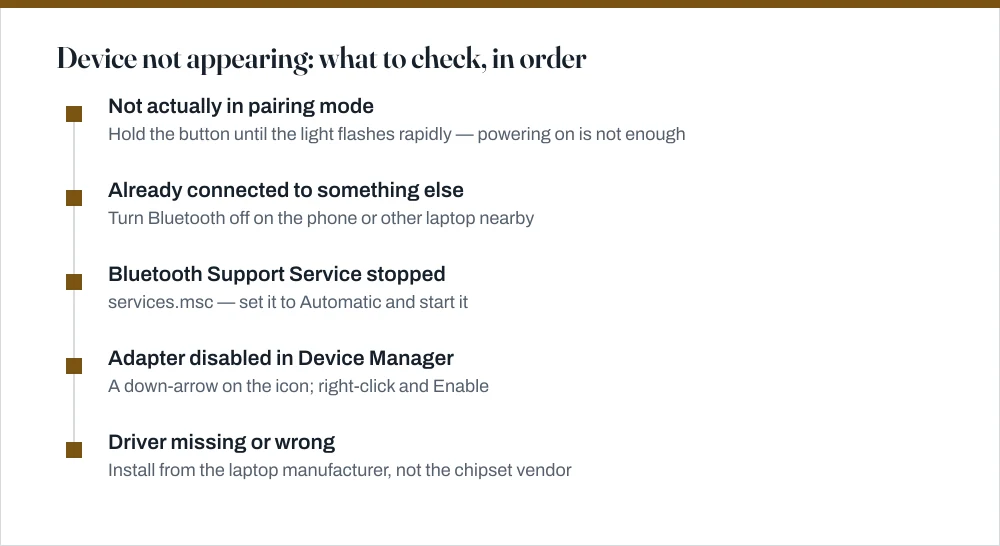
It is probably not in pairing mode
This is the single most common cause. Switching a device on makes it reconnect to a device it already knows; it does not make it discoverable. Pairing mode is nearly always a button held down until an LED changes to a fast flash, and for earbuds it is often a button inside the case.
It is connected to something else
Most Bluetooth devices connect to one host at a time and stop advertising once connected. Headphones that automatically reconnected to your phone when you took them out of the case will not appear on the laptop. Turn Bluetooth off on the phone, or disconnect from the device there, and try again.
The Bluetooth Support Service
Check the Bluetooth Support Service
Press Win + R, type
services.mscand press Enter.Find Bluetooth Support Service.
Double-click it, set Startup type to Automatic, click Start, then OK.
It ships set to Manual, so it only starts when something asks for it. If that trigger fails, Bluetooth appears broken while the hardware is fine.
On Windows 11, also check Bluetooth User Support Service.
It appears with a suffix of random characters, which is normal for a per-user service.
The adapter and its driver
Open Device Manager with Win + X, then M, and expand Bluetooth. A downward arrow on the adapter icon means it is disabled — right-click and choose Enable device. A yellow warning triangle means a driver problem.
For a driver, use the laptop manufacturer's support site rather than Intel's or Realtek's generic package. Laptop Bluetooth is usually combined with Wi-Fi on one card, and the OEM build handles the coexistence between the two radios properly. While you are there, open the adapter's Properties → Power Management and untick Allow the computer to turn off this device to save power, which causes Bluetooth that stops working after sleep.
Bluetooth headphones and the two-device problem
Pair a headset and you will notice it appears twice in Windows sound settings: once as Stereo or Headphones, and once as Hands-Free or Headset. This throws a lot of people, and I want to be clear that it is not a bug or a duplicate. It is two genuinely different modes, and picking the wrong one is why your music suddenly sounds like a phone call.
| Profile | Audio quality | Microphone | Used when |
|---|---|---|---|
| A2DP (Stereo) | Good, full stereo | Not available | Music and video playback |
| HFP/HSP (Hands-Free) | Poor, narrowband mono | Available | Any app that opens the microphone |
Classic Bluetooth cannot do high-quality stereo output and microphone input at the same time. When an application opens the microphone — a video call, a voice assistant, sometimes a browser tab that merely has permission — Windows switches to the hands-free profile and the audio quality drops sharply. It should switch back when the call ends, and often does not.
- Fix it manually: click the volume icon and switch the output back to the Stereo entry.
- Prevent it: Control Panel → Sound → Recording tab, right-click the headset's microphone entry and choose Disable. Windows can then never switch to hands-free, and the audio stays in stereo. You lose the headset microphone.
- Use the laptop's microphone for calls and the headset for output. Most conferencing apps let you choose input and output separately, which gets you good audio and a working microphone.
Removing and re-pairing
If the device used to work and now refuses, do this before anything else, because it fixes more cases than everything else on this page combined. What has usually happened is a stale pairing record after a Windows update, a device firmware update, or the device being paired to something else in between. Both ends are holding keys that no longer match, and neither will tell you so.
- Settings → Bluetooth & devices, click the device, and choose Remove device.
- Clear the pairing on the device itself as well, if it supports it, often a longer hold of the same button. This step is frequently skipped and is why re-pairing sometimes fails again.
- Restart the PC.
- Put the device in pairing mode and add it again from scratch.
Common questions
Why won't my Bluetooth device show up in Windows?
Most often it is not actually in pairing mode — switching a device on makes it reconnect to a known host rather than advertise itself. Hold the pairing button until the light flashes rapidly. The second most common cause is that it is already connected to a phone nearby, since most devices stop advertising once connected.
Why do my Bluetooth headphones sound terrible on video calls?
Because Windows has switched from the A2DP stereo profile to the hands-free profile, which is narrowband mono. Classic Bluetooth cannot do good stereo output and microphone input simultaneously. Disabling the headset's microphone under Control Panel → Sound → Recording prevents the switch, at the cost of the headset mic.
Why does Bluetooth stop working after my laptop sleeps?
Windows is powering the adapter down to save battery and not restoring it cleanly. Open Device Manager, right-click the Bluetooth adapter, choose Properties → Power Management, and untick Allow the computer to turn off this device to save power.
How do I connect Bluetooth in Windows 7?
Click the Bluetooth icon in the notification area and choose Add a Device, or use Control Panel → Devices and Printers → Add a device. If there is no Bluetooth icon at all, the driver is missing rather than the hardware. Note that Windows 7 has had no security updates since January 2020.
Sources
Each source is listed with the specific claim it supports.
Pair a Bluetooth device in Windows — Microsoft Support
Supports: The pairing steps for Windows 10 and 11, including the Add device flow and Swift Pair.
Fix Bluetooth problems in Windows — Microsoft Support
Supports: The troubleshooting sequence including removing and re-pairing a device, and checking the adapter in Device Manager.