How to Find Your MAC Address on Windows
By Robert MocaUpdated 6 min read
The short answer
Open Command Prompt and run ipconfig /all. The MAC is the twelve-character Physical Address under the adapter you are actually using, in the form A4-B1-C2-D3-E4-F5. Every adapter has its own, so read the right one.

Four things worth knowing
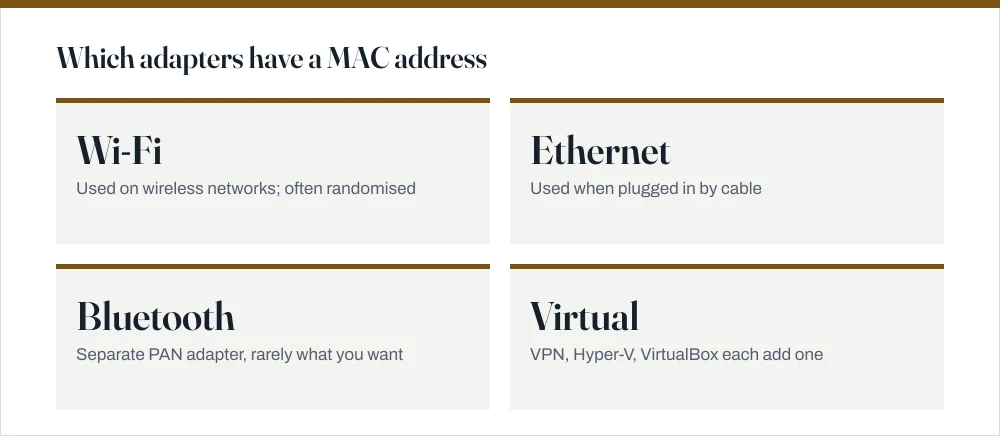
- Every adapter has a separate MAC — Wi-Fi, Ethernet, Bluetooth and any VPN virtual adapter all differ.
ipconfig /allgives full context;getmac /vgives a clean list when you just need the address.- Windows 10 and 11 randomise Wi-Fi MAC addresses by default on some networks, which silently breaks router allowlists and captive portals.
- A MAC address identifies hardware on the local network only: it does not travel across the internet, and it is not a secret.
A MAC address is the hardware identifier burned into a network adapter: Media Access Control, twelve hexadecimal digits, usually written in pairs. Routers use it to work out which physical device a packet belongs to on the local network. You will normally be asked for one by a router's device allowlist, a university or office registration page, or an ISP that ties service to a specific device.
The reliable method: ipconfig /all
Find your MAC address with ipconfig
Press Win + R, type
cmdand press Enter.No administrator rights needed for this. The guide on opening a terminal in Windows covers the other routes.
Type
ipconfig /alland press Enter.Scroll to the adapter you are actually using — Wireless LAN adapter Wi-Fi or Ethernet adapter Ethernet.
Ignore any adapter whose description mentions VirtualBox, VMware, Hyper-V, Bluetooth or a VPN unless that is specifically what you want.
Read the Physical Address line. That is your MAC address.
It looks like
A4-B1-C2-D3-E4-F5. Some systems want it with colons or with no separators at all; the digits are the same.
The quick method: getmac
getmac /v prints just the addresses alongside adapter names, which is far easier to read once you know what you are after. Do include the /v, because without it you get the connection name and transport stripped out and the output becomes close to useless.
| Method | Command or path | Best for |
|---|---|---|
| Command Prompt, full | ipconfig /all | When you also need IP, DNS and gateway |
| Command Prompt, short | getmac /v | A clean list of adapters and addresses |
| PowerShell | Get-NetAdapter \| Format-Table Name, MacAddress, Status | Filtering, or scripting |
| Settings (Win 11) | Network & internet → Wi-Fi → adapter properties | No command line |
| Settings (Win 10) | Network & Internet → Status → View hardware properties | No command line |
| Router admin page | Connected devices list | Reading another device's MAC |
Without the command line
If you would rather not open a terminal at all, on Windows 11 go to Settings → Network & internet → Wi-Fi and click the network's properties. Scroll right to the bottom and it is listed as Physical address (MAC).
On Windows 10: Settings → Network & Internet → Status → View hardware and connection properties. Every adapter is listed with its physical address.
Why the address you registered stopped working
This is the part that catches people out, and it is the reason a router allowlist that worked perfectly yesterday turns the same laptop away today. Nothing has broken. Windows changed the address on purpose.
Windows 10 and 11 support random hardware addresses for Wi-Fi. When enabled, Windows presents a different, made-up MAC to each network it joins, so that a device cannot be tracked by its hardware address as it moves between public networks. That is a genuine privacy improvement. It also means the MAC your router sees is not the one getmac reported, and on some configurations it changes again periodically.
Turn off MAC randomisation for a network
Open Settings → Network & internet → Wi-Fi.
Turn Random hardware addresses off to disable it everywhere.
If the toggle is missing, your Wi-Fi adapter or driver does not support the feature and randomisation is not your problem.
For a single network, open that network's properties and set Random hardware addresses to Off.
This is the better option: keep randomisation on for public Wi-Fi, and turn it off only for the home or office network that needs a stable address.
Disconnect and reconnect, then re-check with
ipconfig /all.The address does not change until the adapter re-associates with the network.
What a MAC address is not
A few plain statements, because this is an area where confident nonsense circulates freely and some of it will cost you an evening.
- It is not your IP address. The MAC identifies hardware on the local network segment; the IP identifies you on a network. Your IP changes when you move networks, and your router's public IP is what the wider internet sees.
- It does not travel across the internet. Routers rewrite the MAC at every hop. A website cannot see yours. Anything claiming to look up your MAC from a web page is wrong.
- It is not a secret. Every device on your local network can see it. It is an identifier, not a credential, which is why MAC allowlisting is a convenience feature rather than a security control — addresses can be trivially spoofed.
- It is not permanently fixed. The burned-in address is, but the address actually presented can be changed in software, which is exactly what Windows randomisation does.
Finding another device's MAC address
For anything without a keyboard, such as a printer, a games console or a smart speaker, the practical route is your router's admin page, which lists every connected device with its MAC. From Windows you can also run arp -a to see the address of everything your machine has spoken to recently on the local network, matched up to its IP.
If the device is not appearing at all, that is a connection problem rather than a MAC problem. The guides on connecting to Wi-Fi and pairing Bluetooth devices cover the usual causes in the order worth trying them.
Common questions
How do I find my MAC address on Windows 10?
Run ipconfig /all in Command Prompt and read the Physical Address line under the adapter you are using. Without the command line, go to Settings → Network & Internet → Status → View hardware and connection properties, which lists every adapter with its address.
Why does my MAC address keep changing?
Because Windows randomises Wi-Fi hardware addresses by default on some configurations, presenting a different address to each network so you cannot be tracked between them. Turn it off for the specific network under Settings → Network & internet → Wi-Fi → that network's properties, and leave it on for public networks.
Do Wi-Fi and Ethernet have the same MAC address?
No. They are separate pieces of hardware and each has its own address. This is the most common reason a router allowlist appears to fail: the Ethernet address was registered, and the laptop then connected over Wi-Fi. Register both, or register whichever one you actually use.
Can a website see my MAC address?
No. MAC addresses only exist on the local network segment and are rewritten by every router along the path. A web server sees your public IP address, not your MAC. Sites claiming to display your MAC address are showing you something else, or nothing at all.
Sources
Each source is listed with the specific claim it supports.
ipconfig — Windows commands reference — Microsoft Learn
Supports: That ipconfig /all displays the full adapter configuration including the Physical Address field.
getmac — Windows commands reference — Microsoft Learn
Supports: The getmac command and the /v switch that adds connection names and transport details.