How to Connect an iPhone to a Windows Laptop
By Robert MocaUpdated 7 min read
The short answer
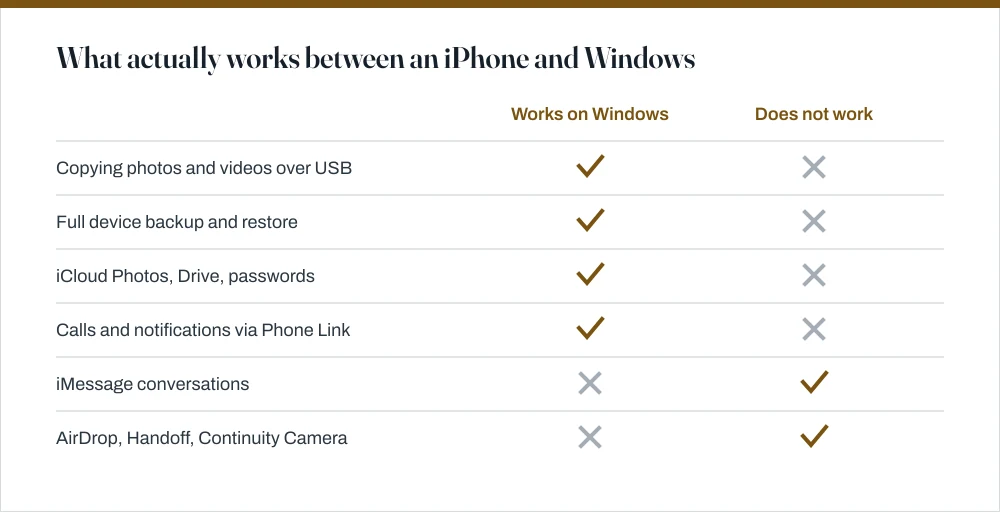
Connect the iPhone by USB, unlock it, and tap Trust on the phone. It then appears in File Explorer under This PC for copying photos and videos. For music and backups, install Apple Devices from the Microsoft Store.

Four things worth knowing
- The Trust prompt appears on the phone, not the PC, and the phone must be unlocked to show it.
- File Explorer gives you photos and videos only — everything else needs Apple Devices or iCloud for Windows.
- Phone Link supports iPhone calls, notifications and basic messages over Bluetooth, but not iMessage threads or attachments.
- There is no iMessage client for Windows and no supported workaround, whatever a tutorial claims.
An iPhone and a Windows PC get along better than they used to, and still nowhere near as well as an iPhone and a Mac. The useful thing is knowing exactly which parts genuinely work, because a lot of what is written about this describes features that simply do not exist, and you can lose an hour looking for a setting nobody has ever had.
The cable connection, and the Trust prompt
Connect and get access to photos
Connect the iPhone with a USB cable.
It must be a data cable. Many charge-only cables look identical and will charge the phone while Windows never sees it: the classic symptom of this problem.
Unlock the iPhone. Tap Trust on the prompt, then enter the passcode.
The prompt appears on the phone and only when it is unlocked. On a locked phone nothing happens and the PC sees no device.
Open File Explorer. The iPhone appears under This PC as Apple iPhone.
Navigate to Internal Storage → DCIM to find your photos, organised into numbered folders.
Copy the files you want to your PC.
This is a one-way copy. You cannot add photos to the iPhone this way: that needs Apple Devices or iCloud.
Importing photos properly
Copying from DCIM works, but what you get is folders full of IMG_0001.HEIC in no useful order whatsoever. The Photos app is better: it imports with the dates intact and can clear the originals off the phone afterwards. Open Photos, click Import → From a connected device, and pick what you want.
Two format notes. iPhones shoot HEIC photos and HEVC video by default, and Windows may not show a preview. The straightforward fix is on the phone: Settings → Camera → Formats → Most Compatible, which switches to JPEG and H.264. Alternatively, Settings → Photos → Transfer to Mac or PC → Automatic converts on transfer.
Apple Devices: what replaced iTunes
Apple broke iTunes for Windows into separate apps: Apple Devices, Apple Music and Apple TV, all in the Microsoft Store. The one you want for the phone itself is Apple Devices, which handles backups, restores, software updates and syncing music and files. If you have been looking for iTunes and cannot find it, that is why.
- Install Apple Devices from the Microsoft Store.
- Connect the iPhone and trust the PC.
- The device appears in the sidebar with tabs for General, Music, Films, Photos and Files.
- Back Up Now creates a full local backup, and ticking Encrypt local backup is what makes it include saved passwords, Health data and Wi-Fi settings.
iCloud for Windows
Also in the Microsoft Store, iCloud for Windows syncs everything without a cable, and for day-to-day use it is the better option by a distance. The cable is for backups and the odd bulk transfer.
- iCloud Photos — a folder in File Explorer that mirrors your photo library, downloading on demand.
- iCloud Drive — appears in the navigation pane like OneDrive.
- Passwords — a browser extension for Chrome and Edge that fills iCloud Keychain credentials.
- Mail, Contacts and Calendars — sync into Outlook if you use it.
- Bookmarks — Safari bookmarks synced with Chrome, Edge or Firefox.
The one thing to watch is storage. The free tier is 5 GB, which a single phone's photo library exceeds quickly, and iCloud Photos syncing to Windows can silently fill your C: drive as well. If space is tight, the guide on deleting temporary files is worth a pass first.
Phone Link: notifications and calls
Microsoft's Phone Link does support iPhone, over Bluetooth. You need Windows 11, or Windows 10 from the May 2019 Update onwards, and Bluetooth on both ends. Temper your expectations: it handles calls, messages and notifications, and that is about the extent of it.
What it gives you: incoming call notifications and the ability to make calls from the PC, iPhone notifications mirrored to Windows, and basic message sending and receiving.
What it does not give you is the part people want. Because it works over Bluetooth rather than through Apple's services, it cannot show existing message history, group conversations behave poorly or not at all, and images and attachments do not come through. It is a notification bridge, not an iMessage client.
The things that genuinely do not work
- iMessage. There is no Windows client and no supported workaround. Services promising one generally involve routing your Apple ID through a Mac someone else controls, which is a poor idea for reasons that should be obvious.
- AirDrop. Apple's protocol, Apple's devices. Use a cable, iCloud Drive, or any cross-platform service.
- Handoff and Continuity. Same answer.
- FaceTime. Only through a link someone else creates — FaceTime for the web works in a browser, but you cannot start a call from Windows.
- Apple Watch management. Requires an iPhone; nothing on Windows touches it.
When Windows does not see the phone
| Symptom | Most likely cause | Fix |
|---|---|---|
| Phone charges, nothing else | Charge-only cable | Use a data cable |
| No Trust prompt | Phone is locked | Unlock it, then reconnect |
| Trusted before, not now | Stale trust record | Reset Location & Privacy on the phone |
| Appears then disappears | USB power management | Untick the power-saving option on the USB hub |
| DCIM folder is empty | iCloud Photos optimisation | Download originals, or use iCloud for Windows |
| Apple Devices does not see it | Apple Mobile Device Service stopped | Restart it in services.msc |
The empty-DCIM case surprises people. With iCloud Photos and Optimise iPhone Storage turned on, full-resolution originals live in iCloud and the phone holds smaller versions, so there is genuinely little to copy. Either turn on Download and Keep Originals on the phone, or get the photos from iCloud for Windows instead.
Common questions
Why doesn't my iPhone show up in File Explorer?
In order of likelihood: the cable is charge-only rather than a data cable; the iPhone is locked, so the Trust prompt never appeared; or you previously tapped Don't Trust. Try a known-good data cable first, unlock the phone before connecting, and if needed reset trust with Settings → General → Transfer or Reset iPhone → Reset → Reset Location & Privacy.
Can I use iMessage on Windows?
No. There is no iMessage client for Windows and no supported workaround. Phone Link can send and receive basic messages over Bluetooth, but it cannot show existing conversation history, handles group threads poorly, and does not carry attachments. Services claiming to provide full iMessage generally route your Apple ID through a Mac you do not control.
Do I still need iTunes to back up my iPhone on Windows?
No — Apple replaced iTunes on Windows with separate apps. Install Apple Devices from the Microsoft Store for backups, restores and syncing. Tick Encrypt local backup, because an unencrypted backup silently omits saved passwords, Health data and Wi-Fi settings.
Why can't Windows open my iPhone photos?
iPhones record HEIC photos and HEVC video, which Windows does not always display without additional codecs. The simplest fix is on the phone: Settings → Camera → Formats → Most Compatible, which switches to JPEG and H.264. For photos already taken, set Settings → Photos → Transfer to Mac or PC → Automatic to convert them during transfer.
Sources
Each source is listed with the specific claim it supports.
Phone Link requirements and setup — Microsoft Support
Supports: That Phone Link requires Windows 11 or Windows 10 May 2019 Update and Bluetooth on both devices.
Supported devices for Phone Link experiences — Microsoft Support
Supports: Which Phone Link features are available for iPhone, which is the basis for the limits described in this guide.
Using Surface with iPhone, iCloud, and iTunes — Microsoft Support
Supports: The supported routes for moving photos, files and backups between an iPhone and a Windows PC.