How to Change Your Desktop Wallpaper in Windows
By Robert MocaUpdated 6 min read
The short answer
Right-click any image and choose Set as desktop background — fastest on every version of Windows. For more control, right-click the desktop and pick Personalize. On an unactivated copy Personalize is locked, but right-click still works.

Four things worth knowing
- Right-click an image → Set as desktop background works even when Personalization is greyed out.
- Per-monitor wallpapers are set by right-clicking an image inside Personalization and choosing Set for monitor 1 or 2.
- Fill is the right fit for most photos; Fit avoids cropping at the cost of visible bars.
- Windows re-encodes the wallpaper as a JPEG, which is why fine detail can look worse than the original file.
Changing your wallpaper takes about two seconds, right up until one of three things goes wrong: Personalization is greyed out and will not open, you have two monitors and want a different picture on each, or the image comes out stretched and slightly mangled. Each one has a clean fix, and none of them is obvious.
The quickest route
Find the image in File Explorer, right-click it, and choose Set as desktop background. That is genuinely the whole thing. It works on Windows 7, 10 and 11, never opens the Settings app, and — this is the part worth remembering — it still works on an unactivated copy of Windows where the Personalization page is locked shut.
Through Settings, for more control
Windows 10 and 11
Right-click the desktop and choose Personalize.
Or open Settings → Personalization → Background.
Set Personalize your background to Picture, Solid colour or Slideshow.
Windows 11 adds Windows Spotlight, which rotates images from Microsoft automatically.
Click Browse photos and choose your image.
Set Choose a fit — Fill is right for most photographs.
See the fit table below; this is where stretched-looking wallpapers come from.
Windows 7
Right-click the desktop and choose Personalize.
Click Desktop Background at the bottom of the window.
Use Browse to find your folder, then tick the image you want.
Ticking several images turns on a slideshow and enables the interval dropdown.
Choose a picture position, then click Save changes.
| Fit | What it does | Use for |
|---|---|---|
| Fill | Scales to cover, crops the overflow | Most photos: the sensible default |
| Fit | Scales to fit entirely, adds bars | Images you must not crop |
| Stretch | Distorts to fill exactly | Practically never |
| Tile | Repeats the image | Small textures and patterns |
| Centre | Original size, centred | An image already the right size |
| Span | One image across all monitors | A single wide panorama |
A different wallpaper on each monitor
This has worked since Windows 8, and it is buried in a context menu that almost nobody stumbles across, which is why you will find people insisting Windows cannot do it at all.
Set per-monitor wallpapers
Open Settings → Personalization → Background.
Use Browse photos to add every image you want, so they all appear in the recent-images row.
Only images in that row can be assigned to a specific monitor.
Right-click an image in that row and choose Set for monitor 1 or Set for monitor 2.
This is the step people miss — left-clicking applies the image to all monitors instead.
Repeat for each monitor.
Not sure which is which? Settings → System → Display → Identify shows a number on each screen; see setting up dual monitors.
For one panoramic image stretched across both screens, choose Span as the fit instead. The image needs to be roughly as wide as both monitors combined, or it will be scaled up and look soft.
Running a slideshow
Set Personalize your background to Slideshow, choose a folder, and pick an interval anywhere from one minute to a day. Two things that catch people out: it takes a whole folder rather than a selection of files, so put the images you want in their own folder first, and turn on Shuffle unless you want the same alphabetical order every single day.
On a laptop, the option Let slideshow run even if I'm on battery power is off by default. That is a sensible default — redrawing the desktop wallpaper is a small but real power cost.
When Personalization is greyed out
Two quite different causes here, and they need different fixes, so it is worth working out which one you have before changing anything.
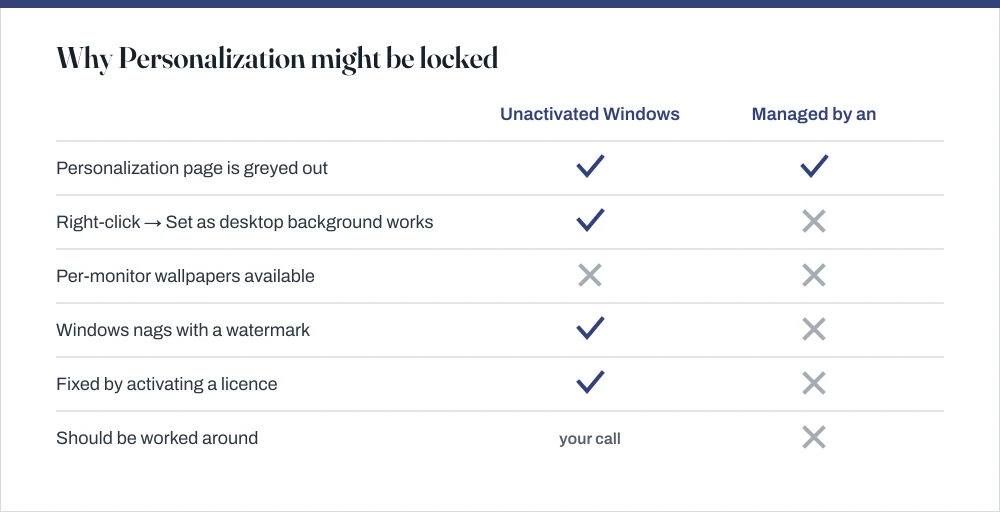
Unactivated Windows. Microsoft locks Personalization until Windows is activated. The right-click method still works, and so does setting a wallpaper through Internet Explorer's legacy image context menu. If you own a licence, activating it is the actual fix — the guide on finding your Windows product key covers locating one you already have. This site does not cover activation circumvention.
A managed device. On a work machine, a Group Policy may set the wallpaper and block changes. That is a deliberate decision by whoever administers the machine, and the right response is to ask them rather than to work around it.
Why the wallpaper looks worse than the original
Here is something Windows never tells you: it re-encodes whatever image you pick as a JPEG and stores that copy at %APPDATA%\Microsoft\Windows\Themes\TranscodedWallpaper. You are not looking at your original file. The compression shows up most on fine detail, smooth gradients and big flat areas, so skies band and text goes soft. If your wallpaper looks worse on the desktop than it does in a photo viewer, that is why, and you are not imagining it.
- Use an image at or above your screen resolution. A 1920×1080 image on a 4K monitor is upscaled before it is compressed, which compounds the loss.
- Use PNG as the source for anything with text or graphics. It will still be re-encoded, but from a lossless starting point.
- Avoid re-saving JPEGs repeatedly. Each save loses more; use the original file rather than one that has been through an editor several times.
- Match the aspect ratio. A mismatched ratio means cropping or scaling before compression even begins.
One last thing worth pairing with this: if you are tidying the desktop generally, the guide on changing desktop icon size covers the icon settings, including how to stop them rearranging themselves.
Common questions
How do I change my wallpaper in Windows 7?
Right-click the desktop → Personalize → Desktop Background at the bottom, then Browse to your folder and tick the image. Or right-click any image file in Explorer and choose Set as desktop background, which is quicker and works the same way on every Windows version.
Can I have a different wallpaper on each monitor?
Yes. In Settings → Personalization → Background, add all the images with Browse photos so they appear in the recent-images row, then right-click an image in that row and choose Set for monitor 1 or Set for monitor 2. Left-clicking applies it to every monitor instead, which is why this feature is so often missed.
Why is Personalization greyed out?
Either Windows is not activated — Microsoft locks the Personalization page until it is, or the machine is managed by an employer whose policy sets the wallpaper. On unactivated Windows, right-clicking an image and choosing Set as desktop background still works. On a managed device, ask whoever administers it.
Why does my wallpaper look blurry or pixelated?
Windows re-encodes the image as a JPEG before displaying it, and the compression shows on fine detail and gradients. Start from an image at least as large as your screen resolution, use a PNG or an unedited original rather than a repeatedly re-saved JPEG, and check the fit is Fill rather than Stretch.
Sources
Each source is listed with the specific claim it supports.
SystemParametersInfoW function — Microsoft Learn
Supports: That the desktop wallpaper is set through a system parameter which stores a transcoded copy of the image, rather than referencing the original file directly.
Multiple display monitors — Microsoft Learn
Supports: That the desktop spans monitors as one virtual surface, which is what the Span fit option uses.