How to Uninstall Python, Node and Java on Windows
By Robert MocaUpdated 7 min read
The short answer
Start with Settings → Apps → Installed apps and choose Uninstall. That leaves the leftovers: PATH entries, caches in %APPDATA% and %LOCALAPPDATA%, and config folders. Clearing those stops a reinstall inheriting the mess.

Four things worth knowing
- Uninstallers remove the runtime; they deliberately leave your packages and configuration behind.
- Stale PATH entries pointing at deleted folders are the usual cause of "command not found" after a reinstall.
- npm's global folder and pip's cache routinely run to several gigabytes and survive every uninstall.
- Uninstall multiple Python versions oldest-first, and check the Python Launcher entry separately: it is listed as its own app.
Development tools are unusual among Windows programs in that they deliberately leave things behind, and that is the right default: your installed packages and configuration are your work, not the vendor's files. It only becomes a problem when you are uninstalling precisely because something is broken, and the reinstall cheerfully picks up all the same broken state you were trying to escape.
This guide covers the ordinary uninstall and then the leftovers, per tool.
The uninstall itself
Remove the program
Open Settings → Apps → Installed apps (Windows 11) or Apps & features (Windows 10).
Search for the tool by name and click the ⋯ menu → Uninstall.
Control Panel → Programs and Features still works and sometimes lists things the Settings page misses, particularly older MSI installs.
Repeat for every related entry.
Python installs a separate Python Launcher entry, Java often has several versions listed, and Node may have a separate npm entry.
Restart before reinstalling anything.
PATH changes are read at process start; without a restart, an open terminal still holds the old value.
Python
Python is the one most likely to leave a machine in a genuinely confusing state, because it is so easy to end up with three versions installed from three different sources without ever having decided to.
- Uninstall every Python entry in Installed apps, oldest first. Also remove Python Launcher, which is a separate entry and is what actually resolves the
pycommand. - Check for a Microsoft Store version. Typing
pythonon a machine without Python opens the Store, and some people install it from there. It appears in Installed apps as *Python 3.x* published by the Python Software Foundation. - Delete the leftover folders:
%LOCALAPPDATA%\Programs\Python,%APPDATA%\Pythonand%LOCALAPPDATA%\pip\Cache. - Clean PATH. Remove entries pointing at Python directories that no longer exist; see the PATH section below.
- Remove the Store aliases. Settings → Apps → Advanced app settings → App execution aliases, and turn off the
python.exeandpython3.exeentries. Left on, they intercept the command and reopen the Store, which looks exactly like a broken install.
Node.js and npm
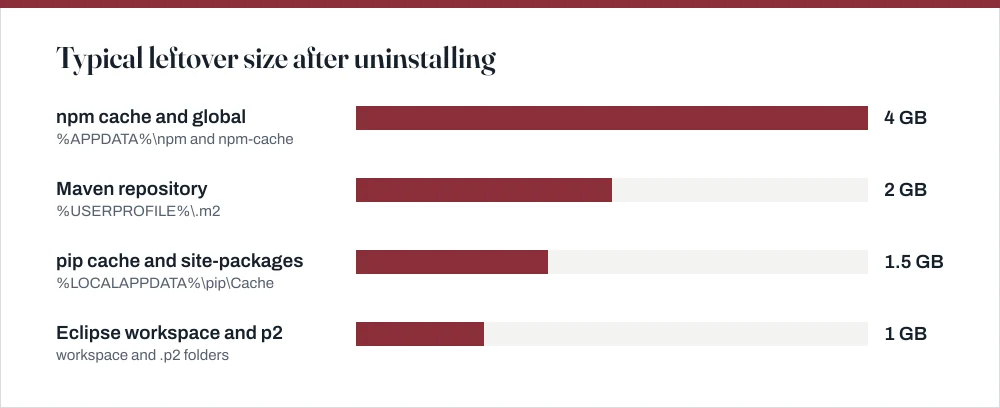
Node's uninstaller takes the runtime and leaves behind every globally installed package plus the entire npm cache, which on a working development machine is usually the largest leftover of the lot.
- Uninstall Node.js from Installed apps.
- Delete `%APPDATA%\npm` — globally installed packages and their shims.
- Delete `%APPDATA%\npm-cache` or
%LOCALAPPDATA%\npm-cachedepending on version. This is frequently several gigabytes. - Delete `C:\Program Files\nodejs` if it survived the uninstall.
- Remove `%USERPROFILE%\.npmrc` if you want a genuinely clean slate — note that it may hold registry credentials you need.
- Clean PATH of any
nodejsornpmentries.
If you juggle Node versions, consider not installing Node directly at all. A version manager such as nvm-windows keeps each version in its own folder and switches the PATH for you, which removes this entire category of problem.
Java
Java machines accumulate versions the way drawers accumulate cables. Check Installed apps for every entry beginning *Java*, *Java SE*, *JDK*, *OpenJDK*, *Temurin*, *Zulu* or *Corretto*: different vendors, all providing the same thing, and very often all present at once without anyone remembering installing them.
- Uninstall each Java entry. Oracle also publishes a Java Uninstall Tool that removes older versions its installer left behind.
- Delete leftover folders under
C:\Program Files\JavaandC:\Program Files (x86)\Java. - Remove the Maven repository at
%USERPROFILE%\.m2if you no longer need the cached dependencies. It is commonly a gigabyte or two. - Remove the Gradle cache at
%USERPROFILE%\.gradle, which is often larger still. - Clear `JAVA_HOME` and remove Java entries from PATH. A
JAVA_HOMEpointing at a deleted folder breaks build tools with a message that does not obviously say so.
Eclipse
Eclipse usually has no uninstaller at all, because it ships as a folder you extract and run. Getting rid of it means deleting that folder, plus three things it quietly created elsewhere that nothing will clean up for you.
- The installation folder, wherever you extracted it. If you used the Eclipse Installer, look in
%USERPROFILE%\eclipse. - Your workspace, by default
%USERPROFILE%\eclipse-workspace. This contains your projects — check before deleting. - `%USERPROFILE%\.p2`, the plugin bundle pool, which the Eclipse Installer shares between installations and can be large.
- `%USERPROFILE%\.eclipse`, holding settings and licence acceptance state.
Cleaning up PATH
This is the step that actually matters, and the one everybody skips. A PATH entry pointing at a folder that no longer exists is harmless in itself. Two live entries for different versions of the same tool is not: the wrong version runs, and nothing you do to the one you can see makes the slightest difference. If a tool keeps reporting a version you thought you removed, this is why.
Edit the PATH environment variable
Press Win + R, type
sysdm.cpland press Enter.Or search for *environment variables* in the Start menu.
Go to the Advanced tab → Environment Variables.
In User variables, select Path and click Edit. Repeat afterwards for System variables.
Tools install into either or both. Checking only one is why a stale entry survives.
Delete lines pointing at folders you have removed, then click OK on every dialog.
Entries appear greyed out or marked when the folder does not exist, which makes the dead ones easy to spot.
Open a new terminal and run
where python,where nodeorwhere javato confirm.wherelists every match in PATH order. More than one line for a tool you thought you removed is the whole problem in one command.
| Tool | Leftover locations | Safe to delete? |
|---|---|---|
| Python | %LOCALAPPDATA%\Programs\Python, %APPDATA%\Python, pip cache | Yes |
| Node.js | %APPDATA%\npm, npm-cache, .npmrc | Yes — check .npmrc for credentials |
| Java | C:\Program Files\Java, .m2, .gradle | Yes — caches re-download |
| Eclipse | install folder, .p2, .eclipse, workspace | Workspace holds your projects |
| All of them | PATH entries, JAVA_HOME | Yes, if the folder is gone |
If the reason for all this is disk space rather than a broken install, it is worth running through the guide on deleting temporary files and Windows.old as well — between the two you will usually find considerably more than you expected. If C: is still short afterwards, extending the partition is the next step. To check what is actually installed and running, the terminal guide covers the where and Get-Command lookups used above.
Common questions
Why does typing python still open the Microsoft Store after I uninstalled it?
That is Windows' app execution alias, not your installation. Go to Settings → Apps → Advanced app settings → App execution aliases and turn off the python.exe and python3.exe entries. Until you do, they intercept the command regardless of what is actually installed.
Does uninstalling Node.js remove my global npm packages?
No. Globally installed packages live in %APPDATA%\npm and are left in place deliberately, along with the npm cache. Delete both folders manually if you want a clean slate: the cache in particular is often several gigabytes.
Is it safe to delete the .m2 folder?
Usually yes — it is a cache of downloaded dependencies and Maven re-fetches what it needs. The exception is a machine that has built against an internal artefact repository, where some jars may not be available publicly. Look inside before deleting if the machine has ever built company code.
How do I know which version of a tool is actually running?
Run where python in Command Prompt, or Get-Command python -All in PowerShell. Both list every matching executable in PATH order, and the first one is what runs. Two entries for a tool you thought you uninstalled explains most confusing version behaviour.
Sources
Each source is listed with the specific claim it supports.
Using Python on Windows — Python Software Foundation
Supports: The installation locations under %LOCALAPPDATA%\Programs\Python, the role of the Python Launcher, and the Microsoft Store distribution.
How do I uninstall Java on my Windows computer? — java.com
Supports: That multiple Java versions can be installed simultaneously and must each be uninstalled, and the existence of a dedicated uninstall tool.
Node.js downloads — OpenJS Foundation
Supports: That Node.js is distributed both as a Windows installer and through version managers, which is the basis for the nvm-windows recommendation.