How to Extend Your C Drive in Windows 10
By Robert MocaUpdated 6 min read
The short answer
Press Win + X, open Disk Management, right-click C: and choose Extend Volume. It only works when unallocated space sits immediately to the right of C: on the same disk. Greyed out means that condition is not met.

Four things worth knowing
- Disk Management can only extend into unallocated space that is adjacent and to the right on the same disk.
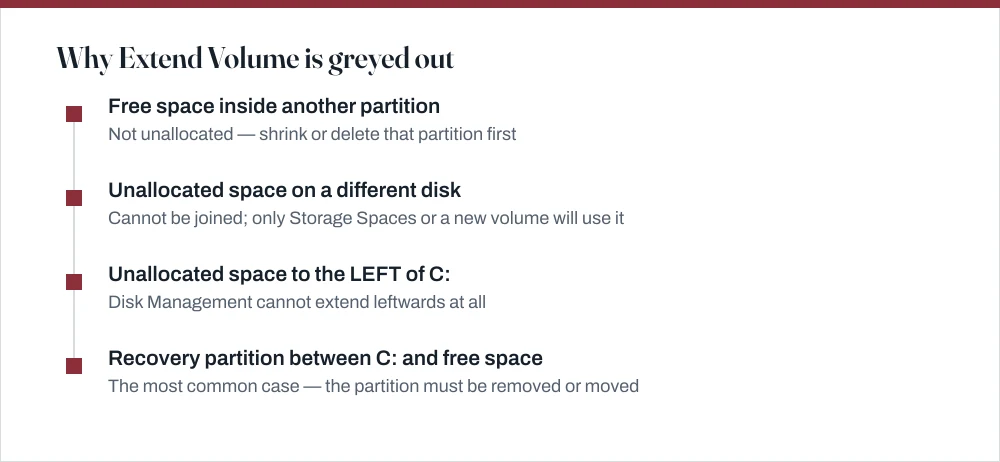
- Free space inside another partition is not unallocated — you must shrink or delete that partition first.
- A small OEM recovery partition between C: and the free space is the single most common blocker.
- Back up before moving or deleting partitions; a mistake here costs the whole drive, not one folder.
If Extend Volume is greyed out, nothing is broken and you are not missing a permission. Disk Management has one rigid rule, and almost every greyed-out button you will ever see is that rule quietly being enforced. Once you know the rule, the fix is obvious.
First, look at the layout
Open Disk Management and read the map
Press Win + X, then K, or press Win + R, type
diskmgr.mscand press Enter.The command is
diskmgmt.mscon some builds; the Win + X menu entry is more reliable.Look at the graphical strip at the bottom, not the list at the top.
The strip shows each disk's partitions in physical order left to right. That order is what determines whether extending is possible.
Find the disk containing C: and note what sits immediately to its right.
Unallocated space is shown with a black header bar. Anything else — including a partition with plenty of free space inside it — will block the extend.
Extending, when the layout allows it
Extend the C: partition
Right-click the C: partition in the graphical strip and choose Extend Volume.
Click Next in the wizard.
Set how much of the available space to use, in megabytes.
The default is all of it, which is usually what you want. Leaving space unallocated serves no purpose unless you are planning another partition.
Click Next, then Finish.
The change is nearly instant and does not require a restart. Nothing on C: is affected.
Making unallocated space in the right place
Shrinking a partition to the right of C:
If a D: data partition sits immediately right of C:, shrinking it produces unallocated space in exactly the right position. Right-click D: → Shrink Volume, and Windows calculates the maximum it can release.
That maximum is frequently much smaller than the free space in the partition, and the reason is immovable files: the page file, hibernation file, System Volume Information and some system files sit at fixed positions, and Windows will not shrink past them. Turning off hibernation with powercfg /hibernate off, temporarily disabling System Restore for that drive, and running a defragmentation pass often unlocks a great deal more.
Deleting a partition to the right of C:
If the partition to the right is no longer needed, copy anything you want off it, then right-click → Delete Volume. That converts the whole thing to unallocated space adjacent to C:, and Extend Volume becomes available immediately.
The recovery partition problem
This is the situation most people are actually in, and it is worth recognising because it looks like the tool is malfunctioning. Your layout runs C:, then a few hundred megabytes of Recovery, then the unallocated space you just freed up. That little recovery partition sits directly in the way, and Disk Management flatly refuses to move it.
There are three honest options, and it is worth being clear that only one of them is straightforward.
- Leave it and accept a separate volume. Assign the unallocated space its own drive letter and use it as a second drive. Not what you asked for, but it costs nothing and risks nothing.
- Use a third-party partition tool that can move partitions. Several free ones do this. It works, and it involves rewriting the partition table with your operating system on it — take a full backup first, and expect a reboot into an offline phase.
- Delete the recovery partition. Possible via
diskpart, and it means losing the manufacturer's recovery environment. Only reasonable if you have a Windows installation USB and understand what you are giving up. The guide on factory resetting Windows explains what that partition is actually for.
| What the layout shows | Why it is blocked | What to do |
|---|---|---|
| No unallocated space anywhere | Nothing to extend into | Shrink or delete another partition |
| Unallocated space on Disk 1, C: on Disk 0 | Different physical disk | Cannot be joined by Disk Management |
| Unallocated space left of C: | Disk Management extends rightwards only | Third-party tool, or reinstall |
| Recovery partition between C: and free space | Not adjacent | Move or remove the recovery partition |
| D: has lots of free space but is not unallocated | Free space is not unallocated space | Shrink D: first |
| Disk shows as Dynamic | Different rules apply | Convert to Basic — destructive, back up first |
Before you repartition at all
Before you repartition anything, be aware that touching a system drive carries genuine risk, and a full C: drive very often has a cheaper answer. Two things are worth trying first, and if either works you can close this page happily.
Run through the space-reclamation steps in the guide on deleting temporary files and Windows.old. Twenty gigabytes from Disk Cleanup's system files mode is common on a machine that has taken a feature update, and it takes ten minutes with no risk at all. Removing developer tool caches, covered in the guide on uninstalling Python, Node and Java cleanly, frequently finds another large chunk.
Second, move data rather than growing the partition. Settings → System → Storage → Change where new content is saved redirects new downloads, documents and installs to another drive. Moving your Documents, Pictures and Downloads folders to a second drive via each folder's Properties → Location tab is a permanent fix that needs no partitioning.
Common questions
Why is Extend Volume greyed out for my C drive?
Because there is no unallocated space immediately to the right of C: on the same physical disk. Free space inside another partition does not count: it must be unallocated. The most common specific cause is a small OEM recovery partition sitting between C: and the free space, which Disk Management cannot move.
Can I extend C: using free space on another drive?
No. A basic volume cannot span physical disks. Disk Management will not offer it, and there is no supported way around it. The practical alternative is to use the second disk as a separate drive and move your data folders onto it via each folder's Properties → Location tab.
Is it safe to extend the C drive?
Extending into adjacent unallocated space is a low-risk metadata change and does not touch your files. The risky parts are what you do to create that space — shrinking, deleting or moving partitions. Take a backup before any of those, particularly if a third-party tool is going to move the recovery partition.
Why can I only shrink my partition by a small amount?
Immovable files — the page file, hibernation file, System Volume Information and some system files — sit at fixed positions and Windows will not shrink past them. Turning off hibernation with powercfg /hibernate off, temporarily disabling System Restore for that drive, and defragmenting usually releases considerably more.
Sources
Each source is listed with the specific claim it supports.
Extend a basic volume — Microsoft Learn
Supports: The requirement that unallocated space be adjacent, to the right, and on the same disk: the rule behind every greyed-out Extend Volume.
Overview of Disk Management — Microsoft Learn
Supports: The Disk Management interface, the graphical layout view, and the shrink and delete volume operations.