How to Type ñ, Accents and Emoji on Windows
By Robert MocaUpdated 6 min read
The short answer
Press Win + . for the emoji panel, then click the Ω symbols tab, where the accented letters live. For typing accents often, add the United States-International layout, where ~ then n gives ñ. Alt codes need a real numpad.

Four things worth knowing
- Win + . opens a panel with emoji, symbols, and accented Latin characters, and needs no layout change.
- The US-International layout is the right answer if you type accents daily; dead keys make ñ, é and ü two keystrokes each.
- Alt codes require the numeric keypad, not the number row, which is why they fail on laptops without a numpad.
- Windows keeps a per-application keyboard layout, which is why the layout sometimes appears to change by itself.
Almost every guide to this recommends Alt codes, and Alt codes are the one method that does not work on the machines most people are asking about. Hold Alt and type 0241 on the number row of a laptop and precisely nothing happens, because the sequence needs a genuine numeric keypad. That is the whole reason this question keeps getting asked. There are three methods that do work, and which is best depends entirely on how often you need this.
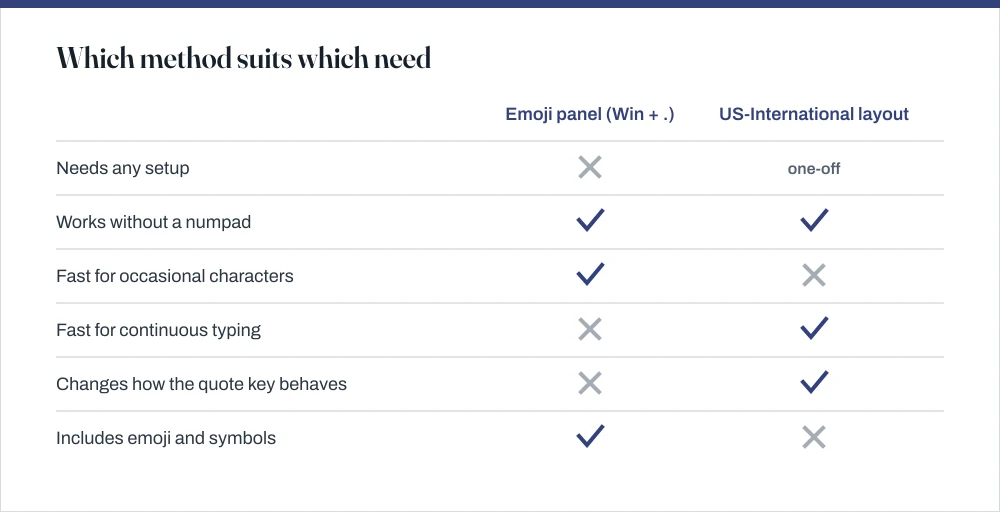
The emoji panel, which does far more than emoji
Press Win + . or Win + ;; both open the same panel. This is the fastest route by a distance for a character you need occasionally, and most people have no idea it does anything beyond emoji.
Insert an accented character or symbol
Click into the text field where you want the character, then press Win + .
The panel inserts into whatever had focus, so the cursor must be somewhere first.
Click the Ω tab for symbols.
This is the part people miss. The panel opens on emoji, and the accented Latin characters are two tabs across.
Choose the Latin symbols category and click the character you want.
You can also just type: with the panel open, typing
n tildeore acutefilters to the character.Press Escape to close the panel.
It stays open for multiple insertions, which is useful when you need several.
The panel also holds a clipboard history at Win + V, which is a separate feature worth turning on while you are here.
The US-International layout, for typing accents properly
If you write in Spanish, French, German or Portuguese with any regularity, the panel is far too slow and you will hate it by the third paragraph. The US-International layout leaves your physical keyboard exactly as it is and adds dead keys: press the accent, then the letter, and the two combine into one character.
Add the US-International layout
Open Settings → Time & language → Language & region.
Click the ⋯ next to English, choose Language options.
On Windows 10 the path is Settings → Time & Language → Language → English → Options.
Under Keyboards, click Add a keyboard and choose United States-International.
Switch between layouts with Win + Space.
The current layout shows as ENG INTL or ENG US in the taskbar. Remove the plain US layout if you want the international one always active.
| Type this | Then this | You get |
|---|---|---|
~ | n | ñ |
' | e | é |
` `` | a | à |
" | u | ü |
^ | o | ô |
Right Alt + s | — | ß |
Right Alt + 1 | — | ¡ |
Right Alt + / | — | ¿ |
Alt codes, and why they fail
An Alt code is Alt held down while a number is typed on the numeric keypad. Not the number row above the letters, which does nothing, and not a laptop's embedded numpad unless Num Lock is actually engaged. That single detail is behind essentially every complaint that Alt codes are broken.
- On a full keyboard: Alt + 0241 gives ñ, Alt + 0233 gives é, Alt + 0252 gives ü. Type the leading zero; it selects the correct character set.
- On a laptop with an embedded numpad: press Fn + Num Lock first, then use the letter keys that carry small blue numbers.
- On a laptop with no numpad at all: there is no way to make this work. Use the emoji panel or the international layout instead.
Character Map, for anything obscure
Press Win + R, type charmap and press Enter. It lists every character in every installed font and has a search box, which makes it the tool for the genuinely obscure. Tick Advanced view, type a name such as tilde into Search for, and it filters down.
Its real use is characters no other method offers: mathematical symbols, currency signs, arrows, and letters from scripts you do not have a keyboard for. It also shows the Alt code for each character in the status bar, which is a convenient way to learn the ones you use.
The on-screen keyboard
Win + Ctrl + O opens the on-screen keyboard. With the US-International layout active it shows you the dead keys, and holding a letter on the touch keyboard offers accented variants the way a phone does. It is a decent fallback when a physical key has died, and a miserable way to type anything at length.
When the layout changes by itself
This one is genuinely confusing when it happens: the keyboard is fine in one application and wrong in another, or the quote key starts misbehaving the moment you switch windows. Nothing is broken. Windows keeps a per-application input method by default, so changing layout in one window does not change it anywhere else.
Use one layout everywhere
Open Settings → Time & language → Typing.
Click Advanced keyboard settings.
Tick Let me use a different input method for each app window to keep per-app behaviour, or clear it for one global layout.
Clearing it is what most people want, and it removes the sense that the keyboard changes on its own.
While you are here, set Override for default input method if Windows keeps reverting to a layout you do not use.
One further keyboard note that pairs with this: the same function-row and Fn-key behaviour that governs Num Lock also governs brightness and Print Screen, which is covered in the guides on reducing screen brightness and taking a screenshot.
Common questions
How do I type ñ on a laptop without a numpad?
Press Win + . to open the emoji panel, click the Ω symbols tab, choose Latin symbols, and click ñ. For regular use, add the United States-International keyboard layout, where pressing ~ then n produces ñ directly. Alt + 0241 will not work without a real numeric keypad.
Why don't Alt codes work on my keyboard?
Because Alt codes require the numeric keypad, not the number row above the letters. On a laptop with an embedded numpad, press Fn + Num Lock first and use the keys carrying small blue numbers. On a laptop with no numpad at all, no configuration will make Alt codes work.
How do I type a normal apostrophe with the US-International layout?
Press ' followed by the space bar. In that layout the quote and apostrophe keys are dead keys waiting for a letter to combine with, so they produce nothing on their own. The space bar tells Windows you wanted the plain character.
Why does my keyboard layout keep changing between windows?
Windows keeps a separate input method per application window by default. Go to Settings → Time & language → Typing → Advanced keyboard settings and clear Let me use a different input method for each app window to use one layout everywhere.
Sources
Each source is listed with the specific claim it supports.
Keyboard shortcuts in Windows — Microsoft Support
Supports: The Win + . emoji panel shortcut, Win + V clipboard history, Win + Space layout switching and Win + Ctrl + O on-screen keyboard.
Virtual-key codes — Microsoft Learn
Supports: That the numeric keypad reports distinct virtual-key codes from the number row, which is why Alt codes require a real keypad.