How to Turn Off the Windows Firewall
By Robert MocaUpdated 6 min read
The short answer
Open Windows Security → Firewall & network protection, click the profile marked *(active)*, and switch the firewall off. Usually you should add an inbound rule for the one app instead, which fixes it without removing protection.

Four things worth knowing
- There are three separate firewall profiles — Domain, Private and Public, and turning one off leaves the others active.
- The firewall blocks inbound connections by default and allows outbound, so it rarely causes the problem people blame it for.
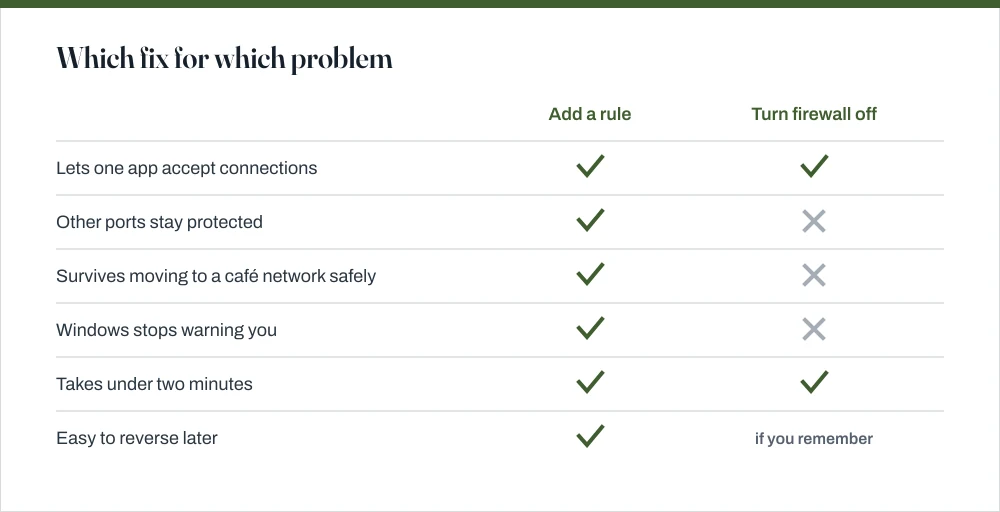
- An inbound rule for one port or one program is nearly always the right fix instead of disabling the firewall.
- Turning it off to test something is reasonable; leaving it off is not, and Windows will keep telling you so.
The Windows firewall gets switched off far more often than it ever needs to be, almost always as a quick diagnostic step that then never gets undone. Once you understand what it actually blocks, it becomes obvious how rarely it is the thing causing your problem.
What the firewall actually blocks
By default, Windows Defender Firewall blocks inbound connections that do not match a rule, and lets outbound connections through. That asymmetry is the whole story. It means the firewall is almost never why your browser cannot reach a website, and quite often why nothing can reach the server you just started.
- Browsing the web, streaming, downloading, using an app that talks to a server — all outbound. The firewall does not interfere.
- Another machine connecting to a server you are running — inbound. This is what gets blocked, and it is the real reason people reach for the off switch.
- File and printer sharing, remote desktop, a local dev server reached from a phone — all inbound, all blocked until a rule exists.
The three profiles
Windows keeps three completely independent firewall configurations and applies whichever one matches the network you are currently on. This is the reason turning the firewall off can appear to do nothing at all: you turned off a profile you are not using.
| Profile | Applies to | Default posture |
|---|---|---|
| Domain | A network with a domain controller the PC is joined to | Managed by policy |
| Private | Networks you marked as home or work | Discovery and sharing permitted |
| Public | Anything else — cafés, hotels, mobile hotspots | Most restrictive |
Windows Security marks the active one with (active). That is the only one that matters for what you are doing right now.
Turning it off
Turn off the firewall for the active network
Open Windows Security from the Start menu.
Click Firewall & network protection.
Click the profile marked (active), usually Private network or Public network.
Turning off a profile you are not currently on changes nothing you will notice.
Switch Microsoft Defender Firewall to Off and accept the prompt.
Windows Security will show a persistent warning until you turn it back on. That warning is doing its job.
From the command line
Open an elevated Command Prompt — Win + X, then A.
Turn off the current profile:
netsh advfirewall set currentprofile state off.For all three at once:
netsh advfirewall set allprofiles state off.Turn it back on:
netsh advfirewall set currentprofile state on.Write this down before you run the first command. It is easy to forget which profile you changed.
Check the current state with
netsh advfirewall show allprofiles.Confirms which profiles are on and which is active, which is quicker than clicking through the interface.
The better answer: allow one thing through
If one specific program or port needs to accept connections, just say so. It takes about the same amount of time as disabling the firewall wholesale, and it leaves everything else on the machine protected, which matters more than it sounds.
Allow an app through the firewall
Open Windows Security → Firewall & network protection → Allow an app through firewall.
Click Change settings — you need administrator rights.
Find the app in the list and tick Private, Public, or both.
Tick Private only unless you genuinely need the app reachable on untrusted networks. This is the single most useful judgement call on this page.
If the app is not listed, click Allow another app and browse to its executable.
Point at the actual .exe, not a shortcut.
For a port rather than a program — a development server on 3000, say — an inbound port rule is more precise. From an elevated prompt:
netsh advfirewall firewall add rule name="Dev server 3000" dir=in action=allow protocol=TCP localport=3000— allows inbound TCP on that port.- Add
profile=privateto restrict it to trusted networks, which is almost always what you want. netsh advfirewall firewall delete rule name="Dev server 3000"removes it again when the project ends.
If the port is not reachable and the rule looks correct, check that something is actually listening on it — a rule allowing traffic to a port nothing is bound to fails in a way that looks identical. The guide on finding what is using a port covers netstat -ano for exactly that check.
The advanced console
Press Win + R and run wf.msc to get Windows Defender Firewall with Advanced Security. This is where the real configuration lives: inbound and outbound rules listed one by one, per-profile settings, and connection security rules. The Windows Security page is a friendly summary of this.
It is also where you find rules you did not create. Installed software frequently adds its own, and a program that stopped working after an update sometimes has a stale rule blocking it. Sorting inbound rules by program name and looking for red-circled Block entries is a five-minute check that occasionally saves an afternoon.
To reset everything to defaults: netsh advfirewall reset from an elevated prompt. This removes every custom rule, including ones your software added, so expect to re-allow a few things afterwards.
Common questions
Is it safe to turn off the Windows firewall?
Briefly, for a specific test, on a network you trust — yes. Permanently — no, particularly on a laptop that joins public networks, where the firewall is the main thing preventing other machines on that network from reaching services on yours. In nearly every case, allowing one app or port through solves the same problem without the exposure.
Why is the firewall still blocking something after I turned it off?
Most likely you turned off a profile that is not the active one. Windows keeps separate Domain, Private and Public configurations, and only the one marked (active) applies. Run netsh advfirewall show allprofiles to see the state of all three at once.
Does the Windows firewall block internet access?
No, not in its default configuration. It blocks unsolicited inbound connections and allows outbound ones, so browsing, streaming and updates are unaffected. If those are failing, the cause is elsewhere — DNS, the adapter, or the router.
How do I open a port in the Windows firewall?
From an elevated Command Prompt: netsh advfirewall firewall add rule name="My rule" dir=in action=allow protocol=TCP localport=3000. Add profile=private to limit it to trusted networks. You can also do it through wf.msc → Inbound Rules → New Rule if you prefer the interface.
Sources
Each source is listed with the specific claim it supports.
Turn Microsoft Defender Firewall on or off — Microsoft Support
Supports: The Windows Security steps for turning the firewall on or off per network profile.
Windows Firewall overview — Microsoft Learn
Supports: The three network profiles, and the default posture of blocking inbound and allowing outbound connections.